
You are here:
Process Installment Opportunities
Close installment Opportunities when you receive donation payments for Recurring Donations. Closing an installment Opportunity generates the next installment Opportunity.
- Close an Installment Opportunity
Process installment payments with NPSP. - Close an Installment Opportunity Before or After the Next Donation Date
Sometimes a donor pays their monthly installment early or late. Learn how NPSP handles these scenarios.
Close an Installment Opportunity
Process installment payments with NPSP.
Vera Reinhold is a new monthly donor and she just sent in her first check. Let's process the installment Opportunity.
-
On Vera's Recurring Donations, click the Related tab and find the Opportunities related list.
-
Click the Opportunity record Vera Reinhold (1) 1/10/2020.
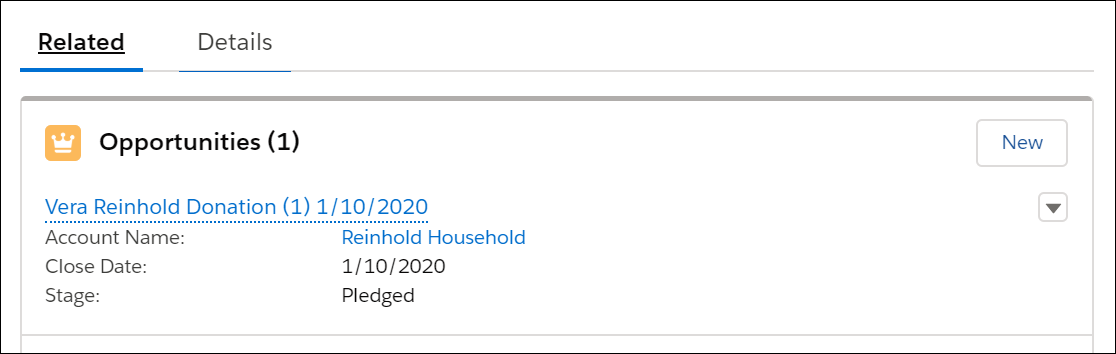
-
Click the Closed stage in the path bar, then click Select Closed Stage.

-
Select Closed Won. Your Closed Won stage might be labeled something else (such as Posted).
-
Click Save.
With this Opportunity closed, Vera's payment is recorded. On the Recurring Donation record, Total Paid Amount and Number of Paid Installments show that the first installment of $50 has been paid.
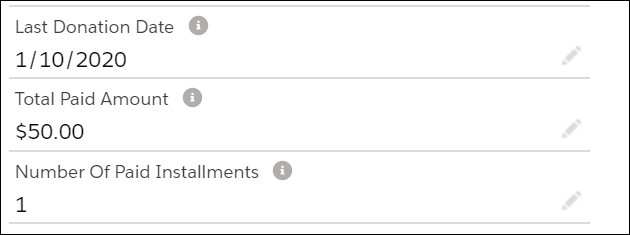
When Vera closes the open Opportunity, NPSP generates the next open Opportunity for 2/10/2020. To the right of the Recurring Donations details, you can see a list of the next twelve installments.
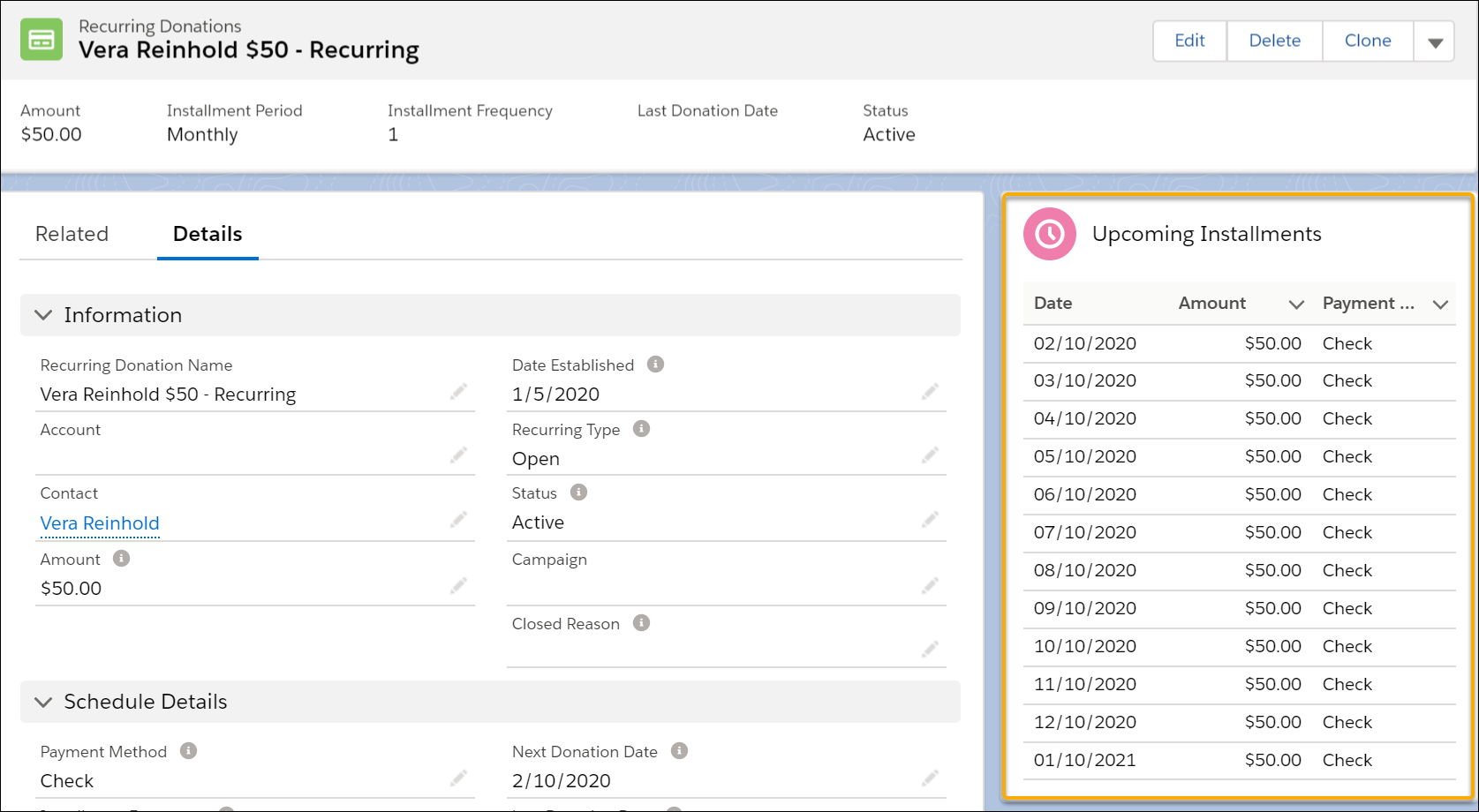
Upcoming Installments is a calculated display of installment Opportunities based on the field data on the Recurring Donation. If you change field data on an installment Opportunity, those changes aren't reflected in the Upcoming Installments visualization.
Close an Installment Opportunity Before or After the Next Donation Date
Sometimes a donor pays their monthly installment early or late. Learn how NPSP handles these scenarios.
Sometimes a donor might pay their monthly installment a little early or a little late. That's perfectly fine, of course, but there are a couple of things to consider:
-
If the Close Date is within three days of the Next Donation Date, NPSP doesn't create an installment for the same month.
-
If those dates are more than three days apart, NPSP generates a new installment for the same month.
This functionality exists to prevent duplicate installments.
Let's look at an example scenario.
-
Your donor's Recurring Donation has a Next Donation Date of 4/15/2020, but they send their payment on 4/12/2020.
-
When you update the installment Opportunity's Stage to Closed Won, the Close Date updates to 4/12/2020.
-
In this case, NPSP doesn't generate the next installment for 4/15/2020 because 4/12/2020 falls within three days of the Next Donation Date. Instead, the next installment is generated for 5/15/2020.
Here's another example.
-
Your donor's Recurring Donation has a Next Donation Date of 6/15/2020, but they send their payment on 6/1/2020.
-
When you update the installment Opportunity's Stage to Closed Won, the Close Date updates to 6/1/2020.
-
In this case, NPSP generates the next installment for 6/15/2020 because 6/1/2020 is more than three days from the Next Donation Date. This produces two installment Opportunities for the month of June.

