
You are here:
Track Upgrades, Downgrades, and Other Recurring Giving Changes
Track and report on monthly and other recurring giving changes including upgrades, downgrades, payment method updates, schedule changes, and status changes.
- Overview
Recurring giving rarely stays the same. Donors increase or decrease their giving, pause their giving, and change forms of payment. By monitoring those changes over time, you gain valuable insights about your sustaining donors. - Change Log In Action: Upgrade a Recurring Donation
See how the Recurring Donation Change Log works by walking through a typical donation change scenario. - Report on Recurring Donation Change Logs
Viewing all changes to your Recurring Donations together in a report is a powerful way to analyze the performance of your sustainer program.
Overview
Recurring giving rarely stays the same. Donors increase or decrease their giving, pause their giving, and change forms of payment. By monitoring those changes over time, you gain valuable insights about your sustaining donors.
Recurring giving rarely stays the same. Donors increase or decrease their giving, pause their giving, change forms of payment, and other changes. By monitoring those changes over time, you gain valuable insights about your sustaining donors. Standard Salesforce tools only get you part of the way. The Recurring Donation Change Log helps complete the picture.
The Recurring Donation Change Log helps answers questions like:
-
How well are the monthly giving upgrade appeals working
-
Are lapsed donors rejoining
-
How many donors converted from credit cards to ACH direct deposits?
When you update a Recurring Donation, the Recurring Donation Change Log automatically records those changes. View the change details directly on Recurring Donation records and in reports.

Change Log In Action: Upgrade a Recurring Donation
See how the Recurring Donation Change Log works by walking through a typical donation change scenario.
Upgrading the amount of a monthly donation is a great way to illustrate how the Recurring Donation Change Log works. Let's walk through an example scenario.
Andrea Millman has been a monthly donor for almost a year now. As part of your organization's fundraising strategy, you send out an upgrade appeal around a recurring donor's one-year anniversary.
Your organization uses Campaigns in Salesforce to track fundraising appeals. Andrea originally became a monthly donor during your New Member Acquisition 2020 Campaign. Now your organization has sent out an upgrade appeal through the Monthly Donor Upgrade 2021 Campaign.
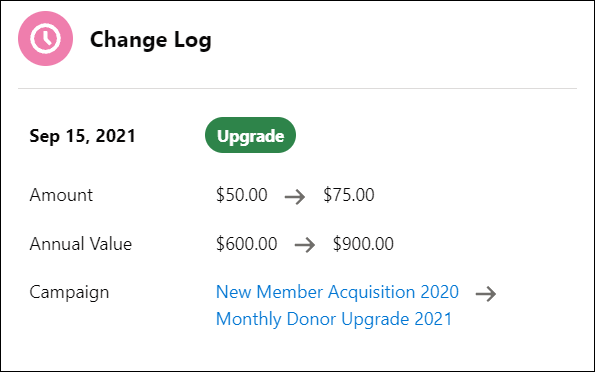
In response to your solicitation, Andrea upgrades her donation from $50 per month to $75 per month.
To enter the upgrade:
-
Locate the Recurring Donation to upgrade.
-
Edit and change the Amount as requested by the donor. In our example, enter $75. Notice that Change Type automatically updates to Upgrade.
-
Update the Campaign. In our example, use the Monthly Donor Upgrade 2021 Campaign.
-
Save the Recurring Donation.
Find the Change Log component on the Recurring Donation page layout and notice the changes tracked there.
Andrea continues to increase her giving for the following year, but then asks to pause her giving for a few months before resuming again. Once she resumes, she changes her payment method from Credit Card to ACH.
The Change Log component only shows the most recent changes. To see the entire timeline of changes to a Recurring Donation, click View All in the Change Log component.
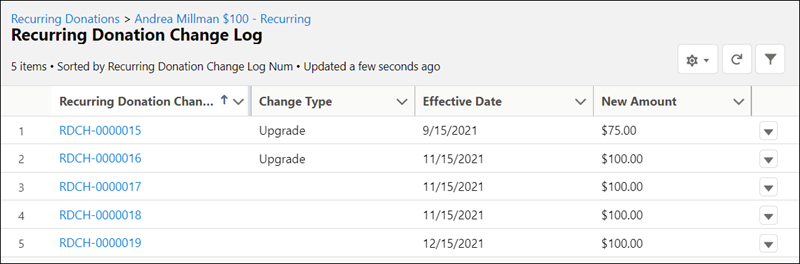
The Recurring Donation Change Log automatically assigns a Change Type of Upgrade or Downgrade, when the Amount or Annual Value changes. NPSP also creates a Change Log when the Status, Campaign, or Payment Method change, but doesn’t assign a Change Type. Talk to your administrator about configuring additional Change Types for these scenarios.
Report on Recurring Donation Change Logs
Viewing all changes to your Recurring Donations together in a report is a powerful way to analyze the performance of your sustainer program.
To create a Recurring Donation Change Log report:
-
Go to Reports.
-
Create a new report with the Recurring Donations with Recurring Donation Change Logs report type.
-
Adjust the Show me filter as needed and add or remove columns to suit your needs. These columns are a good start:
-
Recurring Donation Name
-
Previous Amount
-
New Amount
-
Change Type (from Recurring Donation Change Log: Info)
-
Status (from Recurring Donation: Info)
-
Previous Status
-
New Status
-
Effective Date (from Recurring Donation Change Log: Info)
-
Recurring Donation Change Log Num. Set this column to Sort Ascending.
-
-
Save and run the report.
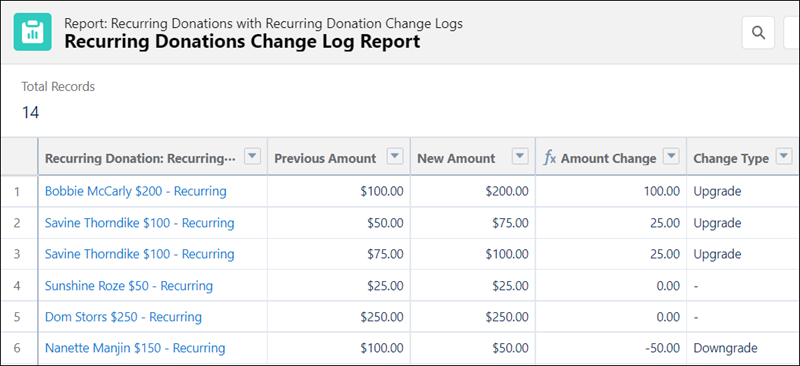
Our example includes a formula that shows the Amount Change for each Recurring Donation Change Log. Add a row-level formula field to calculate the amount change. Learn how to use formulas in reports, in Write a Row-Level Formula.
