You are here:
Which Version of Recurring Donations Am I Using?
A Salesforce system administrator can determine the version of recurring donations installed in your org.
To determine which version of Recurring Donations is active in your org, a system administrator should:
-
Click the NPSP Settings tab. If you don't see the tab, find it in the App Launcher (
 ).
). -
Click .
-
Click Upgrade to Enhanced Recurring Donations.
-
If you DO NOT see Upgrade to Enhanced Recurring Donations, then your org is already using Enhanced Recurring Donations. No further action is needed.
-
If you DO see Upgrade to Enhanced Recurring Donations, evaluate the status of your org.
 Note If you see a blank page after clicking Upgrade to Enhanced Recurring Donations, you're missing the required permissions for that page. Assign the apex classes listed in Configure Recurring Donations to your profile.
-
Evaluate the Status of Your Org
-
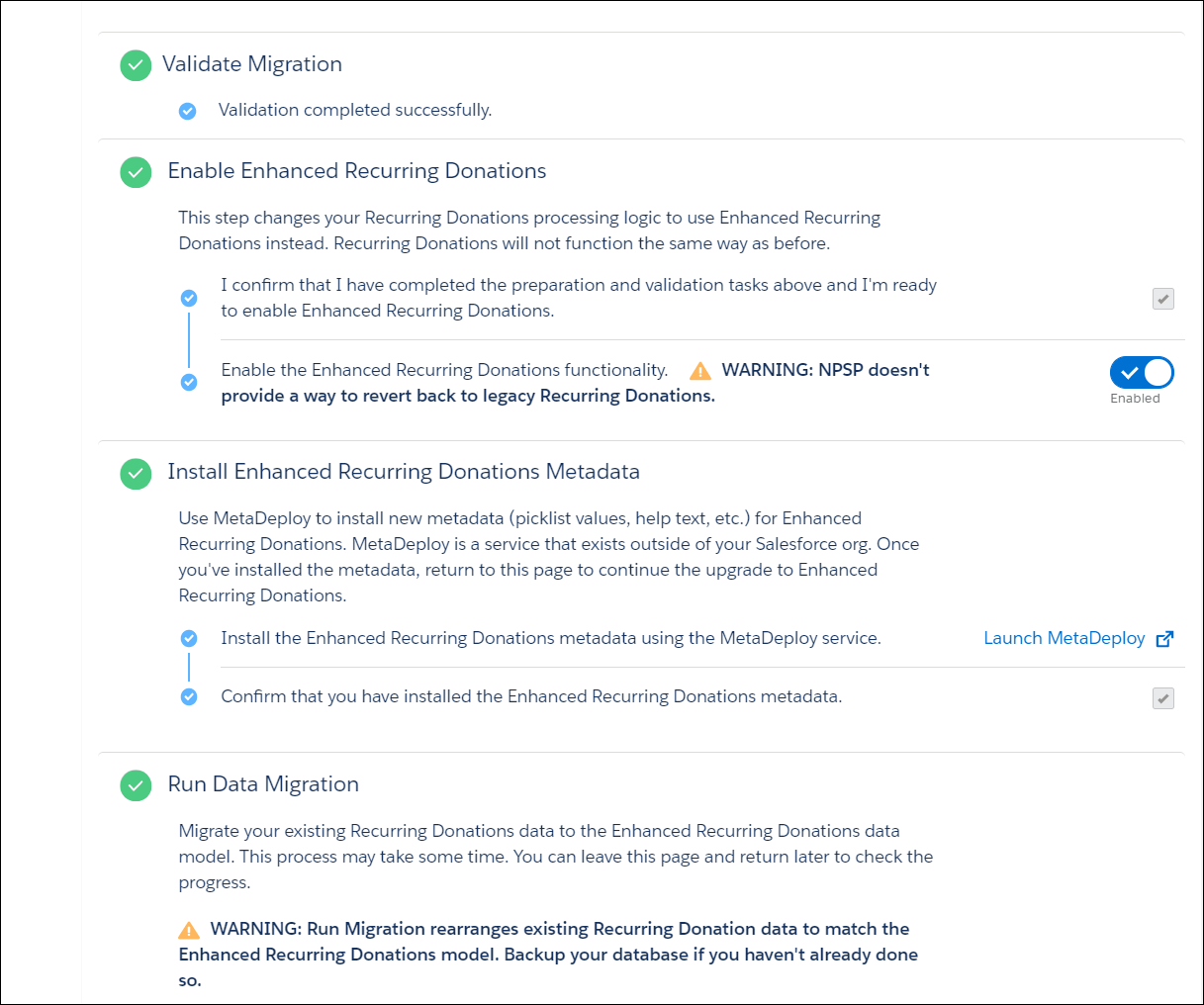
If all upgrade steps show a green checkmark, your org is using Enhanced Recurring Donations and the upgrade process is complete. No further action is needed.
-
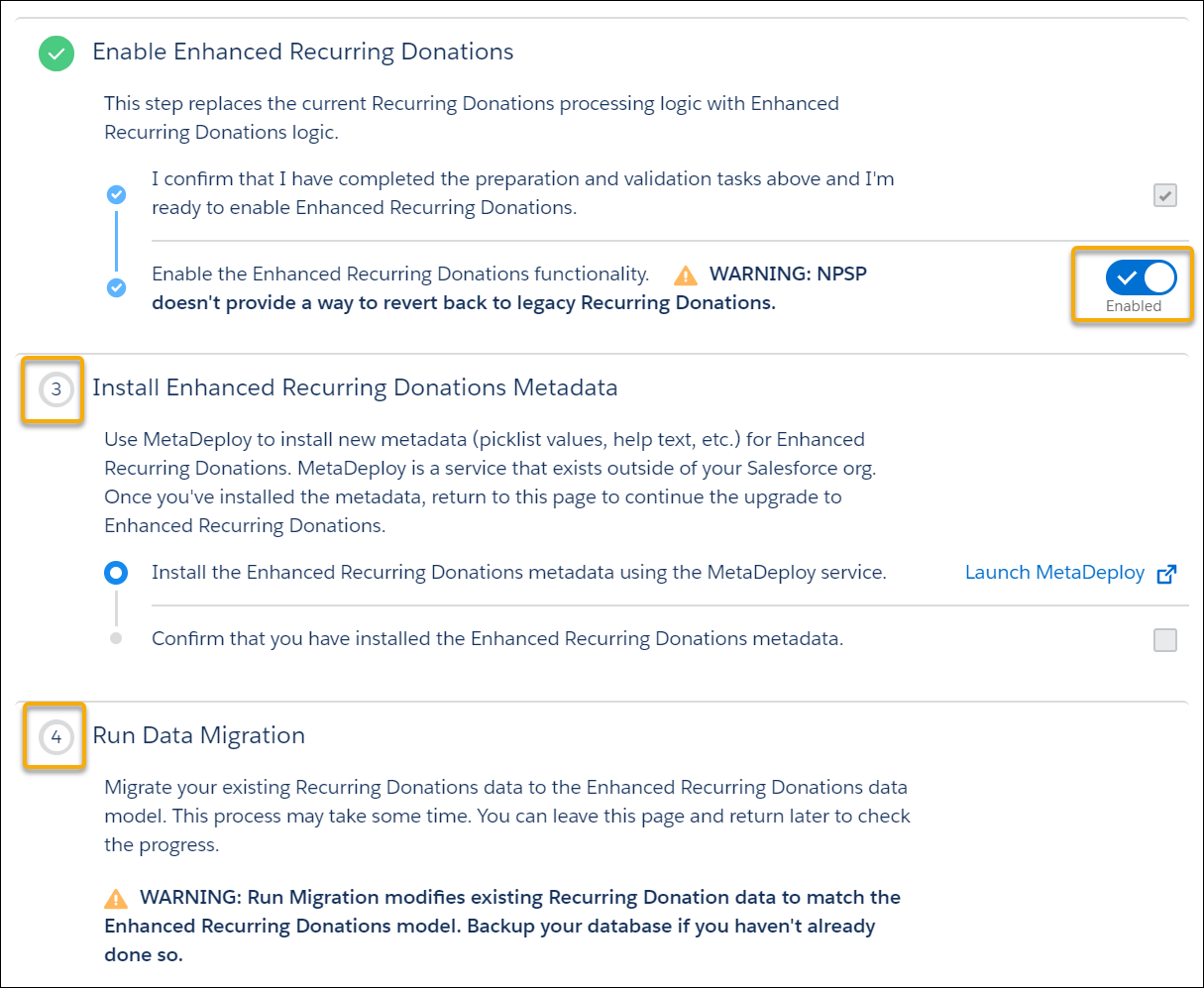
If step 2 is checked, but subsequent steps aren't checked, your org is using Enhanced Recurring Donations, but your data might still be in the Legacy Recurring Donations format. This is highly problematic! Complete the upgrade process as soon as you can.
-
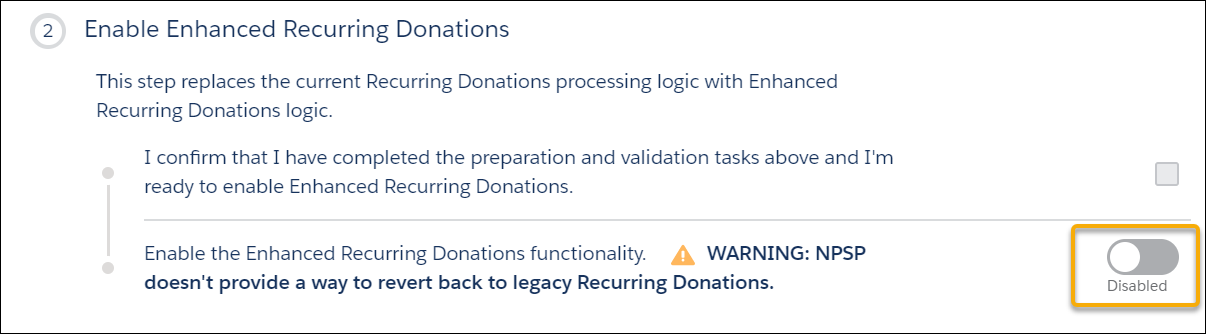
If step 2 is set to Disabled, you're using Legacy Recurring Donations. If you're ready to upgrade, follow the instructions in the Enhanced Recurring Donations Upgrade Guide.