You are here:
Create Quick Actions
Create quick actions to give your nonprofit users convenient access to important information.
- Create a Quick Action
An object-specific Quick Action performs a specific action in Salesforce, such as creating or updating a record. Quick Actions can help streamline your users’ experience. For example, if you know a Funding Request needs to be created when a new Contact is added, you can add an action to the Contact record that allows your staff members to do exactly that without extra navigation. - Add the Action to Page Layout
Add the quick action to a Lightning page to make it available to your nonprofit users.
Create a Quick Action
An object-specific Quick Action performs a specific action in Salesforce, such as creating or updating a record. Quick Actions can help streamline your users’ experience. For example, if you know a Funding Request needs to be created when a new Contact is added, you can add an action to the Contact record that allows your staff members to do exactly that without extra navigation.
-
Click
 , then click Setup.
 -
Click Object Manager.
-
Select the object to create an action for. For this example, click Contact.
-
Click Buttons, Links, and Actions.
-
Click New Action.
-
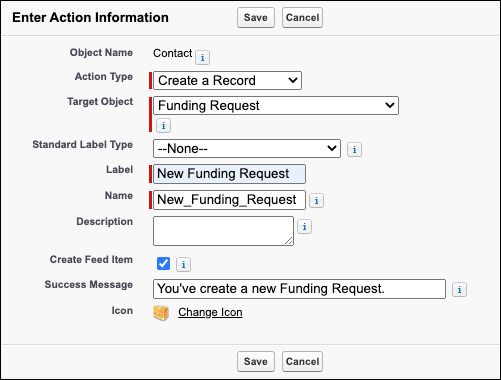
Select an Action Type. For example, Create a Record.
-
Select a Target Object this action will create. For example, Funding Request.
-
Optionally, select a Standard Label Type.
-
Enter a Label. This will appear in the form of a button on the object page. For example, enter New Funding Request.
-
Press tab to autofill Name.
-
Optionally, enter a Description.
-
Optionally, select Create Feed Item.
-
Optionally, enter a Success Message.
-
Click Save.
Add the Action to Page Layout
Add the quick action to a Lightning page to make it available to your nonprofit users.
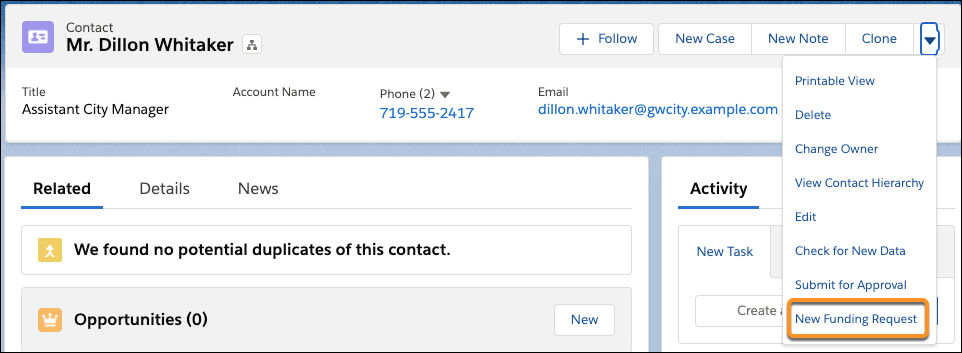
To see the new Quick Action, navigate to a Contact record and click the Action dropdown.
-
Click
, then click Setup. -
Click Object Manager.
-
Select the object name you created an action for. For this example, click Contact.
-
Click Page Layouts.
-
Click the Page Layout Name to add the new quick action button to. For example, click Contact Layout.
-
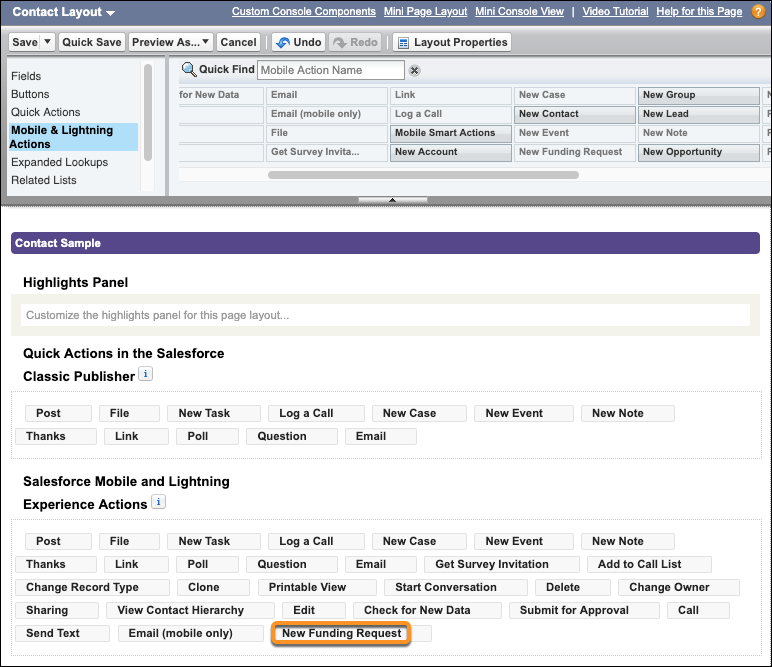
Select Mobile & Lightning Actions.
-
In this example, click override the predefined actions to customize the Contact layout.
-
Drag the new quick action into the Salesforce Mobile and Lightning Experience Actions section.
-
Click Save.