
You are here:
Create Validation Rules
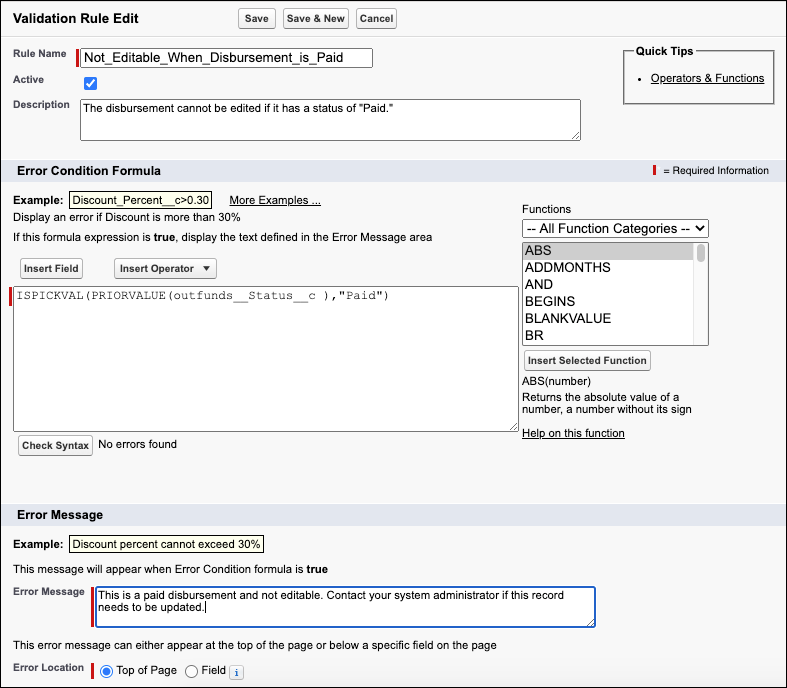
Validation rules verify that data entered by a user meets the criteria you specify before the record can be saved. It can also prevent users from editing records that meet certain criteria, such as when a Disbursement is considered Paid.
-
Click
 , then click Setup.
 -
Click Object Manager.
-
Select the object name to create a validation rule for. For example, Disbursement.
-
Click Validation Rules.
-
Click New.
-
Enter a Rule Name.
-
Select Active to activate the rule.
-
Enter a Description.
-
Enter an Error Condition Formula that will trigger an error message if the formula is true. For example, ISPICKVAL(PRIORVALUE(outfunds__Status__c,“Paid”) displays an error if a disbursement is Paid and a user tries to edit the record.
-
Click Check Syntax.
-
Enter an Error Message.
-
Select the Error Location.
-
Click Save.
