
You are here:
Use Program Management Module with Student Success Hub
Complement one-on-one student support with managed intervention, tutoring, and other types of group programs in Student Success Hub.
- Understand How Program Management Module Enhances Student Success Hub
Student Success Hub provides many ways for educators and staff to support students. Success Plans, Tasks, and Alerts, for example, allow you to provide individualized support that gives each student the personalized attention they need to succeed in school. - Example Programs and Services for Student Success Hub
Program Management Module (PMM) uses the standard Salesforce Account and Contact objects as well several of its own custom objects. Understand the objects and terminology that the package uses so that you can put PMM to work effectively in an educational setting. - A Note About "Programs"
As a Student Success Hub administrator, you probably got a little nervous when you read that PMM uses a custom object called Programs and another called Program Engagements. - Install PMM for Student Success Hub
The free, open-source PMM managed package includes essential metadata and code, such as objects, fields, page layouts, list views, and reports. It also includes an unmanaged Program Management Standard User profile that you can assign to support staff who need access to PMM page layouts and data. - Configure PMM Security for Your Support Staff
Grant your support staff access to PMM using the unpackaged user profile and permission sets that PMM installs. - Configure PMM Picklists for Student Success Hub
Before you create any Programs or Services, be sure to configure these picklists on the required objects. - Add Programs and Services to Student Record Cases
By default, PMM shows Program Engagements and Service Deliveries information in related lists on the Contact record, which you can see in both the Student Success Hub and PMM apps
Understand How Program Management Module Enhances Student Success Hub
Student Success Hub provides many ways for educators and staff to support students. Success Plans, Tasks, and Alerts, for example, allow you to provide individualized support that gives each student the personalized attention they need to succeed in school.
To help you manage programs for groups of students—for example, after-school enrichment activities, tutoring support programs, intervention programs, meal delivery, and winter coat distribution—add Salesforce.org Program Management Module to your Student Success Hub org.
Program Management Module (PMM) provides a simple but powerfully flexible data model for managing and delivering programs and services to many constituents. Although it's typically used with Salesforce.org Nonprofit Success Pack, PMM can also be used to deliver programs and services in education. By installing the PMM package into your Student Success Hub org, you can:
-
Create programs for group interventions and services you want to offer at your school, district, college, or university.
-
Track the students who enroll or participate in the programs and services.
-
See lists of participants or recipients grouped by criteria, such as students who get reading assistance, grouped by grade level.
-
View reports to see trends in program utilization and performance.
Example Programs and Services for Student Success Hub
Program Management Module (PMM) uses the standard Salesforce Account and Contact objects as well several of its own custom objects. Understand the objects and terminology that the package uses so that you can put PMM to work effectively in an educational setting.
Programs are thematic areas that reflect an organization's mission. Services are the activities that make up a program. Related objects for Programs and Services include Program Engagement, Program Cohort, Service Delivery, Service Schedule, Service Participant, and Service Session.
For definitions of these objects, see Manage Your Programs with Program Management Module (PMM). To understand their relationships, see PMM Entity Relationship Diagram.
Here are some examples of how to use the objects together to create programs and services in K-12 schools.
Example: Trauma Counseling
Your high school offers small-group trauma counseling for students who receive referrals from a therapist.
-
Program: Trauma Counseling
-
Program Cohort: Students who have a referral from a therapist during the 2021-2022 school year
-
Program Engagement: Ninth-grader Mimi, whose father died recently, is enrolled in the program
-
Service: Weekly Trauma Counseling, measured by hours attended
-
Service Schedule: Tuesdays from 4 PM to 5 PM
-
Service Participant: Mimi is signed up
-
Service Session: Tuesday, April 6, is one session of weekly trauma counseling
-
Service Delivery: Mimi attended one hour of trauma counseling on April 6
-
-
-
-
Example: Summer Meal Delivery
Your district provides free meals to students during the summer. Once a week, volunteers pick up meals from a distribution center and deliver them to students who are signed up.
-
Program: Summer Meal Program
-
Program Cohort: The program is open to students in the district who are 18 and younger for summer 2021
-
Program Engagement: Ezmae and her twin brother Izaak, third-graders in your school, are both enrolled in the program
-
Service: Weekly Meal Delivery
-
Service Schedule: A week's worth of meals is delivered every Thursday
-
Service Participant: Ezmae and Izaak each receive a week's worth of meals every Thursday
-
Service Session: Thursday, August 11, is one session of weekly meal delivery
-
Service Delivery: Esmae and Izaac each received a week's worth of meals, including breakfast, lunch, dinner, snacks, and fresh fruits and vegetables, on August 11
-
-
-
-
Example: After-School Test Prep
Your district offers after-school study prep for juniors and seniors who plan to take the SAT or ACT standardized test. Test prep is open to students in multiple high schools, and is offered in multiple sessions during the school year. Your district offers separate study prep for each test.
-
Program: Standardized Test Preparation
-
Program Cohort: Students are grouped by grade level and by the high school that they attend
-
Program Engagement: Elijah is enrolled in the program
-
Service: This program has two Services: SAT Prep and ACT Prep. The Unit of Measurement used to track both Services is hours.
-
Service Schedule: SAT Prep is offered on Tuesdays and Thursdays from 3 PM to 5 PM during spring semester. ACT Prep is offered at the same time on Mondays and Wednesdays.
-
Service Participant: Elijah is a participant in the ACT Test Prep Service
-
Service Session: Monday, March 15, is one session of the ACT Test Prep Service
-
Service Delivery: Elijah attended two hours of ACT Test Prep on March 15
-
-
-
-
A Note About "Programs"
As a Student Success Hub administrator, you probably got a little nervous when you read that PMM uses a custom object called Programs and another called Program Engagements.
As you know, K-12 Architecture Kit and EDA include the Program Plan and Program Enrollment custom objects. They also include an Account record type called Academic Program.
Understanding what "program" means in each of these contexts can help you keep them straight.
In PMM, Programs comprise services (activities) that have the same theme and that benefit a constituency. Program Engagements represent the people (or things) that benefit from the Program.
A PMM Program may be educational or academic in nature—for example, after-school tutoring or test prep—but it doesn't have to be. And when a PMM Program pertains to a student's academic success, it doesn't represent a school's core academic offerings.
In K-12 Architecture Kit and EDA, the Account record type Academic Program, the Program Plan object, and the Plan Requirement object collectively model a school's academic offerings. Use them to track how your school's learning offerings are structured and administered, and what they require for enrollment and completion.
If desired, you can use "programs" liberally in K-12 Architecture Kit or EDA to also model programs such as after-school tutoring or summer meal delivery. Using PMM, however, provides the benefit of a holistic set of objects, fields, and reporting capabilities that are dedicated to program management. As a result, PMM gives you much more control, and flexibility, in creating and managing programs that extend beyond the scope of core academic offerings.
Install PMM for Student Success Hub
The free, open-source PMM managed package includes essential metadata and code, such as objects, fields, page layouts, list views, and reports. It also includes an unmanaged Program Management Standard User profile that you can assign to support staff who need access to PMM page layouts and data.
When you install PMM, be sure to:
Install, configure, and test PMM in your Student Success Hub Sandbox environment before installing it into your Production org.
Log out of all Salesforce orgs except the Student Success Hub org to which you want to add PMM. Consider using an incognito window to ensure you install in the correct org.
See Install Program Management Module in the PMM documentation for complete instructions on installing PMM into an existing Salesforce org.
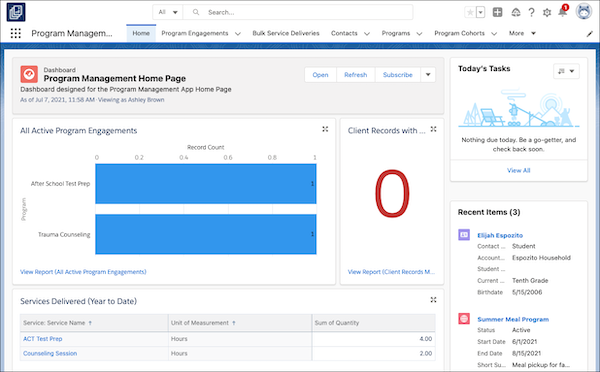
When the installation completes, click  , then search for and select Program Management.
Configure PMM Security for Your Support Staff
Grant your support staff access to PMM using the unpackaged user profile and permission sets that PMM installs.
See Grant Access to Users in PMM documentation.

Then, Create Sharing Rules as necessary for your org and Grant Users Access to Reports and Dashboards.
Configure PMM Picklists for Student Success Hub
Before you create any Programs or Services, be sure to configure these picklists on the required objects.
| Object | Field | Suggested Values |
|---|---|---|
Program |
Program Issue Area |
Advocacy, Counseling, Education, Employment, Food and Nutrition, Housing, Legal |
Status |
Active, Planned, Completed, Canceled |
|
Program Cohort |
Status |
Active, Planned, Completed, Canceled |
Program Engagement |
Role |
Client, Volunteer, Service Provider |
Stage |
Applied, Application Denied, Waitlisted, Enrolled, Active, Completed, Withdrawn |
|
Service |
Status |
Active, Planned, Completed, Canceled |
For instructions, see Customize Picklist Values in the PMM documentation.
Add Programs and Services to Student Record Cases
By default, PMM shows Program Engagements and Service Deliveries information in related lists on the Contact record, which you can see in both the Student Success Hub and PMM apps
To make it even easier for support staff to see a student's participation in PMM Programs and Services, add the Programs and Services related lists to your student record Lightning Case page.
-
From Setup, in Object Manager, click Case.
-
Click Lightning Record Pages, then click the name of the page you're using, such as Student Record.
-
Click Edit.
-
In the Lightning page canvas, select the Tabs component.
-
In the properties pane, click Add Tab.
Lightning App Builder adds a default Details tab to the component. Let's change it to Programs.
-
In the properties pane, click the Details tab label, select Programs, and then click Done.
Now add the Program Engagements related list to the Programs tab.
-
In the Tabs component, select Programs. (It may be nested under More.)
-
From the Components panel, drag Related List - Single to the placeholder area of the Programs tab.
-
In the properties pane for the Related List - Single component:
-
For Parent Record, select Contact Name.
-
For Related List, select Program Engagements.
-
-
Repeat steps 5 through 9 to add Services.
-
In the Tabs properties pane, change the Details tab to Services.
-
In the Related List - Single component properties pane, for Parent Record, select Contact Name. For Related List, select Services.
-
-
If desired, click in the Tabs component again and, in the properties pane, drag the tabs into the order you want them to appear, from left to right.
-
Save your changes and exit the Lightning App Builder.
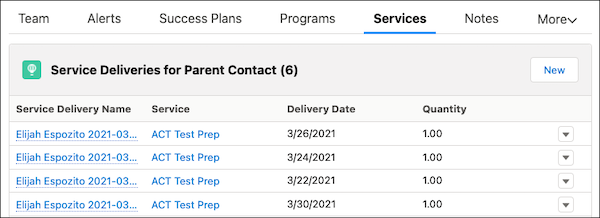
With Programs and Services on your student record Lightning Case page, support staff have a unified, 360-degree view of the support services a student is receiving.
