
You are here:
Set Up Appointment Scheduling for Your Org
Set up your org's appointment scheduling settings so that support staff can individually manage their own availability.
- Set Up Event Record Types
Event record types are used to manage calendar data. Together with the appointment objects, they distinguish between the types of time that support staff members use to organize their days. Student Success Hub provides three Event record types: Support Event, Support Time, and Standard. - Set Up Organization-Level Appointment and Availability Settings
SSH Hierarchy Settings in Custom Settings specify a set of record types and Event types required for scheduling appointments and support availability. Update the record type custom settings to match the Event record types that you've created. Also verify the Event Type custom settings that you'll use for tracking availability for support versus time actually spent supporting students in appointments. - Configure the Event Type Picklist
Customize the Type picklist values on the Event object to align with the types of support availability and appointments. You can also use the picklist values to help build reports that show what types of appointments support staff have versus their availability. Student Success Hub provides some Event Type picklist values for you. - Customize Values for the Appointment Type Picklist
Customize the Type picklist values on the Appointment object so that Appointment records are created with the appropriate values for walk-ins and scheduled appointments, and are configured with your desired default value. - Verify Calendar Sharing Settings for Support Staff Scheduling
Student Success Hub allows support staff members to schedule appointments for each other. By default, a support staff User who schedules appointments for another support staff User can access that person's Calendar.
Set Up Event Record Types
Event record types are used to manage calendar data. Together with the appointment objects, they distinguish between the types of time that support staff members use to organize their days. Student Success Hub provides three Event record types: Support Event, Support Time, and Standard.
Event Record Type Label |
What the Event Represents for Support Staff |
|---|---|
Support Event |
"I'm booked with a student at this time." An appointment that has been scheduled for one student or a group, or a walk-in appointment. Student Success Hub uses this record type along with the Appointment object to track appointment Events. |
Support Time |
"I'm available for appointments at this time." A block of time that a support staff member has designated as available for meeting with students. Support staff can define three types of availability: for scheduled appointments with one or more students, for walk-in appointments, or for group appointments reserved by students in the portal. Support staff can configure availability as a one-off Event or a recurring series of Events. If support staff members haven't designated any Support Time Events, students can't schedule appointments with them. |
Standard |
"I'm not available to meet with students at this time." Any other type of scheduled Event. Indicates the times when a staff member isn't available for appointments because of other meetings, personal appointments, and so on. If a Standard Event overlaps with any scheduled availability, the Event overrides the availability. Student Success Hub avoids scheduling appointments during non-support Events. |

To edit and review the Event record type values:
- From Setup, in Object Manager, click Event.
- Go to the Record Types page.
- Review the Support Event record type and customize the default name, as needed. Then, edit the Type picklist for the Support Event record type and make sure that Scheduled, Walk-In, and Group are the only Selected Values.
- Review the Support Time record type and customize the default name, as needed. Then, edit the Type picklist for the Support Time record type and make sure that Scheduled, Walk-In, and Group are the only Selected Values.
-
Review the Standard record type and customize the default name. For example, name it Non-Support Event. Then, edit the Type picklist for the Non-Support Event record type. Be sure to only select the non-support values such as Call, Email, Meeting, and Other.
Keep these record type values' API names (record type names) handy because you'll need to update a series of Custom Settings with these values.
Set Up Organization-Level Appointment and Availability Settings
SSH Hierarchy Settings in Custom Settings specify a set of record types and Event types required for scheduling appointments and support availability. Update the record type custom settings to match the Event record types that you've created. Also verify the Event Type custom settings that you'll use for tracking availability for support versus time actually spent supporting students in appointments.
- From Setup, search for and then select Custom Settings.
- Click Manage next to SSH Hierarchy Settings.
- View the Default Organization Level Value settings and click
Edit.
 Note For new installations, your settings are sometimes empty. If you don't see the Edit button, click New to auto-populate most fields with preset values, then click Save. Then click Edit again and proceed with the next steps. For a complete list of the settings, see Student Success Hub Custom Settings Reference.
 -
Specify the custom settings for Event record types. (Refer to the Event record types that you set up earlier.)
- Support Event Record Type
-
Specify the Record Type Name of the record type used for support Events (AdvisingEvent in our example).
- Support Time Event Record Type
- Specify the Record Type Name of the record type used for availability Events (AdvisingTime in our example).
-
Verify and customize, as needed, the custom setting for Event Type that designates walk-in appointments.
Note Student Success Hub saves walk-in appointments as a specific Type of support Event. So, it uses the Type field on the Event object instead of the record type. If you prefer different terminology for walk-ins, such as calling them drop-ins instead, customize the preset value.- Walk-In Appointment Event Type
- Specify the value to display when indicating that a support Event is a walk-in appointment. Default value: Walk-In Appointment.
-
Verify and customize, as needed, the custom settings for Event Types that designate support availability. These values are displayed to both support staff and students, so make sure you specify values that clearly distinguish between the types and that are universally appropriate.
Tip The app uses these values with the Type picklist values in the Event object throughout the app. For example, the available times in the Appointment Manager and in support staff members' availability recurrence schedules show these availability Event Type values. If your org uses translation, your users see the translated versions of these values. Check that the values that you specify here match the API Names of their corresponding values in the Type picklist in the Event object. Also, be sure that you set up translations for the Type picklist values.- Walk-In Availability Event Type
- Specify the value to display when indicating that an availability Event is for walk-in appointments. Default value: Walk-In.
- Scheduled Availability Event Type
- Specify the value to display when indicating that an availability Event is for appointments scheduled in advance. Default value: Scheduled.
- Group Availability Event Type
-
Specify the value to display when indicating that an availability Event is for group appointments that students can sign up for in the portal. No default value is provided, however, Student Success Hub provides the value Group.
Note For complete instructions on how to get Group availability working in your org, see Set Up Group Availability.
- Save your changes.
Configure the Event Type Picklist
Customize the Type picklist values on the Event object to align with the types of support availability and appointments. You can also use the picklist values to help build reports that show what types of appointments support staff have versus their availability. Student Success Hub provides some Event Type picklist values for you.
Add Picklist Values
- From Setup, search for and then select Custom Settings.
- Next to SSH Hierarchy Settings, click Manage.
-
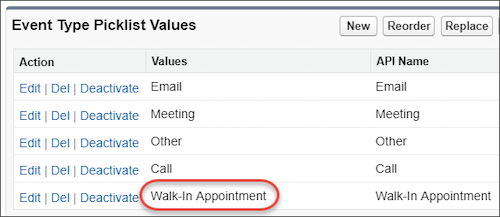
Copy the value in Walk-In Appointment Event Type. In our example, it's Walk-In Appointment.
- From Setup, in Object Manager, click Event.
- On the Fields & Relationships page, click the Type field.
- In the Event Type Picklist Values section, click New.
-
Paste your copied value in the text box, and select the Support Event record type.
- Save your changes.
-
Verify the newly added picklist value.
-
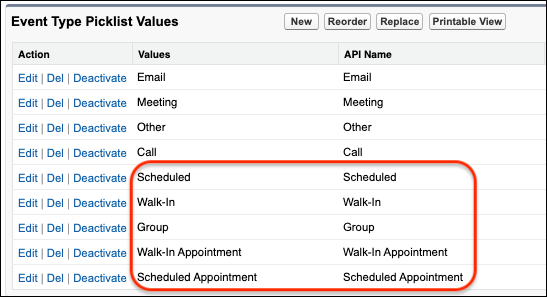
Add these other Event Type picklist values, if they're not already present.
- Walk-In Availability Event Type—Add the value specified in custom settings to the Support Time record type.
- Scheduled Availability Event Type—Add the value specified in custom settings to the Support Time record type.
-
Group Availability Event Type—Add the value specified in custom settings to the Support Time record type.
- Scheduled Appointment—This value isn't
specified elsewhere but we recommend adding it to enhance your
reporting capabilities. Specify a value, such as Scheduled
Appointment, add it to the Support Event record
type, and set it as the default for the Support Event record
type.Note There's no group appointment type. To track time that support staff spends in appointments created from Group availability, build a report that filters on appointments whose Type equals Scheduled and Discoverable equals True. For more information about building reports, see Create Reports with the Report Builder in Trailhead.
-
Verify that the Type picklist now includes all the appropriate values.
Configure Translations for Picklist Values
Installing SSH includes unmanaged metadata that creates additional values for the Type picklist field on the Event object. However, the new picklist values aren't translated.
For detailed instructions about translating these picklist values, see Translate Metadata Labels in Salesforce Help.
Customize Values for the Appointment Type Picklist
Customize the Type picklist values on the Appointment object so that Appointment records are created with the appropriate values for walk-ins and scheduled appointments, and are configured with your desired default value.
Remember, there's no group appointment type. Group appointments scheduled by support staff use the Scheduled availability type, and group appointments reserved by students in the portal use the Group availability type. The difference is that Appointment records created from Group availability set the Discoverable field. So, students can reserve those group appointments in the Scheduling Wizard in the portal.
- From Setup, in Object Manager, click Appointment.
- On the Fields & Relationships page, click Type.
-
Review the values for scheduled and walk-in Appointments, along with the specified default value.
-
Customize these values as needed.
Tip For consistency, we recommend that these values match the Event type values in your custom settings and the Event type picklist. However, it's not required.
Verify Calendar Sharing Settings for Support Staff Scheduling
Student Success Hub allows support staff members to schedule appointments for each other. By default, a support staff User who schedules appointments for another support staff User can access that person's Calendar.
For information about organization-wide default sharing for the Calendar object, see Student Success Hub Sharing Settings.
