
You are here:
Create Your Student Data
Create a Contact and Case record for each student in your Student Success Hub org.
- Create Student Contact Records
Every student requires a Contact record. Learn how to create a small number of Contact records. You can also import Contacts using a data import tool. - Create Student Case Records
Every student requires a Case record of the Student Record record type. Here's how to create a small number of Student Record Case records. You can also import Cases using a data import tool.
Create Student Contact Records
Every student requires a Contact record. Learn how to create a small number of Contact records. You can also import Contacts using a data import tool.
-
In the Student Success Hub app, select Contacts from the app navigation menu.
-
On the Contacts tab, click New.
-
Select the Student record type, click Next, and fill out the details as needed.
 Tip If you'll be configuring a student portal, make sure to fill out one of the Email fields and set that email as the Preferred Email so that the student gets the email invitation to join the portal when you create it later.
 -
Save your changes.
-
On the student's Contact record, create data on these related lists.
-
K-12 orgs
- On Grade Enrollments, create a record that includes the student's Educational Institution, Grade Level, and other details.
- On Course Connections, create records that represent the student's past and present courses.
- On Attributes, create records as necessary for Free Lunch, Reduced Price Lunch, English Learners, and other attribute types that make sense for your student body.
-
Higher ed orgs
- On Affiliated Accounts, create a record to relate the student to a University Department.
- On Program Enrollment, create a record that represents the student's major. Make sure to mark it as Primary so that the student has a Primary Academic Program specified.
- On Program Enrollment, create Course Connection records (with the Student record type) for the student's past and present courses.
-
Create Student Case Records
Every student requires a Case record of the Student Record record type. Here's how to create a small number of Student Record Case records. You can also import Cases using a data import tool.
Every student can have one and only one open Student Record Case. This limit ensures that a single Case record provides a comprehensive view of all the alerts, notes, and support-related data spanning a student's time at your school or institution.
Student Success Hub functionality is built to work with open Student Record Cases. For example, support staff and students will experience errors if they try to schedule appointments with a student whose Case record is closed.
- From the student's Contact record, create a Case record of the Student Record record type.
-
Fill out field details as needed, keeping in mind these considerations.
- Subject
- The Subject is the Case name that support staff see alongside the Case number when viewing a Case record, whether in a list or on a detail page. We recommend using a naming convention that includes the student's full name, followed by "Student Record" (for example, Elijah Espozito Student Record). You can also include other information, such as a student ID number, that support staff routinely search for when looking up students. Consider using workflow rules, triggers, Process Builder, or integration to automate and standardize values in the Subject field for all Student Record Cases.
- Case Owner
- Consider how you want to handle setting ownership, depending on your Case assignment rules setup.
- Case Status
- You'll likely want to set Status using a process specifically for Student Record Cases. Good values for K-12 are Active Enrolled, On Leave, On Hold, Inactive, Graduated, and Withdrawn. Good values for higher ed are Active - Registered, Active - Not Registered, On Leave, and Withdrawn. SIS integration is a good candidate for this data.
- Other Essential Case Fields
- Case Origin, Case Reason, Priority, Status, Type, and similar picklist fields typically need values specifically for Student Record Cases.
- Custom Case Fields
- Think about which fields you'd want to include on any custom list views for support staff with different student segments, or which to populate so they're available for setting visibility, enabling reporting, automation via Process Builder or triggers, etc.
- Save your changes.

The Student Record Case shows under the Cases related list on a student's Contact record page. It also appears on a Student Record Case page in the Related Cases tab under the Cases for Parent Contact list.
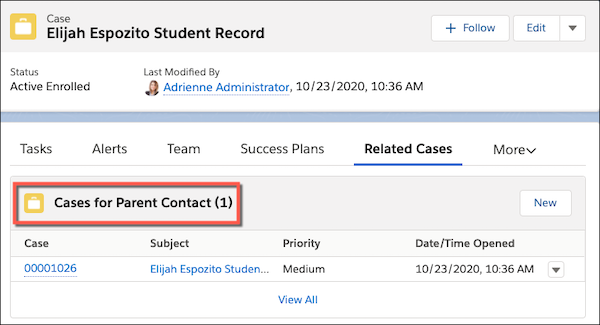
The Parent Contact in this context refers to the parent of the Student Record Case (the student Contact record, in other words). If your support staff aren't familiar with the Salesforce terminology for parent and child records, you may want to clarify this usage of "parent" in Student Success Hub.
