
You are here:
Set Up Success Teams
Complete these tasks to get success teams up and running in your Student Success Hub org.
- Success Teams Release Information
Success teams were released with Student Success Hub 1.0, and have been enhanced in subsequent releases. - Set or Verify Object and Field Permissions for Success Teams
Success teams leverage the Case, Contact, and User objects. For the required permissions, see these articles. - Configure Sharing Settings for Success Teams
Verify your default organization-wide sharing settings for the Case, Contact, and User objects. - Bulk Upload Success Team Data
If you want to transfer success team assignments from an external system or upload large numbers of teams and assignments, you can use the Salesforce Bulk API to define success teams. If you're an advanced administrator, integrator, or developer who is proficient with Salesforce APIs and bulk data uploads, define your success teams in CSV or other formats and then use your data loader tool of choice to quickly create success teams. - Customize or Create Case Team Roles
Every success team member must have a specific role. Roles determine more than just the type of membership—they determine whether the member has read, write, or no access to student data (notwithstanding access that may be allowed by any sharing rules and the member's profile). - Create Predefined Case Teams
If support staff often assign the same set of individuals to a success team, you can create predefined case teams. A predefined case team can be assigned to a success team in a single action, with support roles for each case team member already specified. In orgs with student users and a portal, predefined case teams are also used with unassigned Support Pools. When a predefined case team's membership is updated, the changes are reflected on the success teams and Support Pools that use it, so data stays up-to-date when personnel changes. - Assign Individual Success Team Members
After you've defined case team roles, you and your support staff can assign individual Users and Contacts to student success teams. - Assign Predefined Case Teams to Success Teams
If you've created predefined case teams, you and your support staff can assign a predefined case team as a member of a success team. This assignment associates both the individual case team members as well as the predefined case team with the Student Record Case. When you make the assignment, you don't have to specify roles for the team members because the roles are specified in the predefined case team itself.
Success Teams Release Information
Success teams were released with Student Success Hub 1.0, and have been enhanced in subsequent releases.
To get success teams up and running, complete the tasks in this article. Unless otherwise noted at the beginning of the task, all setup tasks are required regardless of the version of Student Success Hub that you originally installed. If you don't know which version you started with, see Check Your Student Success Hub Version History.
Set or Verify Object and Field Permissions for Success Teams
Success teams leverage the Case, Contact, and User objects. For the required permissions, see these articles.
Configure Sharing Settings for Success Teams
Verify your default organization-wide sharing settings for the Case, Contact, and User objects.
For details, see Configure Sharing Settings.
Bulk Upload Success Team Data
If you want to transfer success team assignments from an external system or upload large numbers of teams and assignments, you can use the Salesforce Bulk API to define success teams. If you're an advanced administrator, integrator, or developer who is proficient with Salesforce APIs and bulk data uploads, define your success teams in CSV or other formats and then use your data loader tool of choice to quickly create success teams.
Here's how Salesforce objects correspond to the entities related to success teams, and how you can create them via API.
- CaseTeamRole—Create case team roles.
- CaseTeamMember—Create a User's or Contact's membership in the success team associated with a specified Case (Student Record). References existing User or Contact records, Case records, and CaseTeamRole records.
- CaseTeamTemplate—Create predefined case teams.
- CaseTeamTemplateMember—Assign a User or Contact to an existing predefined case team, with a specified CaseTeamRole. References existing User or Contact records, CaseTeamTemplate records, and CaseTeamRole records.
- CaseTeamTemplateRecord—Associate a predefined case team with a specified Case. The CaseTeamTemplateMembershipRecord object type references existing CaseTeamTemplate records and Case records.
For reference, here's a diagram of the success team entities.
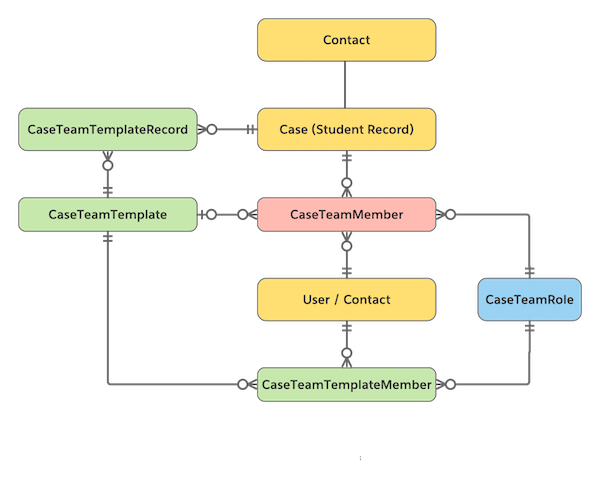
For details on the object fields, relationships, and values, see the Object Reference for Salesforce and Lightning Platform. For details on creating records, see the Bulk API Developer Guide or your data import tool documentation.
Customize or Create Case Team Roles
Every success team member must have a specific role. Roles determine more than just the type of membership—they determine whether the member has read, write, or no access to student data (notwithstanding access that may be allowed by any sharing rules and the member's profile).
In orgs with student users and a portal, case team roles also determine whether the member is visible to students in the portal, and are used to associate support staff members with the appointment Topics they're available to meet about.
In K-12 orgs, Student Success Hub includes four default case team roles: Counselor, Principal, Social Worker, and Teacher. You can use them as is, rename them, clone them, or create additional custom case team roles that make sense for your school.
In higher ed orgs, create case team roles manually. We recommend you create five roles: Academic, Career, Financial Aid, Health, and Housing.
-
From Setup, search for and then select Case Team Roles.
-
(K-12 orgs) Review the default case team roles: Click any Member Role Name or the Edit action for any role to change its name or settings.
-
To create a custom case team role, click New.
-
Enter a Member Role Name, such as Academic or Career, and specify the role's Case Access to the Student Record Case and related data, if any: Private (user can't access the record), Read Only (user can view the record and add associated records to it but can't edit the record or add notes or attachments), or Read/Write (user can view and edit the record and add associated records, notes, and attachments to it).
-
Save the role and create others as needed.
Create Predefined Case Teams
If support staff often assign the same set of individuals to a success team, you can create predefined case teams. A predefined case team can be assigned to a success team in a single action, with support roles for each case team member already specified. In orgs with student users and a portal, predefined case teams are also used with unassigned Support Pools. When a predefined case team's membership is updated, the changes are reflected on the success teams and Support Pools that use it, so data stays up-to-date when personnel changes.
In K-12 orgs, Student Success Hub includes a default predefined case team: Student Success Team. You can add team members to this predefined case team and use it for your school, or create your own custom predefined case team.
In higher ed orgs, create your predefined case teams manually.
-
From Setup, search for and then select Predefined Case Teams.
-
(K-12 orgs) Click the Edit action for the Student Success Team to change its name, description, or members.
-
To create a custom predefined case team, click New.
-
Enter a short Team Name. Each predefined case team name must be unique.
-
Optionally, enter a Description.
Both the Team Name and Description are visible in student portals.
-
Select either Users or Contacts as team members, and assign each person a Member Role.
-
If your org has a student portal, select Visible in Customer Portal to make team members visible to students in the portal.
-
Save your changes.
Assign Individual Success Team Members
After you've defined case team roles, you and your support staff can assign individual Users and Contacts to student success teams.

- In the Student Success Hub app, go to the student's Student Record Case.
- Go to the Team related list, and then click Add Member. You might need to click More first.
- Begin typing the name of the User or Contact to add.
-
Select the User or Contact, then choose the member's Case Team Role.
- Save your changes.
Assign Predefined Case Teams to Success Teams
If you've created predefined case teams, you and your support staff can assign a predefined case team as a member of a success team. This assignment associates both the individual case team members as well as the predefined case team with the Student Record Case. When you make the assignment, you don't have to specify roles for the team members because the roles are specified in the predefined case team itself.
- In the Student Success Hub app, go to the student's Student Record Case.
- Go to the Team related list, and then click Add Member.
- Begin typing the name of the predefined case team to add.
-
Select the predefined case team.
- Save your changes.

