
You are here:
Create and Manage Alerts (Support Staff)
Use Alerts to take action when you have concerns about a student who needs support. Monitor Alerts at a glance and respond to Alerts that others create.
- Access Alert Records
Access Alerts from an Alerts list view or from the student record. - Create an Alert
Create an Alert to track a concern about a student. - Manage Alert Notifications
To help you stay on top of Alerts, your Student Success Hub administrator might have enabled automatic feed updates when Alerts are assigned. When automatic feed updates are enabled, Student Success Hub posts to an Alert's Chatter feed when the Alert is assigned to someone other than the User updating the Alert—either manually or because of Alert assignment rules.
Access Alert Records
Access Alerts from an Alerts list view or from the student record.
- Click the app navigation menu arrow and select Alerts. Then select a list view to see the Alerts you have access to and some details about each one. Click the Alert number to open the Alert.
- On any student record Case, click the Alerts tab to see related lists of Unresolved Alerts and Resolved Alerts related to the student. Click the action menu for any Alert and select View to open the Alert.
Create an Alert
Create an Alert to track a concern about a student.
- On the Alerts list view page or on the Alerts tab of a student record Case, click New.
- Select an Alert record type and then click Next.
-
Complete these fields.
 Note Depending on how your org is configured, not all of these fields are available. Also, if your Student Success Hub administrator has enabled fields for relating the Alert to other objects, you might see those fields. However, no matter how many objects are listed, you can only relate an Alert to one object at a time.
- Student Contact
- Required. Confirm or select the Contact record for the student.
- Program Enrollment
- Specify a Program Enrollment only if you want to relate the Alert to the student's program of study. If you specify a Program Enrollment, you can't specify any other related object.
- Course Connection
-
Specify a Course Connection only if you want to relate the Alert to one of the student's courses. If you specify a Course Connection, you can't specify any other related object.
- Is Closed
- Leave this field as is. It's typically updated automatically based on the Status field.
- Status
- Required.
- Priority
- Indicating priority can help you triage and sort Alerts by urgency.
- Comments
- Depending on how your Student Success Hub administrator has configured visibility, your comments may be visible to other users.
- Assign Using Active Assignment Rules
- If you're not sure whether to select this field, ask your Student Success Hub admin.
- Case
- Specify a Case only if you want to relate the Alert to a Case other than the student record Case, such as a facilities or IT help desk ticket.
- Reason
- These choices depend on the record type you selected.
- Student Record
- As long as you specify a Student Contact, specifying the Student Record isn't required. Student Success Hub automatically relates the Alert to the student record Case when you save the Alert.
-
Save the Alert.
As the Alert creator, you can edit the Alert, change its status, change its owner, and delete it. Even if the Alert is assigned to a different owner, you as the creator retain access to this record. Other users who have access to the student record Case or the student Contact record may not have access to the related Alerts.
Manage Alert Notifications
To help you stay on top of Alerts, your Student Success Hub administrator might have enabled automatic feed updates when Alerts are assigned. When automatic feed updates are enabled, Student Success Hub posts to an Alert's Chatter feed when the Alert is assigned to someone other than the User updating the Alert—either manually or because of Alert assignment rules.
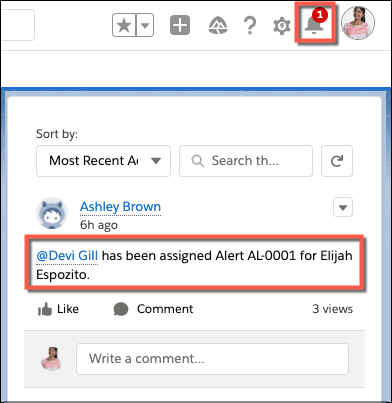
- The Alert assignment prompts a notification so that the assignee sees a notification badge when they log in to Student Success Hub.
- The Chatter post includes an @mention of the assignee, which could prompt an email notification if the assignee has chosen to receive Chatter emails. This email notification is separate from the email notification option given that you can optionally select when changing the owner of an Alert. There might be a slight delay from when the assignment takes effect and when email notifications are sent.
- Student Success Hub doesn't create the post or notification if an Alert is self-assigned.
