
You are here:
Configure Email Notifications and Email Templates
Automatically send reminder, notification, and thank you emails to volunteers, using email templates together with workflow rules, which define rules like "send a reminder email to everyone signed up for a shift four days before the shift."

- Review the Out-of-the-Box Email Templates
Decide which email templates to keep active and which ones to turn off. You can customize any out-of-the-box template or create your own. - Configure Email Templates for Brand Consistency
Configure email templates so that they deliver a consistent, professional look and feel to your volunteers' inboxes. Check things like subject lines, letterhead, merge fields, and overall formatting. Each template comes in both an HTML format and a plain text format; remember to edit both versions. - Clone and Configure the Reminder Email Workflow Rule
Having Volunteers for Salesforce automatically email volunteers about upcoming shifts is a huge time-saving feature. A workflow rule controls how far in advance to send reminder emails. Clone the sample workflow rule provided in Volunteers for Salesforce and either use it as is or adjust the lead time as needed. - Clone and Configure the Volunteer Job Signup Workflow Rule
The Volunteer Job Signup Workflow Rule automatically sends an email to a person when they sign up for a job or shift using your website. - Create an Organization-Wide From Address
Control how Volunteers for Salesforce displays the "from" name and email address of the sender of automated volunteer emails. Your organization may want to show a generic name, such as Volunteer Coordinator, or you may want to include your coordinator's real name and job title. The email address can be for a specific person or for an inbox that multiple staff monitor and respond to. - Deactivate Website-Specific Workflow Rules
If you don't intend to integrate Volunteers for Salesforce with your website, deactivate the Volunteer Job Signup, Volunteer Signup - Contact, and Volunteer Signup - Lead workflow rules.
Review the Out-of-the-Box Email Templates
Decide which email templates to keep active and which ones to turn off. You can customize any out-of-the-box template or create your own.
From Setup, enter Email Templates in the Quick Find box, select Email Templates, then look in the Volunteers Email Templates folder.
| Template | Description | Used for Website Integration |
|---|---|---|
| Volunteer Hours Reminder Email | Used with the time-based workflow rule, reminds all volunteers about their upcoming shift. Compared with Volunteer Shift Reminder, this is a more versatile template that can include Volunteer Hours, Job, and Contact information. | |
| Volunteer Job Reminder | Reminds all volunteers about their upcoming job (for jobs without shifts). | |
| Volunteer Job Reminder (using letterhead) | Using the letterhead format, reminds all volunteers about their upcoming job (for jobs without shifts). | |
| Volunteer Job Signup Notification | Notifies the volunteer coordinator about a new volunteer signup for a specific job or shift on a Sites page. |

|
| Volunteer Job Signup Thank You | Thanks an individual volunteer who has signed up for a specific job or shift on a Sites page. |
|
| Volunteer Shift Reminder | Used with the time-based workflow rule, reminds all volunteers about their upcoming shift. Compared with Volunteer Hours Reminder Email, this is a more limited template that can include Shift information only. | |
| Volunteer Shift Reminder (using letterhead) | Using the letterhead format, reminds all volunteers about their upcoming shift. | |
| Volunteer Signup Notification | Notifies the volunteer coordinator about a new volunteer signup on the general Volunteer Signup Sites page. |
|
| Volunteer Signup Thank You | Acknowledges the volunteer for signing up on the general Volunteer Signup Sites page. |
|
| Volunteers Personal Site Contact Lookup | Provides the URL for accessing a volunteer's Personal Site page. |
|
Configure Email Templates for Brand Consistency
Configure email templates so that they deliver a consistent, professional look and feel to your volunteers' inboxes. Check things like subject lines, letterhead, merge fields, and overall formatting. Each template comes in both an HTML format and a plain text format; remember to edit both versions.
For more information about editing the letterheads for your HTML email templates, see Using Letterheads in the Salesforce Help.
- From Setup, enter Email Templates in the Quick Find box, then select Email Templates.
- Select the Volunteers Email Templates folder.
-
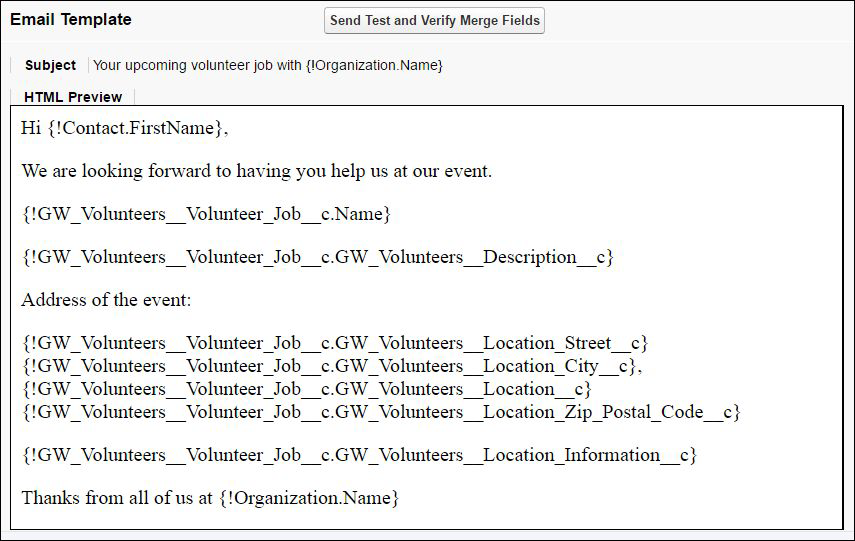
Click the name of an email template to preview the email contents.
For example, here's an HTML preview of the Volunteer Job Reminder email.
- Click either Edit HTML Version or Edit Text Version. Be sure to make your edits to both the HTML and text versions.
- Remember to Save your changes.
If you change a template or create a new one, remember to refresh the Mass Email Volunteers page (available from the Volunteer Job page) so that it shows the latest templates.
Clone and Configure the Reminder Email Workflow Rule
Having Volunteers for Salesforce automatically email volunteers about upcoming shifts is a huge time-saving feature. A workflow rule controls how far in advance to send reminder emails. Clone the sample workflow rule provided in Volunteers for Salesforce and either use it as is or adjust the lead time as needed.
- From Setup, enter Workflow Rules in the Quick Find box, then select Workflow Rules.
- Click Volunteers Hours Reminder Email.
- Click Clone. You're making a copy of this sample workflow rule because you can't directly edit this part of the V4S package. The existing rule should be (and should remain) inactive.
- Edit the Rule Name to give it a unique name. For example, My Volunteering Reminder Email.
- Edit the Description to delete the placeholder text, Template to Clone.
- Click Save & Next.
-
In the Time-Dependent Workflow Actions section, click Add Time
Trigger.

- Decide how far in advance of the volunteer shift you want the reminder email sent, in days or hours. For example, 3 Days. Enter those values and select Volunteer Hours: Planned Start Date & Time.
- Save your changes.
-
Back in the Time-Dependent Workflow Actions section, click Add
Workflow Action, then click Select Existing
Action.
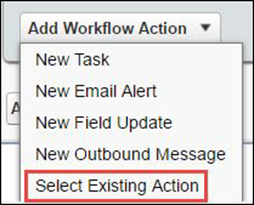
- For Choose Action Type, select Email Alert.
- Add Email Alert: Volunteer Shift Reminder Email Alert to Selected Actions.
- Save your changes.
- Click Done.
- Back on your workflow rule's detail page, click Activate.
- If you get a message that the Default Workflow User must be set first:
-
Back on your workflow rule's detail page, verify that it's now Active.

Clone and Configure the Volunteer Job Signup Workflow Rule
The Volunteer Job Signup Workflow Rule automatically sends an email to a person when they sign up for a job or shift using your website.
This workflow rule triggers V4S to send the email only when the Volunteer Status is set to Web Signup—the default status assigned to Contacts who sign up through the website. But, what if you want to use a different status? Or more than one status? You can easily change what triggers this email by cloning the workflow rule and changing the rule criteria.
- From Setup, enter Workflow Rules in the Quick Find box, then select Workflow Rules.
- Click Volunteer Job Signup.
- Click Clone.
You’re making a copy of this sample workflow rule because you can’t directly edit this part of the V4S package.
- Edit the Rule Name to give it a unique name. For example, My Volunteer Job Signup Thank You Email.
- Edit the Description to make it unique to this workflow rule.
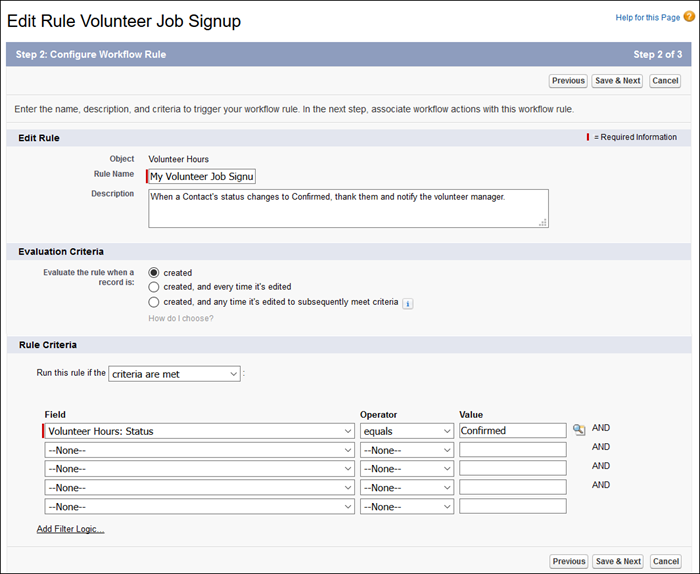
- In the Rule Criteria section, change the criteria to include the Status (or Statuses) you want to trigger the Thank You sign up email.
For example, if you want the email to be sent any time a Contact’s Volunteer Status changes to Confirmed, you would enter Volunteer Hours: Status equals Confirmed.
- Click Save & Next.
Now you’ll create the email alerts.
- From the Add Workflow Action drop-down, select New Email Alert.
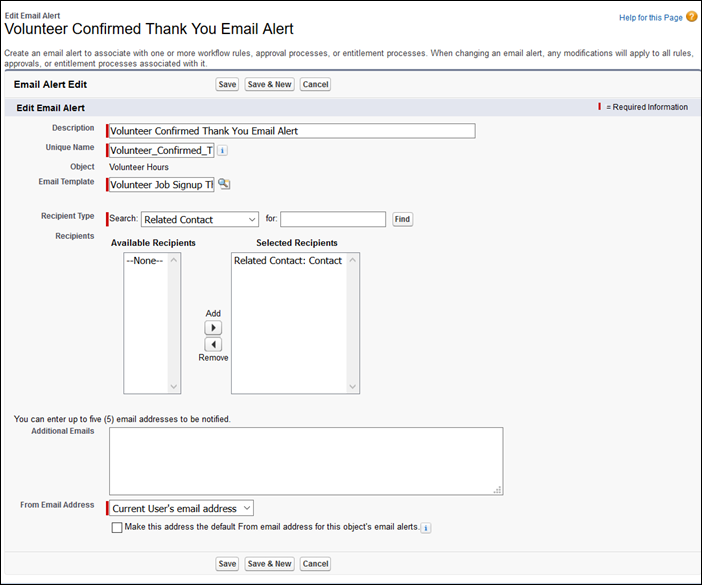
- Enter a unique description for the template. For our example, we might enter Volunteer Confirmed Thank You Email Alert.
The Unique Name field will automatically populate based on the description you enter.
- Select the Volunteer Job Signup Thank You template or a custom one you created.
- From the Recipient Type drop-down, select Related Contact, then move Related Contact: Contact from the Available list to the Selected Recipients list.
- Click Save & New.
-
If you also want to send an email notification to the person responsible for managing volunteers in your org, set up another email alert as follows.
- Enter a unique description, such as Volunteer Confirmed Notification Email Alert.
- Select the Volunteer Job Signup Notification email template or a custom one that you created.
- Select a recipient. To use the same functionality as the original workflow that you cloned, select Owner as the Recipient Type, then move Contact Owner from the Available list to the Selected Recipients list.
- Click Save, then click Done.
- Back on the Workflow Rule Detail, click Activate.
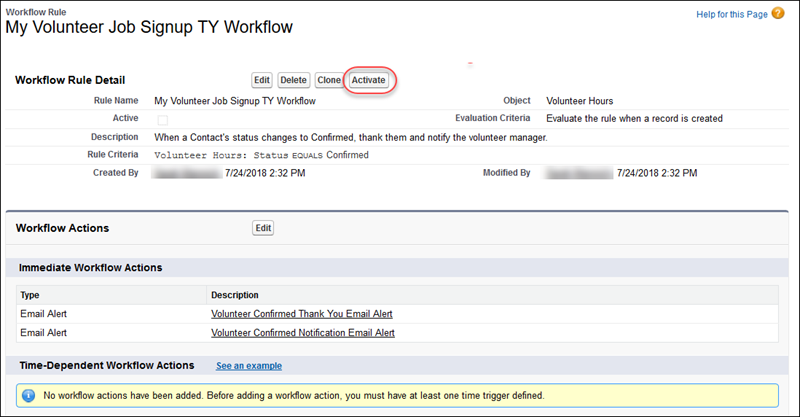
Now, when a Contact’s Volunteer Hours: Status changes to Confirmed, Volunteers for Salesforce sends a Thank You email to the Contact and sends a notification email to the Contact Owner.
Create an Organization-Wide From Address
Control how Volunteers for Salesforce displays the "from" name and email address of the sender of automated volunteer emails. Your organization may want to show a generic name, such as Volunteer Coordinator, or you may want to include your coordinator's real name and job title. The email address can be for a specific person or for an inbox that multiple staff monitor and respond to.
If you don't specify an Organization-Wide Address, because of how workflow rules are set up behind the scenes, automated emails can inadvertently show a sender name or email address that you don't want to expose publicly.
- From Setup, enter Organization-Wide Addresses in the Quick Find box, then select Organization-Wide Addresses.
- Click Add.
- Give the address a Display Name (such as Volunteer Coordinator) and a valid email address.
- Select Allow All Profiles to Use this From Address.
-
Save your changes.
Salesforce sends a validation email to the specified address.
- Click the validation link in the email to enable the address as the organization-wide From address.
Deactivate Website-Specific Workflow Rules
If you don't intend to integrate Volunteers for Salesforce with your website, deactivate the Volunteer Job Signup, Volunteer Signup - Contact, and Volunteer Signup - Lead workflow rules.
- From Setup, enter Workflow Rules in the Quick Find box, then select Workflow Rules.
- Next to Volunteer Job Signup, click Deactivate.
- Repeat these steps for the Volunteer Signup - Contact and Volunteer Signup - Lead workflow rules.
