
You are here:
Configure Volunteer Skills and Availability Picklists
The Volunteer Skills picklist provides sample skills that volunteers offer. The Volunteer Availability picklist offers sample time periods. Leads, Contacts, and Volunteer Jobs all make use of these picklists. Update the values to match your organization's unique volunteering profile and availability times.
For both the Lead and Contact objects, update picklist values for these fields, as needed:
- Volunteer Skills
- Volunteer Availability
As an example, we will show you how to update the Volunteer Skills picklist values.
- In Setup, click the Object Manager tab.
- From the list of objects, select the object that you're updating. For example, click Lead.
- Click Fields & Relationships.
- Click the field that you're updating. For example, click Volunteer Skills. (If you don't see this field, click View All to expand the field list, and page forward until it's visible.)
- In the Values section, click Del to remove unused
picklist values, and click New to add values. For
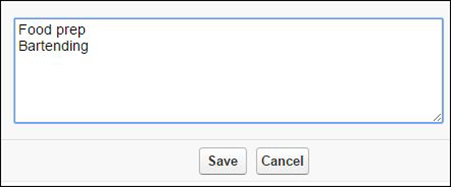
example, we add two new skills, Food prep and Bartending, each on its own line.
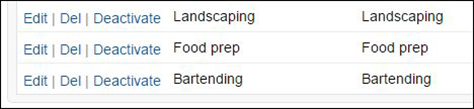
After saving your additions, they're added as Values for Volunteer Skills.

If you update Volunteer Skills picklist values for Lead or Contact, also update the corresponding values for the Skills Needed field on the Volunteer Job object.
- In Setup, click the Object Manager tab.
- From the list of objects, select Volunteer Job.
- Click Fields & Relationships.
- Click Skills Needed.
- In the Picklist Values section, make the options match the Volunteer Skills options that you've specified for Leads and Contacts.
- Save your changes.

