
You are here:
Customize the Volunteers Personal Site Contact Information Page
Learn how to configure fields, URL parameters, and formatting on the Personal Site Information page.
- Customize the Fields on the Personal Site Contact Information Page
The four panels on the Personal Site Information page are controlled by a field set for each panel. Edit these field sets to display your desired combination of standard and custom fields. - Supported URL Parameters for the Personal Site Contact Info Page
Use the optional URL parameters in your IFRAME tag to further customize individual volunteers' Personal Site pages. - Style the Personal Site Contact Lookup Page with CSS
The Personal Site Contact Lookup page uses a cascading style sheet (CSS). Volunteers for Salesforce provides the VolunteersPersonalSiteCSS.css file as a Document in Salesforce. Customize the CSS with your own CSS styles so that the Volunteers for Salesforce part of the webpage matches the rest of your website's look and feel.
Customize the Fields on the Personal Site Contact Information Page
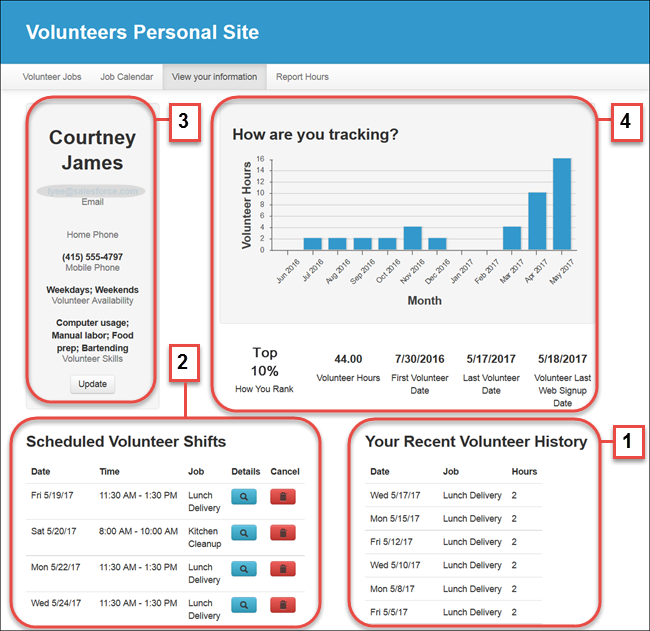
The four panels on the Personal Site Information page are controlled by a field set for each panel. Edit these field sets to display your desired combination of standard and custom fields.
| Field Set Name | Object | Description |
|---|---|---|
| PersonalSiteContactInfoHistory (1) | Volunteer Hours | Controls the fields in Your Recent Volunteer History list. |
| PersonalSiteContactInfoUpcomingShifts (2) | Volunteer Hours | Controls the fields in the Scheduled Volunteer Shifts list. |
| PersonalSiteContactInfoPanel1FS (3) | Contact | Controls the fields in the volunteer's personal information panel in the top left of the page. |
| PersonalSiteContactInfoPanel2FS (4) | Contact | Controls the fields in the volunteer's personal statistics panel. |
Supported URL Parameters for the Personal Site Contact Info Page
Use the optional URL parameters in your IFRAME tag to further customize individual volunteers' Personal Site pages.
For details about adding URL parameters to an IFRAME tag, see Customize the Volunteer Job Listing Page.
| Name | Value | Description |
|---|---|---|
| ChartDateFormat | MMM yyyy (default) | String format that tells V4S how to display dates on the X axis of the personal Volunteer Hours chart. The default string displays the month as a three-letter abbreviation followed by a four-digit year. For example: Apr 2017. You can specify a different string format by arranging these supported character sets with standard punctuation for date formatting (forward slashes, hyphens, commas, and so on).
|
| ContactId (required parameter) | Contact's 15-character Salesforce ID | ID of the Contact whose page is being displayed |
| DateFormat | E m/d/yy (default) | String format that tells V4S how to display Shift dates. The default string displays the day as text, followed by the month, date, and year. For example: Thu 4/16/17. You can specify a different string format by arranging these supported character sets with standard punctuation for date formatting (forward slashes, hyphens, commas, and so on).
|
| Contact's email address | Email address that matches one of the Contact's email addresses of record. If you specify this parameter, the Personal Site Requires URL Email Match custom setting must be enabled. |
|
| Language | en (default) | Display the labels that have been translated in Salesforce into a different language. Identify the language using a two-character language code, such as en, or a five-character locale code, such as en_AU. (See Supported Languages in the Salesforce Help.) V4S supports these languages out of the box:
You can create your own translations in other languages. See Translate Volunteers for Salesforce into Other Languages or Customize Terminology. The specified language overrides the language that users have set in their Salesforce personal settings. |
| TimeFormat | h:mm tt (default) | String format that tells V4S how to display Shift times. The default string displays the time of day as hour and minutes with a.m. or p.m. For example: 9:30 am. You can specify a different string format by arranging these supported sets of characters with standard punctuation for time formatting.
|
Style the Personal Site Contact Lookup Page with CSS
The Personal Site Contact Lookup page uses a cascading style sheet (CSS). Volunteers for Salesforce provides the VolunteersPersonalSiteCSS.css file as a Document in Salesforce. Customize the CSS with your own CSS styles so that the Volunteers for Salesforce part of the webpage matches the rest of your website's look and feel.
Follow the instructions provided for styling the Volunteer Signup page, making sure that you edit the VolunteersPersonalSiteCSS.css file. You can use CSS to style the font and the size of the form (.cssContactLookupPanel).
You can change the text of the title and body of the form by editing these custom labels:
- labelContactInfoLookupTitle
- labelContactLookupInstructions
