
You are here:
Customize the Volunteers Personal Site Contact Lookup Page
Review how you can customize the Personal Site Contact Lookup page for added security, embed the page in another website, and more.
- Require Contact Information Match for Personal Site Access
When volunteers submit the Personal Site Contact Lookup form to request access to their Personal Site, for extra security, you can require that both the ContactId and the Email URL parameter values are a match for the Contact. - Configure the Email Sent to Volunteers Requesting Personal Site Access
Volunteers who complete the Personal Site Contact Lookup form receive an email with instructions for accessing their Personal Site. An email template defines the contents of the email. Edit the email template to configure the Personal Site URL, and edit custom settings to configure the email sender name. - Style the Personal Site Contact Information Page with CSS
The Personal Site Information page uses a cascading style sheet (CSS). Volunteers for Salesforce provides the VolunteersPersonalSiteCSS.css file as a Document in Salesforce. Customize the CSS with your own CSS styles so that the Volunteers for Salesforce part of the webpage matches the rest of your website's look and feel. - IFRAME Tag for the Personal Site Contact Lookup Page
Give your web developer this IFRAME tag so they can insert the Personal Site Contact Lookup page into your website. It's just a few fields, so consider adding it as a small content area on an existing webpage rather than as a standalone page. Use the appropriate format for HTTP sites or secure HTTPS sites. - Supported URL Parameters for the Personal Site Contact Lookup Page
Use the optional URL parameter in your IFRAME tag to further customize how fields are displayed for volunteers requesting access to their Personal Site.
Require Contact Information Match for Personal Site Access
When volunteers submit the Personal Site Contact Lookup form to request access to their Personal Site, for extra security, you can require that both the ContactId and the Email URL parameter values are a match for the Contact.
- From Setup, enter Custom Settings in the Quick Find box, then select Custom Settings.
- Next to Volunteers Settings, click Manage.
- Click Edit, then enable Personal Site Requires URL Email Match.
- Save your changes.
With this custom setting enabled, the Personal Site URL must include the Email parameter and its value must match the specified Contact's email address.
Configure the Email Sent to Volunteers Requesting Personal Site Access
Volunteers who complete the Personal Site Contact Lookup form receive an email with instructions for accessing their Personal Site. An email template defines the contents of the email. Edit the email template to configure the Personal Site URL, and edit custom settings to configure the email sender name.
- From Setup, enter Email Templates in the Quick Find box, then select Email Templates.
- Click the template named Volunteers Personal Site Contact Lookup.
- Click Edit HTML
Version.

- Replace the placeholder text with the full URL to the Personal
Site Contact Info page, which looks something like this:
https://mydomain.force.com/GW_Volunteers__PersonalSiteContactInfo?contactId={!Contact.Id}&Email={!Contact.Email}
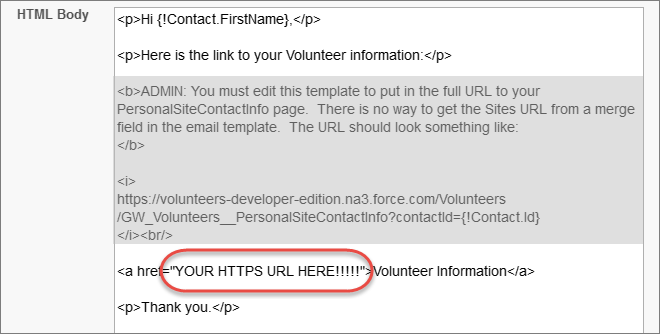
 Note We enter the URL manually because we can't use merge fields to do it all automatically.
 - Delete the instructions (shown here shaded).
-
Save your changes.
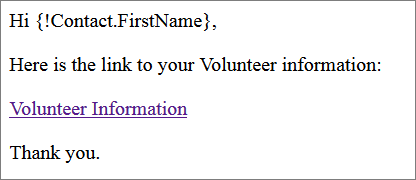
- Repeat this URL configuration for the text version.
- Configure the email sender.
- From Setup, enter Custom Settings in the Quick Find box, then select Custom Settings.
- Next to Volunteers Settings, click Manage.
- Click Edit, then in the Personal Site Org-Wide Email Name field,
enter the Display Name that you specified in Organization-Wide Addresses.
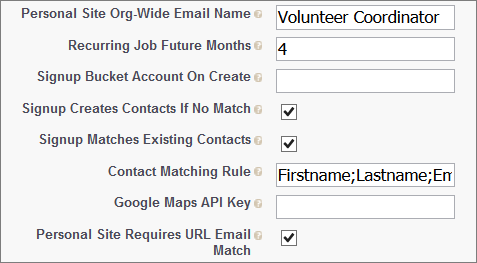
- Save your changes.
- To test your changes, back on the Email Template Detail page, click Send Test and Verify Merge Fields.
- Send the email to a test Contact associated with your email address. Verify that the URL in the email clicks through to the correct page and that the sender is the one you specified in Organization-Wide Addresses.
Style the Personal Site Contact Information Page with CSS
The Personal Site Information page uses a cascading style sheet (CSS). Volunteers for Salesforce provides the VolunteersPersonalSiteCSS.css file as a Document in Salesforce. Customize the CSS with your own CSS styles so that the Volunteers for Salesforce part of the webpage matches the rest of your website's look and feel.
Follow the instructions provided for styling the Volunteer Signup page, making sure that you edit the VolunteersPersonalSiteCSS.css file.
IFRAME Tag for the Personal Site Contact Lookup Page
Give your web developer this IFRAME tag so they can insert the Personal Site Contact Lookup page into your website. It's just a few fields, so consider adding it as a small content area on an existing webpage rather than as a standalone page. Use the appropriate format for HTTP sites or secure HTTPS sites.
Sample IFRAME in HTTP format:
<iframe src="http://mydomain.force.com/yoursitelabel
    /GW_Volunteers__PersonalSiteContactLookup" frameborder="0"
    scrolling="false" height="600" width="500"></iframe>
Sample IFRAME in HTTPS format:
<iframe src="https://mydomain.secure.force.com/yoursitelabel
    /GW_Volunteers__PersonalSiteContactLookup" frameborder="0"
    scrolling="false" height="600" width="500"></iframe>
A few reminders to keep your code snippet clean:
- mydomain is a placeholder value for your domain name. Be sure to include your actual domain name in place of the placeholder text.
- yoursitelabel is a placeholder value for the Default Web Address. Include it only if you specified one when you created your Site.
- There are two underscore characters between Volunteers and PersonalSiteContactLookup.
- If you're using a URL parameter, add it the end of the URL. Separate the parameter from the rest of the URL with a ? character.
Supported URL Parameters for the Personal Site Contact Lookup Page
Use the optional URL parameter in your IFRAME tag to further customize how fields are displayed for volunteers requesting access to their Personal Site.
For details about adding URL parameters to an IFRAME tag, see Customize the Volunteer Job Listing Page.
| Name | Value | Description |
|---|---|---|
| Language | en (default) | Display the labels that have been translated in Salesforce into a different language. Identify the language using a two-character language code, such as en, or a five-character locale code, such as en_AU. (See Supported Languages in the Salesforce Help.) Volunteers for Salesforce supports these languages out of the box:
You can create your own translations in other languages. See Translate Volunteers for Salesforce into Other Languages or Customize Terminology. The specified language overrides the language that users have set in their Salesforce personal settings. |
