
You are here:
Customize the Volunteers Personal Site Pages
Customize the contents of the Volunteers Personal Site pages, and make them look and feel like an integral part of your website.
- Take a Tour of the Volunteers Personal Site Pages
The Volunteers Personal Site page shows volunteers their personal information, upcoming job shifts, and volunteer history. - Enable Access to Personal Site Pages
Make sure that you've already given the Site Guest User profile access to the Visualforce pages that make up the Personal Site page. Personal Site page names start with GW_Volunteers.PersonalSite. - Customize the Overall Styling of the Volunteers Personal Site Pages
A Site Template controls the overall page styling, header, navigation, and footer for Personal Site pages. Volunteers for Salesforce provides a Visualforce page that serves as the default Site Template. Make a copy of it and customize the styling of the page components. - Tell Your Site to Use Your Copy of the Personal Site Template
Edit your Site's Site Template property to specify the page that you created based on the sample, default template. - Limit the Display of Jobs on the Volunteer Report Hours Page (in Personal Site Pages Only)
When a volunteer reports hours, the Volunteer Job picklist by default displays the Jobs that are active, under active Campaigns. To display only the Jobs where the volunteer has an existing Volunteer Hours record, enable the custom setting that applies this filter. - More Personal Site Customizations
To change the wording of onscreen text, messages, and warnings on Personal Site pages, you can override the existing text in custom labels, or create your own translations in other languages. Look for the category of custom labels starting with PersonalSite.
Take a Tour of the Volunteers Personal Site Pages
The Volunteers Personal Site page shows volunteers their personal information, upcoming job shifts, and volunteer history.
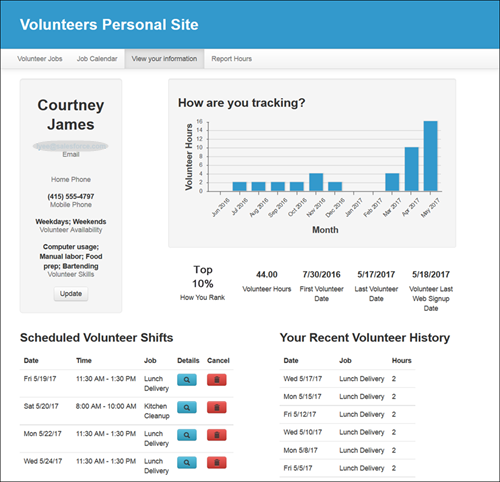
The Personal Site is a Visualforce page like the other V4S pages, but a bit different from the pages that you've added using IFRAME tags.
- The header section includes a navigation bar with links to the four pages that make up the Personal Site. You can include different pages if you like.
- Instead of an IFRAME, the page uses a Site template, PersonalSitesTemplate.page, that defines the page layout and stylesheet for all Personal Site pages. Make a copy of the sample, default template and edit it to match your website's styling.
- Volunteers request access to their individual Personal Sites by
submitting the Personal Site Contact Lookup form.
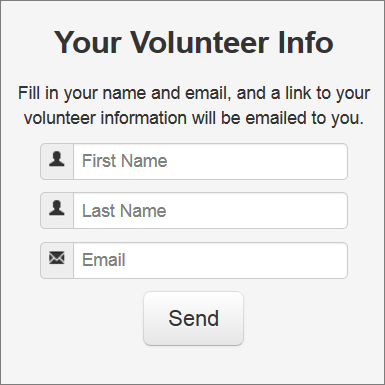
V4S matches the requestor's information against existing Contacts and if there's a match, emails the requestor a unique URL to their Personal Site. You add the Lookup form separately with an IFRAME and style it with CSS. You're also going to configure the Volunteers Personal Site Contact Lookup email template that provides the Personal Site URL.
Enable Access to Personal Site Pages
Make sure that you've already given the Site Guest User profile access to the Visualforce pages that make up the Personal Site page. Personal Site page names start with GW_Volunteers.PersonalSite.
For more information, see Configure Data Access for Visualforce Pages.
Customize the Overall Styling of the Volunteers Personal Site Pages
A Site Template controls the overall page styling, header, navigation, and footer for Personal Site pages. Volunteers for Salesforce provides a Visualforce page that serves as the default Site Template. Make a copy of it and customize the styling of the page components.
- From Setup, enter Visualforce Pages in the Quick Find box, then select Visualforce Pages.
- In the list of pages, click PersonalSiteTemplate.
- Click Preview to open the page in a new window and see the default
styling.
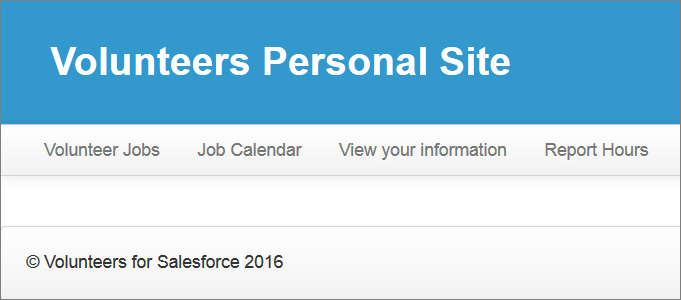
- Because you can't edit a Visualforce page that's part of a Salesforce managed package, make a copy of the template.
- Back on the page detail, select all the Visualforce Markup and copy it to your clipboard.
- Go back to the Visualforce Pages list, and click New.
- Give it a label such as MyPersonalSiteTemplate.
- Review the name that it automatically assigns.
- Select and delete all the placeholder Visualforce Markup, then paste your copied markup.
- Edit any page or object references in the markup to
include the
GW_Volunteers__namespace (see details below). - Save your changes.
- Edit your copy of the Site Template. Some things to note:
- Be careful to preserve the jQuery, jQueryUI and Boostrap Javascript libraries that the template loads, and that other Sites pages also rely on.
- When referring to any page or object within the V4S managed package, always include the
GW_Volunteers__namespace. For example, change the page reference,Page.PersonalSiteJobListing, toPage.GW_Volunteers__PersonalSiteJobListing. Similarly, change the label reference,Label.labelPersonalSiteJobListingTitle, toLabel.GW_Volunteers__labelPersonalSiteJobListingTitle. - The
<apex:stylesheet>tag is used to include VolunteersPersonalSiteCSS.css for all the pages to use. - The
<apex:insert name="body"
                            />
tag indicates the area where content from the Personal Site Visualforce pages is inserted.
Tell Your Site to Use Your Copy of the Personal Site Template
Edit your Site's Site Template property to specify the page that you created based on the sample, default template.
- From Setup, enter Sites in the Quick Find box, then select Sites.
- Under the Action column, click Edit.
- In the Site Template field, click the lookup icon. Search for and then select your newly created Visualforce page.
- Save your changes.
Limit the Display of Jobs on the Volunteer Report Hours Page (in Personal Site Pages Only)
When a volunteer reports hours, the Volunteer Job picklist by default displays the Jobs that are active, under active Campaigns. To display only the Jobs where the volunteer has an existing Volunteer Hours record, enable the custom setting that applies this filter.

- From Setup, enter Custom Settings in the Quick Find box, then select Custom Settings.
- Click Manage next to Volunteers Settings.
- Click Edit.
- Select Personal Site Report Hours Filtered.
- Save your changes.
More Personal Site Customizations
To change the wording of onscreen text, messages, and warnings on Personal Site pages, you can override the existing text in custom labels, or create your own translations in other languages. Look for the category of custom labels starting with PersonalSite.
For more information, see Translate Volunteers for Salesforce into Other Languages or Customize Terminology.
