You are here:
Define Sharing Rules
If you have an existing Volunteers for Salesforce org that has been upgraded to the Salesforce Winter '20 release and have enabled the Secure Guest User Record Access setting, create sharing rules to give guest users access to your records.
For information about guest user sharing settings, see Secure Guest Users’ Sharing Settings and Record Access .

Organization-Wide Defaults (OWDs) will no longer be applied to Site Guest Users for new orgs created after the Salesforce Winter '20 release. Site Guest Users must be granted access via Criteria Based Sharing. If your org is new, this setting will be in place by default. Existing org will need to check the Secure Guest User Record Access checkbox.

To determine which sharing rules to create, use the criteria below
-
If the OWD for Contact is not set to Controlled by Parent, you need to create sharing rules for Campaign and Contact.
-
If the OWD for Contact is set to Controlled by Parent, you need to create sharing rules for Campaign and Account.
The sharing rules in this article are examples. We encourage you to set up sharing based on your org's needs.
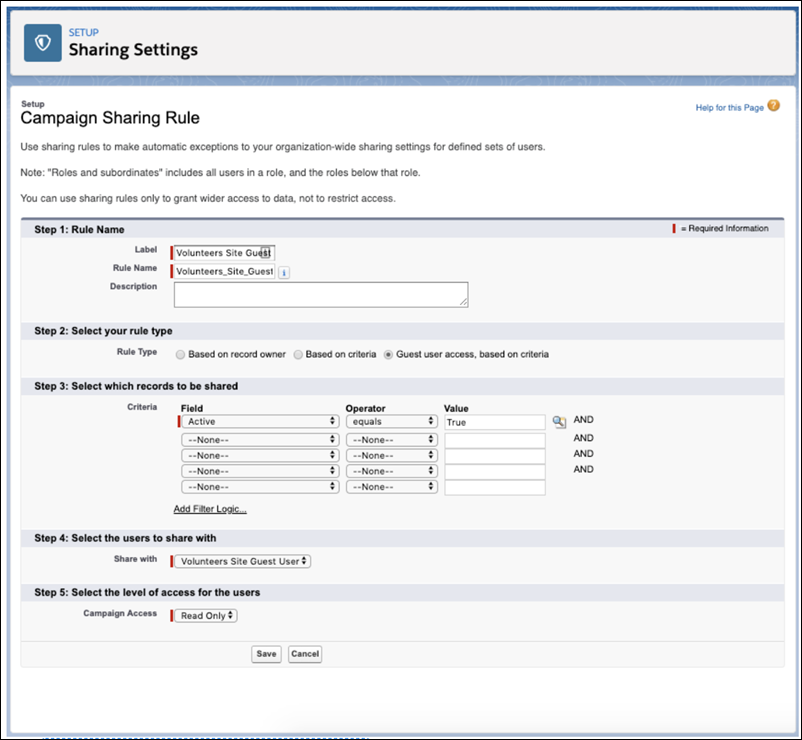
Define Campaign Sharing Rules
To define Campaign sharing rules:
- Click
 , then click Setup.
 - Enter Sharing Settings in the Quick Find box, then click Sharing Settings.
-
Scroll down to Campaign Sharing Rules related list.
-
In the Campaign Sharing Rules related list, click New.
-
In the Label field, enter Volunteers Site Guest User.
-
In the Rule Name field, enter Leave Default derived from the Label.
-
In the Rule Type field, enter Guest user access, based on criteria.
-
Select the records to share:
-
Field: Active
-
Operator: equals
- Value: True
-
-
In the Select the users to share with section, enter Volunteers Site Guest User (your site name might be different).
-
In the Select the level of access for the users section, set Campaign Access to Read Only.
-
Click Save.
Define Contact Sharing Rules
To define Contact sharing rules:
- Click , then click Setup.
- Enter Sharing Settings in the Quick Find box, then click Sharing Settings.
-
Scroll down to Contact Sharing Rules related list.
-
In the Contact Sharing Rule related list, click New.
-
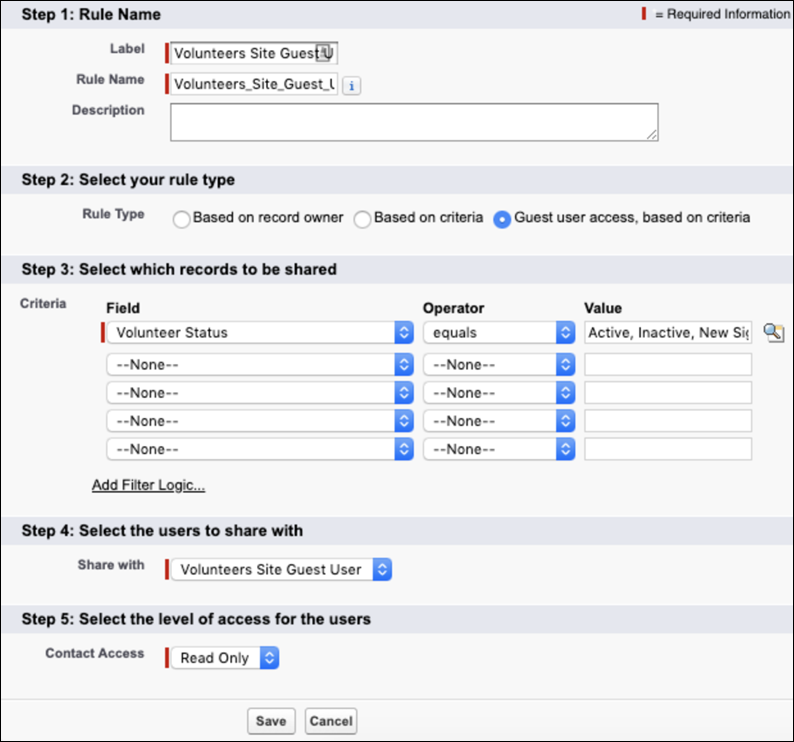
In the Label field, enter Volunteers Site Guest User.
-
In the Rule Name field, enter Leave Default derived from the Label.
-
In the Rule Type field, enter Guest user access, based on criteria.
-
Select the records to share:
-
Field: Volunteer Status
-
Operator: equals
- Value: Check all Volunteer Status options
-
-
In the Select the users to share with section, enter Volunteers Site Guest User (your site name might be different).
-
In the Select the level of access for the users section, set Contact Access to Read Only.
-
Click Save.
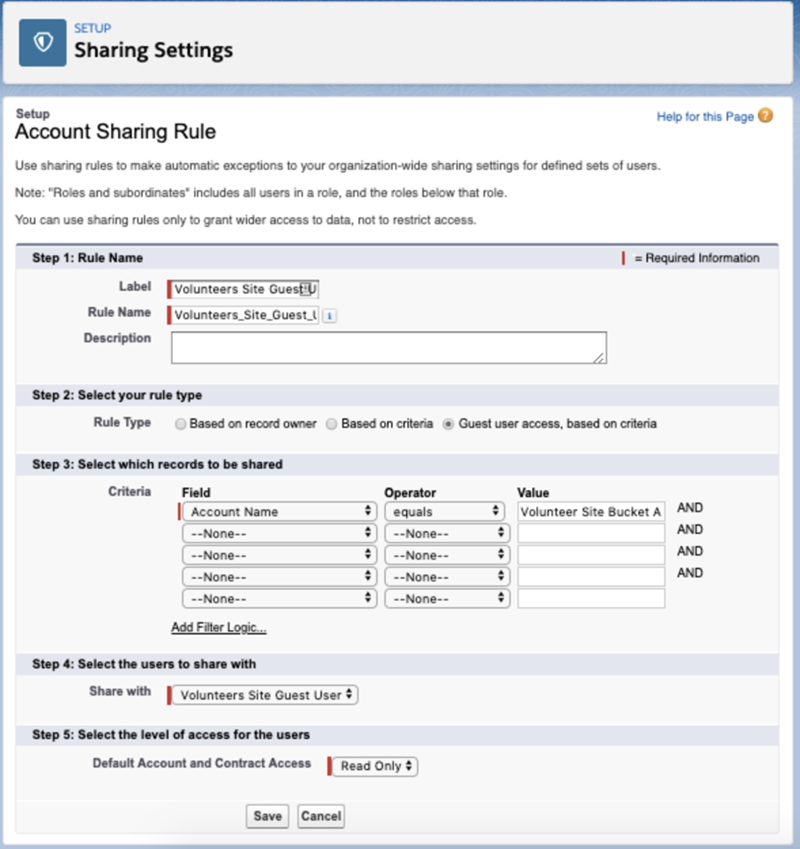
Define Account Sharing Rules
- Click , then click Setup.
- Enter Sharing Settings in the Quick Find box, then click Sharing Settings.
-
Scroll down to Account Sharing Rules related list.
- In the Account Sharing Rules related list, click New.
-
In the Label field, enter Volunteers Site Guest User.
-
In the Rule Name field, leave the default Rule Name field value as is.
-
In the Rule Type field, select Guest user access, based on criteria.
-
Select the records to share. For example, if you want to share Contacts for an Account of a given industry (Nonprofit), you would enter these values:
Note Remember, these are examples. We encourage you to set up sharing for your volunteer's Account record as needed for your org.- Field: Industry
- Operator: equals
- Value: Not For Profit
-
In the Select the level of access for the users section, set Default Account and Contact Access to Read Only.
-
Click Save.