
You are here:
Manage, Track, and Assign Volunteers
There are multiple ways to assign volunteers to Shifts, including allowing volunteers to sign up directly from your website (more on that in Sign Up for a Job Shift.) You can also sign up volunteers yourself by assigning them to Shifts in Volunteers for Salesforce.
When you assign a volunteer to a Shift (or when a volunteer signs up for a Shift on your website), V4S creates a Volunteer Hours record for that volunteer.
You can use the Volunteer Hours record to track the details of a volunteer's time, including whether the volunteer actually showed up. Volunteer Hours allow you to track volunteers at different points in the process, from prospect to confirmed to completed (or, hopefully not, no-show).

Volunteer Hours records are always associated with both the Contact and the Volunteer Job. Why does this matter? Well, this means you can view an individual volunteer's Contact record to see details of all the hours they've donated to your organization. Or, you can look at a particular Job to see the list of all the Volunteer Hours contributed by various volunteers for that particular Job.
- Assign Volunteers to Shifts (using Mass Edit Volunteer Hours)
You can manually (and easily) assign volunteers in Volunteers for Salesforce. This is useful if you have a list of volunteers interested in particular Shifts. For example, when Sarah's community kitchen holds orientation sessions for their upcoming annual gala, they pass around a signup sheet where people write down which Shift they want to sign up for. Then the volunteer manager has a written list that she needs to enter into Volunteers for Salesforce. Fortunately, she can easily do this using the Mass Edit Volunteer Hours feature. - Assign a Volunteer from the Find Volunteers Search Results Page
The Find Volunteers page is very helpful for figuring out which volunteers are a match for your event. And even better, you can easily assign them to Shifts right from the Find Volunteers page. - Sign Up a Recurring Volunteer
If you're lucky enough to have a volunteer (or multiple volunteers) that want to sign up at a regular interval for a recurring Job, you can easily do that using a Volunteer Recurrence Schedule. - Record Hours for a Single Volunteer
You can manually enter Volunteer Hours on a Contact's record. This is particularly useful if you need to enter hours for a single volunteer. For example, let's say Elizabeth Wong showed up for one of the community kitchen's food distribution shifts. She hadn't signed up for that shift, but she is a dedicated volunteer and you want to track her work in Volunteers for Salesforce. - Record Hours for a Specific Job or Shift
You can enter all the Volunteer Hours for a specific Job and Shift in one place. The Mass Edit Volunteer Hours page was designed to make it easy to enter or update Volunteer Hours for multiple people and even on multiple Jobs and Shifts. - Reconcile Volunteer Hours
If you already entered Volunteer Hours for a Shift, you can use the Mass Edit Volunteer Hours page to easily reconcile hours after volunteers complete their Shifts.
Assign Volunteers to Shifts (using Mass Edit Volunteer Hours)
You can manually (and easily) assign volunteers in Volunteers for Salesforce. This is useful if you have a list of volunteers interested in particular Shifts. For example, when Sarah's community kitchen holds orientation sessions for their upcoming annual gala, they pass around a signup sheet where people write down which Shift they want to sign up for. Then the volunteer manager has a written list that she needs to enter into Volunteers for Salesforce. Fortunately, she can easily do this using the Mass Edit Volunteer Hours feature.
- On the Shift Calendar, click a Shift. (You can also get to a Shift from the Volunteer Shifts related list on a Volunteer Job.)
- On the Shift detail page, click the Related tab.
- On the Volunteer Hours related list, click Mass Edit Volunteer Hours.
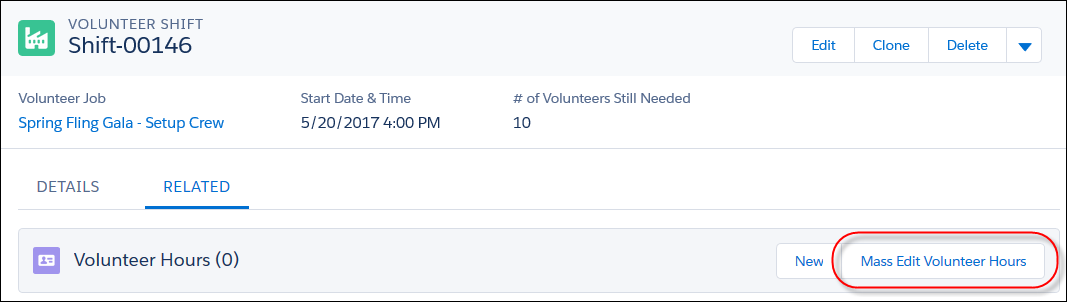
Since you came to this page directly from a Shift, the Volunteer Shift field will be set to that Shift. This ensures that you're entering volunteers for the correct Shift.
- In the first row, enter a Contact's name. You can also click the search icon to search for the Contact.
- Enter a status for the volunteer. For example, if they asked to
sign up, you might use the Confirmed status. If you think the person might be
interested based on past volunteer signups, you could use Prospect. Use the
Completed status only after they've completed the Shift.
- Prospect—You identified the Contact as a potential volunteer for the Shift.
- Confirmed—The volunteer is confirmed and expected to show up for the Shift.
- Completed—The volunteer showed up for and participated in the Shift.
- No-Show—The volunteer didn't show up for the Shift.
- Web Signup—The volunteer signed up through your website. This status is automatically set by V4S.
- Canceled—The volunteer can no longer make it to the Shift. This status prevents the system from re-assigning a recurring volunteer to this Shift.
Note When you select a Status of Confirmed or Completed, the Volunteer Status field on the Contact is automatically updated to Active.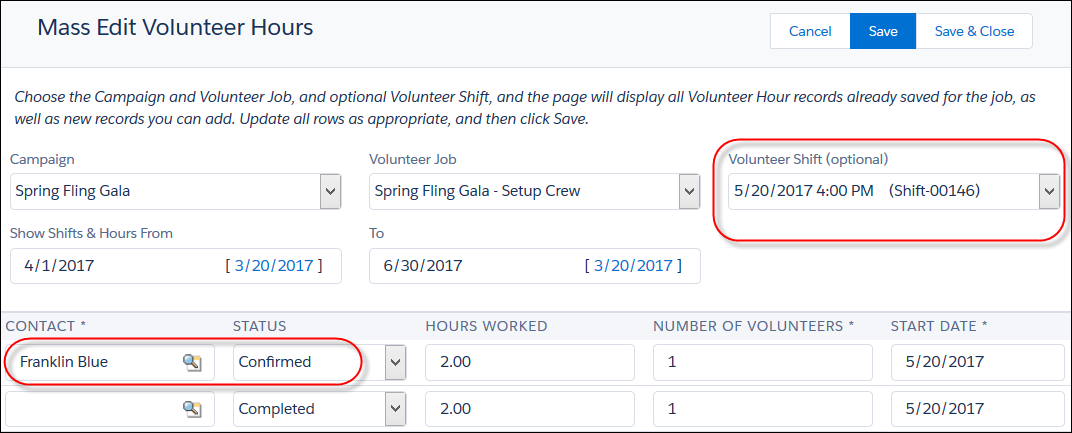
- Click Save. Now, let's say you want to sign up a volunteer for a
different Shift or Job. You can easily do that from this page!Note Don't forget to save each time you finish your edits for a given Job or Shift. This page allows you to move to a different Job or Shift, and if you do so without saving, you will lose your changes.
- Choose the Job or Shift whose hours you want to edit.
- To choose a new Shift for the same Job, select the Shift from the Volunteer Shift drop-down.
- To choose a new Job, select the new Job from the
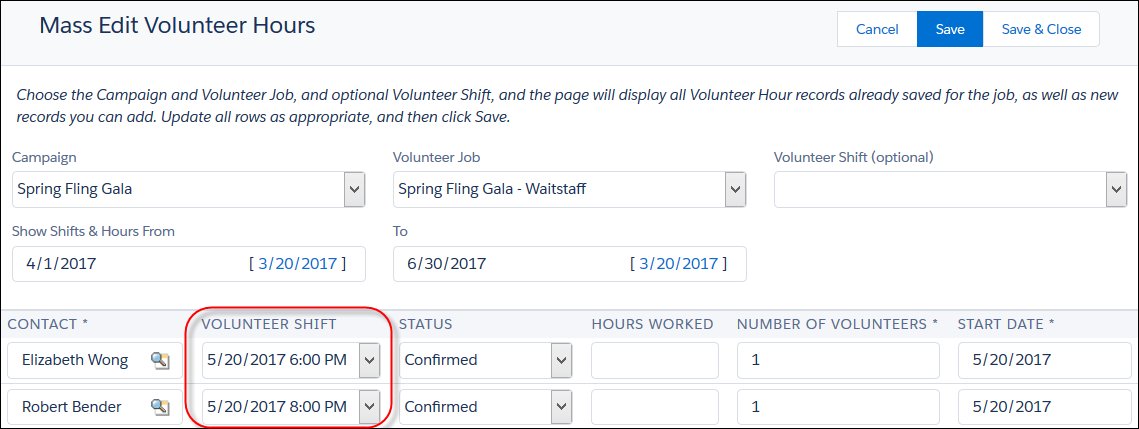
Volunteer Job drop-down. Note If you want to assign volunteers to one specific Shift for the Job, choose the Shift in the Volunteer Shift drop-down. To assign volunteers to different Shifts on the new Job, leave the Volunteer Shift drop-down blank. When that field is blank, you can enter a Shift time in each volunteer row.
- Enter the Contact name, Shift information (if you left the
Volunteer Shift drop-down blank), and set the status. For example, we added two
volunteers for the Wait Staff Job, but assigned them each to a different Shift.
- Click Save, then repeat this process for any other volunteers on your list.
Assign a Volunteer from the Find Volunteers Search Results Page
The Find Volunteers page is very helpful for figuring out which volunteers are a match for your event. And even better, you can easily assign them to Shifts right from the Find Volunteers page.
- Click the Find Volunteers tab.
- Enter criteria to search for volunteers. For example, you could search for volunteers who are available on weekday mornings and who have computer skills.
- Click Find.
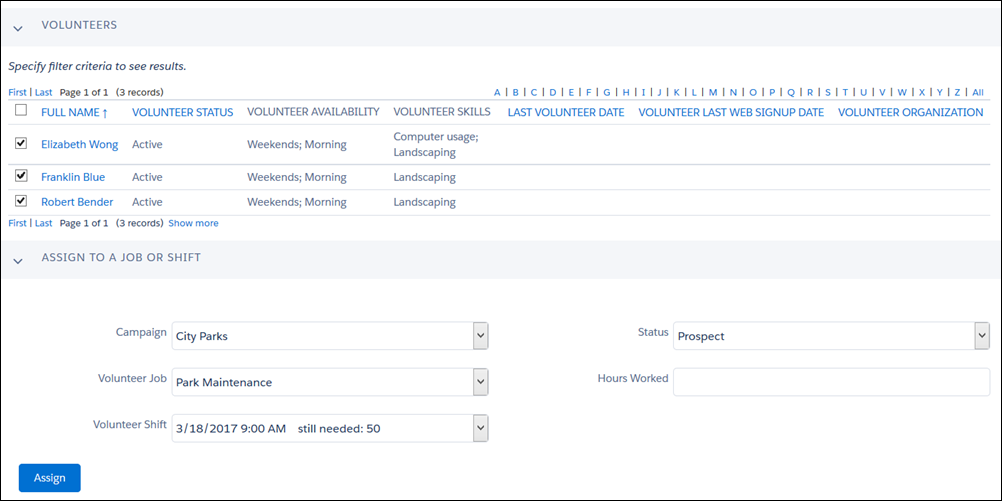
- In the Volunteers section of the page, select the volunteers to assign.
- In the Assign to a Job or Shift section, select the Campaign,
Volunteer Job, Volunteer Shift, and Status.
- Click Assign.
You can verify the assignment by visiting one of the volunteer's Contact records. The assignment shows on the Volunteer Hours related list.
Sign Up a Recurring Volunteer
If you're lucky enough to have a volunteer (or multiple volunteers) that want to sign up at a regular interval for a recurring Job, you can easily do that using a Volunteer Recurrence Schedule.
We'll talk more about recurring volunteers in Sign Up a Recurring Volunteer using Volunteer Recurrence Schedules.
Record Hours for a Single Volunteer
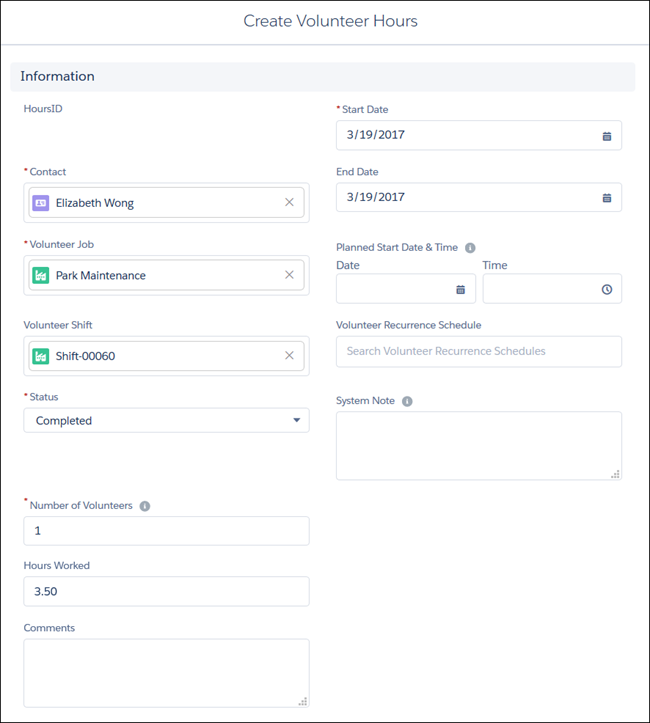
You can manually enter Volunteer Hours on a Contact's record. This is particularly useful if you need to enter hours for a single volunteer. For example, let's say Elizabeth Wong showed up for one of the community kitchen's food distribution shifts. She hadn't signed up for that shift, but she is a dedicated volunteer and you want to track her work in Volunteers for Salesforce.
- Search for your volunteer to find her Contact record.
- Click on the Contact's name to bring up the Contact detail page.
- Click the Related tab, then scroll to the Volunteer Hours related list.
- In the Volunteer Hours related list, click New.

- Fill in the required fields.
- Volunteer Job—Find the Volunteer Job that the Contact participated in. You can optionally also select a specific Shift.
- Start Date—Enter the date that the Contact volunteered.
-
Status—Select the status of the volunteer.
- Prospect—You identified the Contact as a potential volunteer for the Shift.
- Confirmed—The volunteer is confirmed and expected to show up for the Shift.
- Completed—The volunteer showed up for and participated in the Shift.
- No-Show—The volunteer didn't show up for the Shift.
- Web Signup—The volunteer signed up through your website. This status is automatically set by V4S.
- Canceled—The volunteer can no longer make it to the Shift. This status prevents the system from re-assigning a recurring volunteer to this Shift.
Note When you select a Status of Confirmed or Completed, the Volunteer Status field on the Contact is automatically updated to Active. - Number of Volunteers—For a specific individual, this is typically 1. If the Contact is a point person for a group of multiple volunteers, set this value to the total number of people in the group.
- Optionally fill out any other fields.
- Click Save.
Record Hours for a Specific Job or Shift
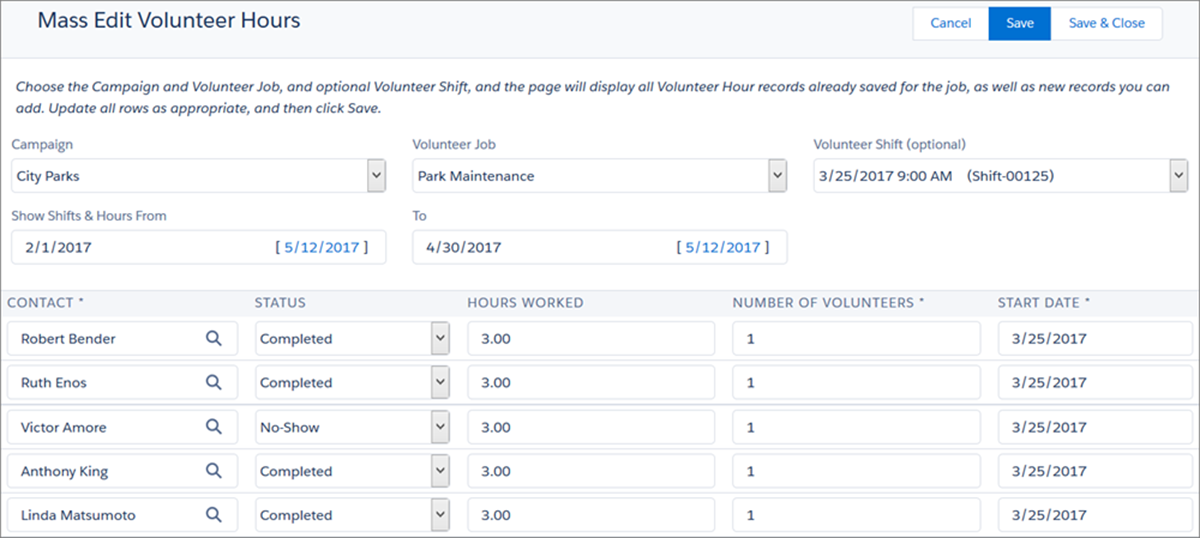
You can enter all the Volunteer Hours for a specific Job and Shift in one place. The Mass Edit Volunteer Hours page was designed to make it easy to enter or update Volunteer Hours for multiple people and even on multiple Jobs and Shifts.
- Go to the Volunteer Job or volunteer Shift you want to enter hours for.
- Click the Related tab.
- On the Volunteer Hours related list, click Mass Edit Volunteer Hours.
- Change the Volunteer Job or Shift as needed.
If you got to the Mass Edit Volunteer Hours page from a Volunteer Job, the Job is automatically selected in the Volunteer Job drop-down. If you got to this page from a volunteer Shift, the Volunteer Job and volunteer Shift are both automatically selected.
Note If you want to enter volunteers for different Shifts on the same Job, you can clear the Volunteer Shift field. When that field is clear, you can enter a Shift time in each volunteer row. - Enter the Contact name. You can also use the lookup to find the Contact.
- Set the status, based on whether or not the volunteer completed
their volunteer hours.
- Completed—The volunteer showed up for and participated
in the Shift.Note When you select a Status of Completed, the Volunteer Status field on the Contact is automatically updated to Active.
- No-Show—The volunteer didn't show up for the Shift.
- Canceled—The volunteer can no longer make it to the Shift. This status prevents the system from re-assigning a recurring volunteer to this Shift.
- Completed—The volunteer showed up for and participated
in the Shift.
- Enter the hours worked. The hours set for the Shift will
automatically appear, but you can adjust the number based on how long the volunteer
actually worked.
- Click Save.
- To enter hours for another Job or Shift, update the Volunteer Job and/or Volunteer Shift drop-downs at the top of the page. Be sure to save each time you enter info for a new Job or Shift.
Reconcile Volunteer Hours
If you already entered Volunteer Hours for a Shift, you can use the Mass Edit Volunteer Hours page to easily reconcile hours after volunteers complete their Shifts.
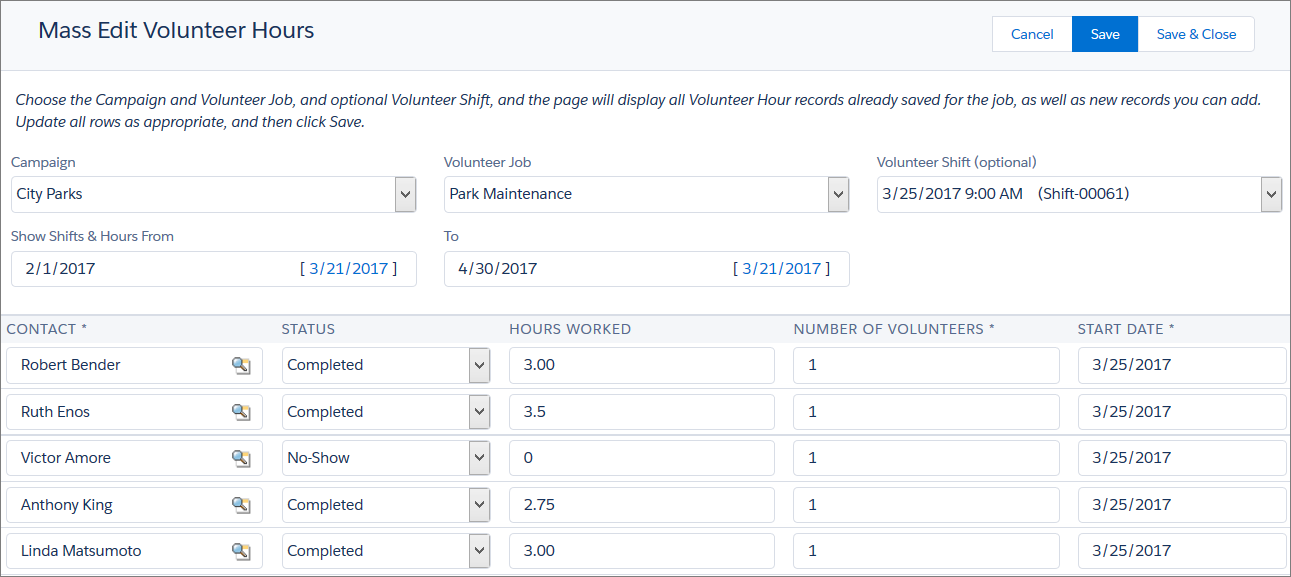
For example, you had five volunteers signed up for the March 25 Shift. They all committed to working 3 hours. Here is the sign-in sheet for the Shift:
| Name | Time In | Time Out |
|---|---|---|
| Robert Bender | 9:00 a.m. | 12:00 p.m. |
| Ruth Enos | 9:00 a.m. | 12:30 p.m. |
| Victor Amore | (didn't show up) | |
| Anthony King | 9:00 a.m. | 11:45 a.m. |
| Linda Matsumoto | 9:00 a.m. | 12:00 p.m. |
Let's get this information updated in V4S.
- Navigate to the Volunteer Shift record. You can get there from the Volunteer Job record's related list, or by clicking on the Shift from the Shift Calendar.
- Click the Related tab.
- On the Volunteer Hours related list, click Mass Edit Volunteer Hours.
- In the status column, change the status for everyone who showed
up to Completed. If a volunteer didn't show up, change the status to No Show. If the
volunteer had to cancel, change the status to Canceled. Note When you select a Status of Completed, the Volunteer Status field on the Contact is automatically updated to Active.
- In the Hours Worked column, adjust the hours worked based on
the time each volunteer worked.
- Click Save.
Now, when you return to the Shift record, you see updated hours in the Volunteer Hours related list.
