
You are here:
Plan a Recurring Event
Learn about the steps for planning a recurring event in Volunteers for Salesforce.
- Sketch Out the Structure
- Create the Campaign
- Create an Ongoing Job
- Schedule Recurring Shifts Using Job Recurrence Schedules
- Sign Up a Recurring Volunteer Using Volunteer Recurrence Schedules
- Sketch Out the Structure
Many nonprofit organizations need to plan multiple events throughout the year. Perhaps you hold weekend park cleanups, perhaps you plan monthly fun runs, or maybe your organization serves free community dinners multiple times per week. - A note about Time Zones
Many organizations have multiple events, in multiple locations, across multiple states. Having events in multiple time zones can be confusing if volunteers don't know what time the event begins in their local time. Volunteers for Salesforce solves this issue by allowing you to set an event's time zone at multiple levels.
Sketch Out the Structure
Many nonprofit organizations need to plan multiple events throughout the year. Perhaps you hold weekend park cleanups, perhaps you plan monthly fun runs, or maybe your organization serves free community dinners multiple times per week.
Whether managing one volunteer event or hundreds, it's important to consider how you would structure the Campaigns, Jobs, and Shifts in Volunteers for Salesforce. Remember that the Campaign represents the highest level of your structure. Jobs represent the specific volunteer tasks, and Shifts are the specific dates and times you need volunteers. The best way to figure out the structure you need is by laying out what volunteer opportunities you need to fill.
Let's say your organization works with City Services to serve dinner two nights a week throughout the year. City Services funds the events. Here is the high-level schedule.
| Agency | Facility/Dining Room | Schedule | Total # of Events (yearly) |
|---|---|---|---|
| City Services | City Dining Room | Monday 5 p.m. - 8 p.m. | 50 |
| City Services | City Church | Thursday 4:30 p.m. - 8:00 p.m. | 50 |
When you start to sketch out your structure, you need to take into account the agency that funds the event, the facilities where the events will occur, and the dates/times of the events themselves.
It's important to note that the roll-up summary fields on Campaigns in V4S provide important data for reports, such as the number of events, how many volunteers turned up, and how many volunteers worked in total. These reports are particularly important for agencies who fund the events. So, in a case like our example, the Campaign should represent City Services, since they are the organization funding the events. Next, since the facilities represent where the events occur, we use Jobs to represent the facilities. Last, the Shifts represent the dates and times of the events.
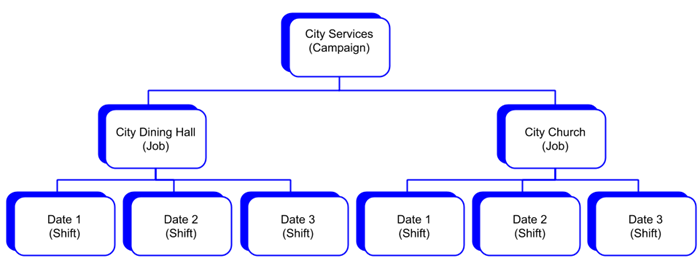
A note about Time Zones
Many organizations have multiple events, in multiple locations, across multiple states. Having events in multiple time zones can be confusing if volunteers don't know what time the event begins in their local time. Volunteers for Salesforce solves this issue by allowing you to set an event's time zone at multiple levels.
When you create a Shift in Volunteers for Salesforce, Salesforce assumes that the time entered is in your time zone and encodes it that way. Your employees in your "home" Salesforce org aren't affected, because they always see the Shift time in the time zone they set for Salesforce. But, volunteers on your website who aren't in your timezone don't see the correct time. To have the Shift display in a different timezone than the one entered by the user who created the Shift, you define the time zone at either the Campaign or Job level.
- Campaign—If the entire volunteer Campaign is located in one time zone, set the Volunteer Website Time Zone for all Jobs and Shifts on the Campaign level. For example, if you're planning an event that takes place in San Francisco, CA, the Volunteer Website Time Zone on the Campaign is set to America/Los_Angeles.
- Job—If Jobs within a Campaign are located in different time zones, set the Volunteer Website Time Zone at the Job level. For example, your organization is hosting a nationwide fundraising run and you need volunteers in multiple states. For the Jobs in California, set the Volunteer Website Time Zone to America/Los_Angeles. For the Jobs in New York, set the Volunteer Website Time Zone to America/New_York, and so on.
Now when a volunteer accesses the Shift information on your website, the start time of the Shift is the start time in the selected time zone.
