
You are here:
Stay in Touch with your Volunteers
An important part of attracting and retaining good volunteers is making sure they feel connected to your organization and appreciated by the people who work there. Imagine signing up to volunteer for an event months before it happens, but never receiving a reminder. Or spending time volunteering at an event, but never receiving acknowledgment of your time or a simple thank you note. Appreciating your volunteers by staying in touch is key to ensuring that they come back to volunteer again.
Even for a small organization, staying on top of volunteer management can be close to a full time job. And when your organization runs multiple events with thousands of volunteers, managing thank yous, providing timely information to your volunteers, and finding volunteers with specific skills can be a daunting task.
Fortunately, V4S takes the headache out of volunteer management. With Volunteers for Salesforce, you can automate custom emails to volunteers when they sign up or complete a Shift. You can also easily manually email volunteers as needed.
- About Email Automation
Managing emails to volunteers can be incredibly time consuming. Volunteers for Salesforce makes it easy by providing preconfigured email templates for all the typical volunteer emails. In addition, Volunteers for Salesforce includes workflow rules that trigger the emails automatically, and at the appropriate time. - Manually Email Volunteers
There are times when you may need to email volunteers on the fly. For example, you may need to inform a small group of volunteers that an event has been canceled because you didn't get enough participants. Or you may want to send one last (additional) reminder about an upcoming Shift. This is easy to do with Volunteers for Salesforce.
About Email Automation
Managing emails to volunteers can be incredibly time consuming. Volunteers for Salesforce makes it easy by providing preconfigured email templates for all the typical volunteer emails. In addition, Volunteers for Salesforce includes workflow rules that trigger the emails automatically, and at the appropriate time.
If the out-of-box email templates don't exactly meet your needs, you can always clone them to create your own personalized version, or create your own from scratch. For information on email templates, see Manage Email Templates in the Salesforce Help & Training.
To find the list of V4S email templates:
- Click
 , then click Setup.
 - From Setup, enter Email templates in the Quick Find box, then select Email Templates.
- From the folder drop-down list, select Volunteers Email
Templates.
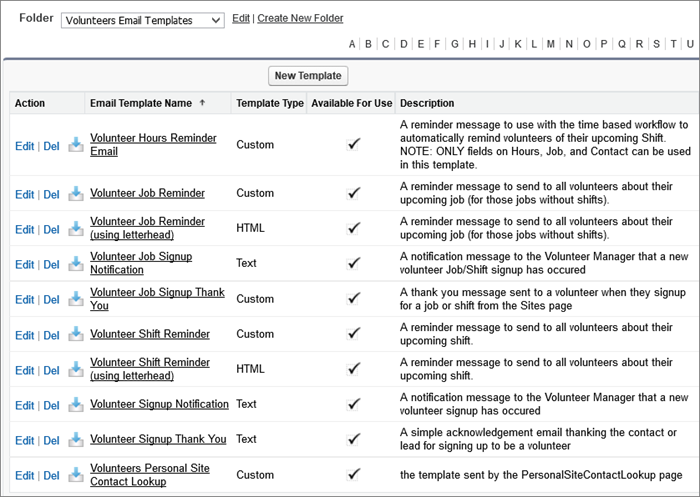
- To view a template, click the template name. Let's take a peek
at the Volunteer Job Signup Thank You.
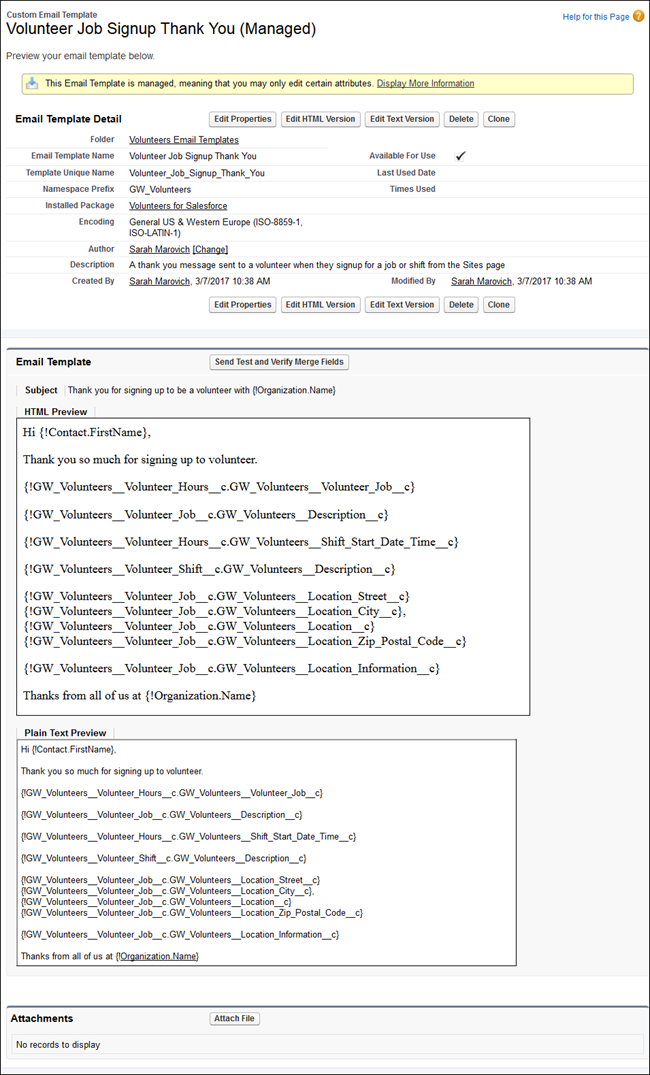
The template consists of text and merge fields that pull data from the V4S objects and fields. You can click Edit here to edit the content of the template. Let's see what the basic, text version of this email to the volunteer looks like.
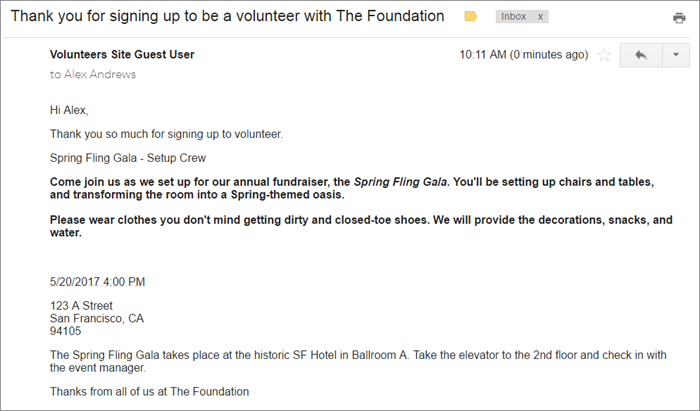
Of course you can always customize it to build a beautiful HTML version complete with your logo, photos, and more!
Manually Email Volunteers
There are times when you may need to email volunteers on the fly. For example, you may need to inform a small group of volunteers that an event has been canceled because you didn't get enough participants. Or you may want to send one last (additional) reminder about an upcoming Shift. This is easy to do with Volunteers for Salesforce.
- Go to the Shift that you need to send an email about. You can
get there from the Shift calendar or the Volunteer Job.
 Note You can also send a mass email from the Volunteer Job detail page.
 - On the Volunteer Shift detail page, click
 in the upper right corner, then click Mass Email Volunteers.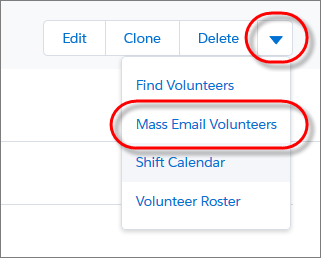
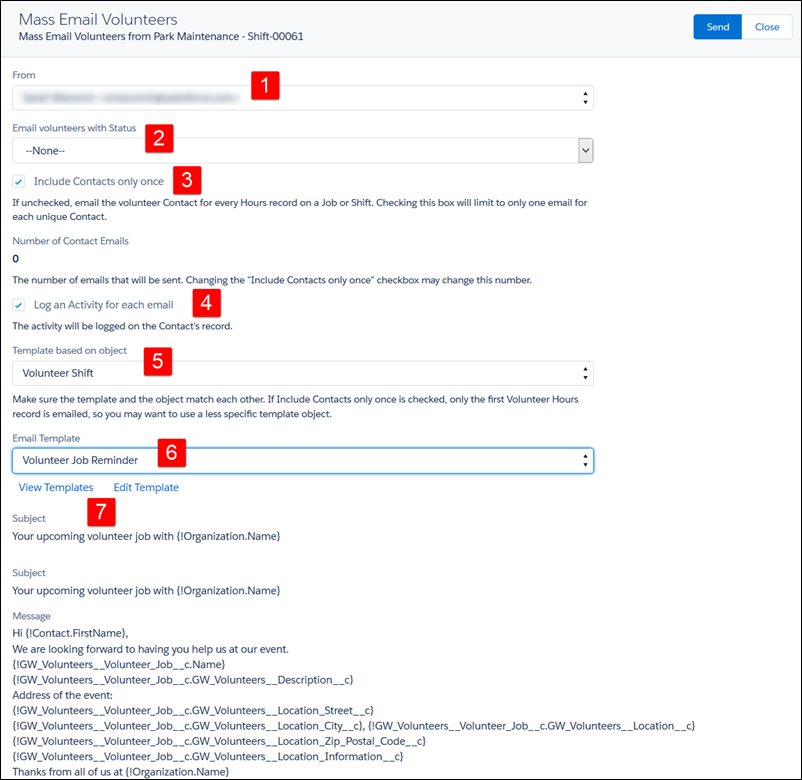
- On the Mass Email Volunteers page, fill in the necessary
fields:
- From (1)—Select the person to receive replies sent by the volunteers.
- Email volunteers with Status (2)—You can limit email to volunteers with a certain status or choose None to email all volunteers who signed up.
- Include Contacts only once (3)—This option prevents Contacts from receiving the same email more than once. It's useful if you're using the Mass Email Volunteers from the Job level, because you might have a Contact who is signed up for more than one Shift.
- Log an Activity for each email (4)—This option creates an activity record linked to the volunteer's Contact record. This is useful if you want to track all your communications with a Contact.
- Template based on object (5)—The object you choose must match the object that the email template is based on.
-
Email Template (6)—Choose the email
template you want to use for your email. You can choose any template that is
in the Volunteers Email Templates folder.Note Use the View Template or Edit Template links (7) to open a new window where you can view or modify templates in the Volunteers Email Template folder. If you modify a template or create a new template in this window, you'll need to refresh the Mass Email Volunteers page to see the new or modified template.
- Click Send.
You now have all the tools you need to confidently manage your volunteer relationships. So go forth and connect with—and inspire—your volunteers!
