
You are here:
Slack Integration User Setup
With the Slack System User configuration page, you can provide the most secure rendering experience for multi-user Salesforce content displayed in Slack from Salesforce.
Where: This change applies to Lightning Experience, Salesforce Classic, and all versions of the mobile app in Professional, Performance, and Unlimited editions.

Why: Sharing Salesforce data securely is essential regardless if users are chatting on public, private, multi-party, or connecter channels. Salesforce sends data to Slack, but Slack must know how to display data based on each user's context. There are three categories of users.
- Default Render User: a global user that applies to all Slack apps
- System User: a user based on a system event
- Unmapped User: any user without a mapping between Salesforce and Slack when a request is made for that user
Your users get a tailored experience based on the preferences configured in Salesforce Setup.
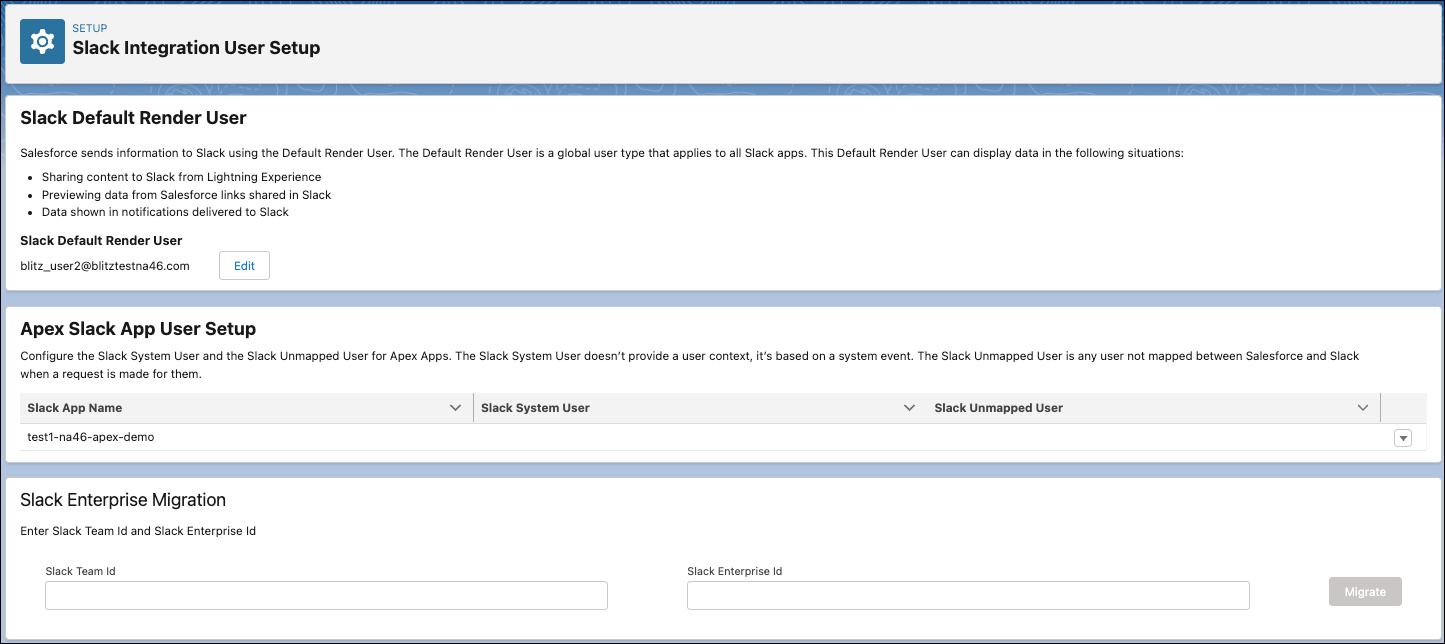
How: From Setup, in the Quick Find box, enter Apex, and then select Build Slack Apps with Apex. Accept the terms of services, then in the Quick Find box, enter System Users, and then select System Users Setup.
