
You are here:
Convert a Lead or Referral in Slack
Create a contact, along with an account and opportunity when you convert a lead or referral in Slack.
Required Editions
Available in: Lightning Experience Available in: Enterprise, Performance, and Unlimited editions Available in: Slack (where approved by a workspace admin) |
| User Permissions Needed | |
|---|---|
| To use Salesforce with Slack: | Connect Salesforce with Slack |
| To use Action Plans: | Financial Services Cloud Extension permission set AND Customize Application |
- In Slack, open the Financial Services Cloud app.
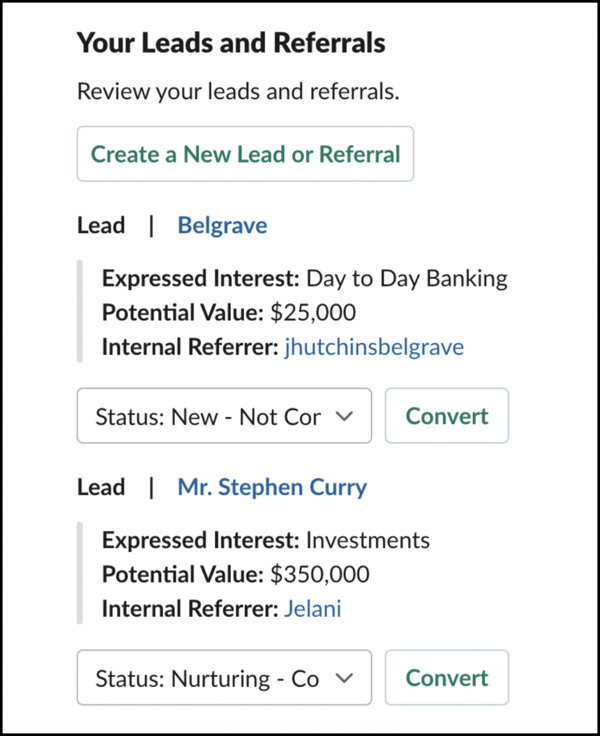
- Click View Your Leads and Referrals.If you don’t see the View Your Leads and Referrals button, contact your Salesforce Admin for help.
- Click Convert.
- Configure your lead or referral, and then click Convert.
 The account, contact, and opportunity sections are filled with data from the lead that is being converted. You can customize the sections based on your business needs.
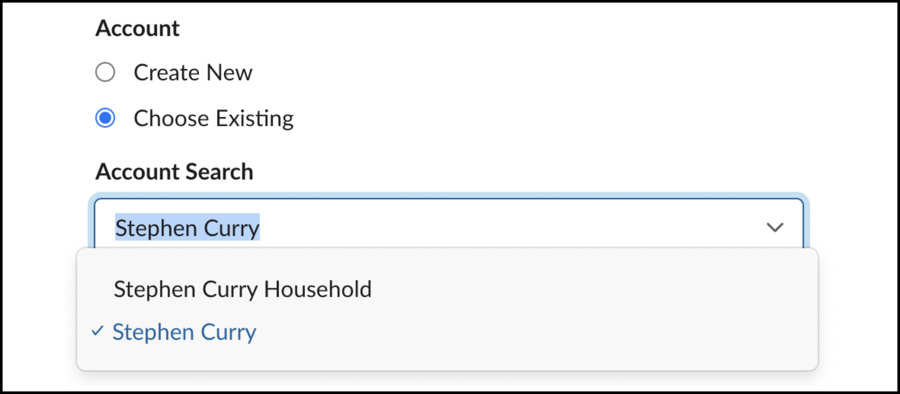
- In the Account section, to associate the lead or referral to an existing account, select
Choose Existing. Enter the name of the account in the Account Search
box, and select an account.
- In the Contact section, to associate the lead or referral to an existing content, select Choose Existing. Enter the name of the contact in the Contact Search box, and select a contact.
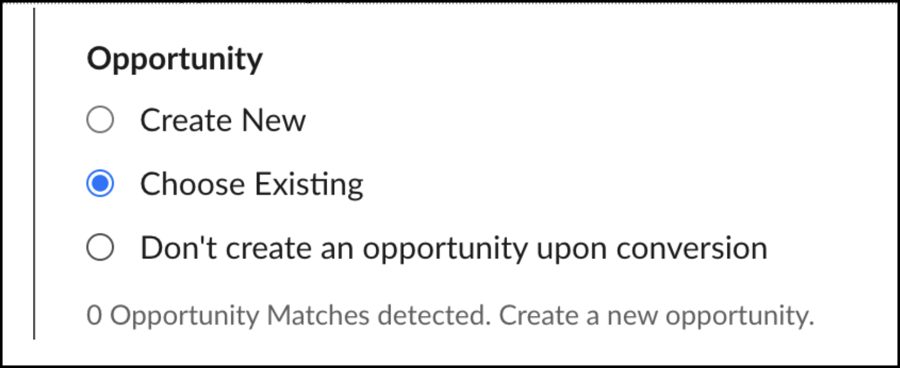
- In the Opportunity section, to associate the lead or referral to an existing opportunity, select Choose Existing.
- From the list of existing opportunities on the account that match the lead or referral,
select an opportunity.If no existing opportunities match the lead or referral, select Create New, and create an opportunity.
- To not create an opportunity when the lead is converted, select Don’t create
an opportunity upon conversion.
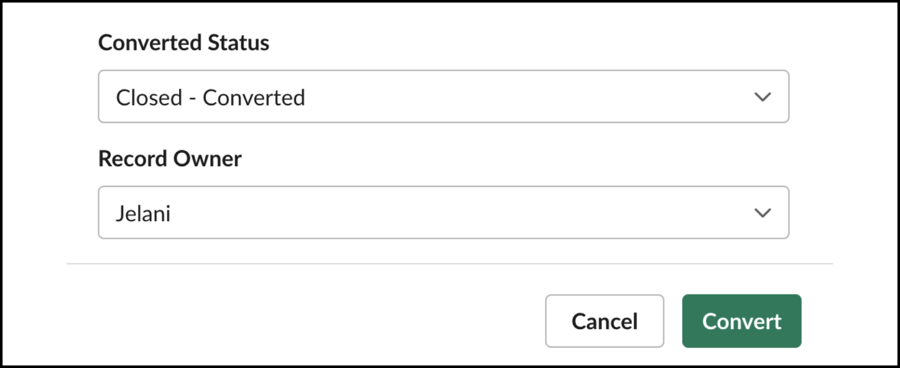
- The Converted Status is automatically set to Closed - Converted.
- The Record Owner is automatically set to the user converting the lead, also known as the lead owner.
- Click Convert.
- In the Account section, to associate the lead or referral to an existing account, select
Choose Existing. Enter the name of the account in the Account Search
box, and select an account.
Did this article solve your issue?
Let us know so we can improve!
