Loading
Salesforce now sends email only from verified domains. Read More
Partner Relationship Management
Table of Contents
Select Filters

          No results
          No results
          Here are some search tips

          Check the spelling of your keywords.
          Use more general search terms.
          Select fewer filters to broaden your search.

          Search all of Salesforce Help
          Export Vendor Records to Your Salesforce Org and View Vendor Record Updates

          Export Vendor Records to Your Salesforce Org and View Vendor Record Updates

          Partner Connect lets partner users export a vendor’s leads or opportunities from the vendor’s Experience Cloud partner site to their own Salesforce org. If the feature is configured, partner users also get a read-only glimpse of how the record is progressing in the vendor's system. If the admin with the vendor company gave users permission to create and customize list views, partner users can also add the Export Status field to Lead and Opportunity list views.

          Required Editions

          Available in Lightning Experience in Enterprise and Unlimited Editions with Sales Cloud or Service Cloud. Vendors must purchase a PRM add-on license for the partner admin user and each partner user who exports records. Partners aren’t required to purchase PRM licenses to use Partner Connect.
          User Permissions Needed
          To export records from a vendor org to an authorized partner org: Export Vendor Records to an Authorized Partner Org (in the vendor org)
          To create and customize list views on the vendor's Experience Cloud partner site: Create and Customize List Views (in the vendor org)
          Tip
          Tip Try adding the Export Status field to your Lead and Opportunity list views. The field shows these export statuses: Exported, Not Exported, Export In Progress, or Export Error. If you can't add the field to your list views, ask the Salesforce admin at your vendor to assign you access.
          1. Log in to your vendor’s partner site.
          2. Go to the page that contains the records that you want to export. Depending on your vendor's settings, export is available for leads, opportunities, or both.
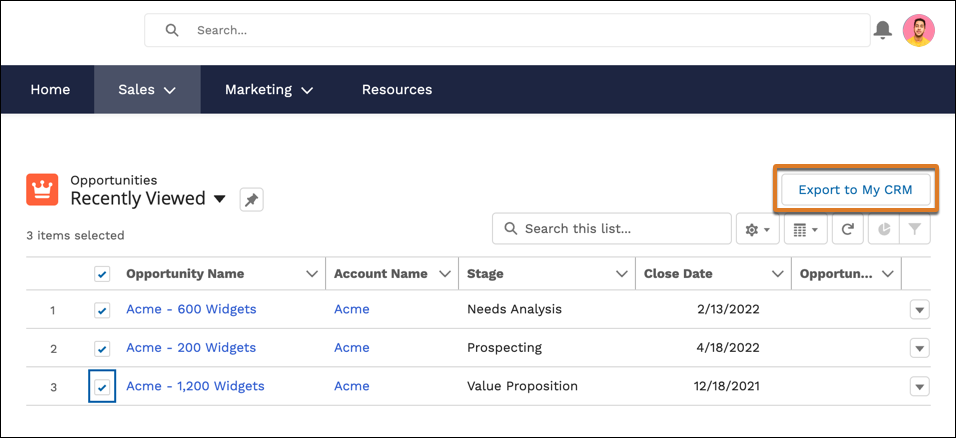
          3. Select the records that you want to export. You can export up to 200 records at one time.
          4. Click the Export to My CRM button.
            Export to My CRM button on the an opportunities list view
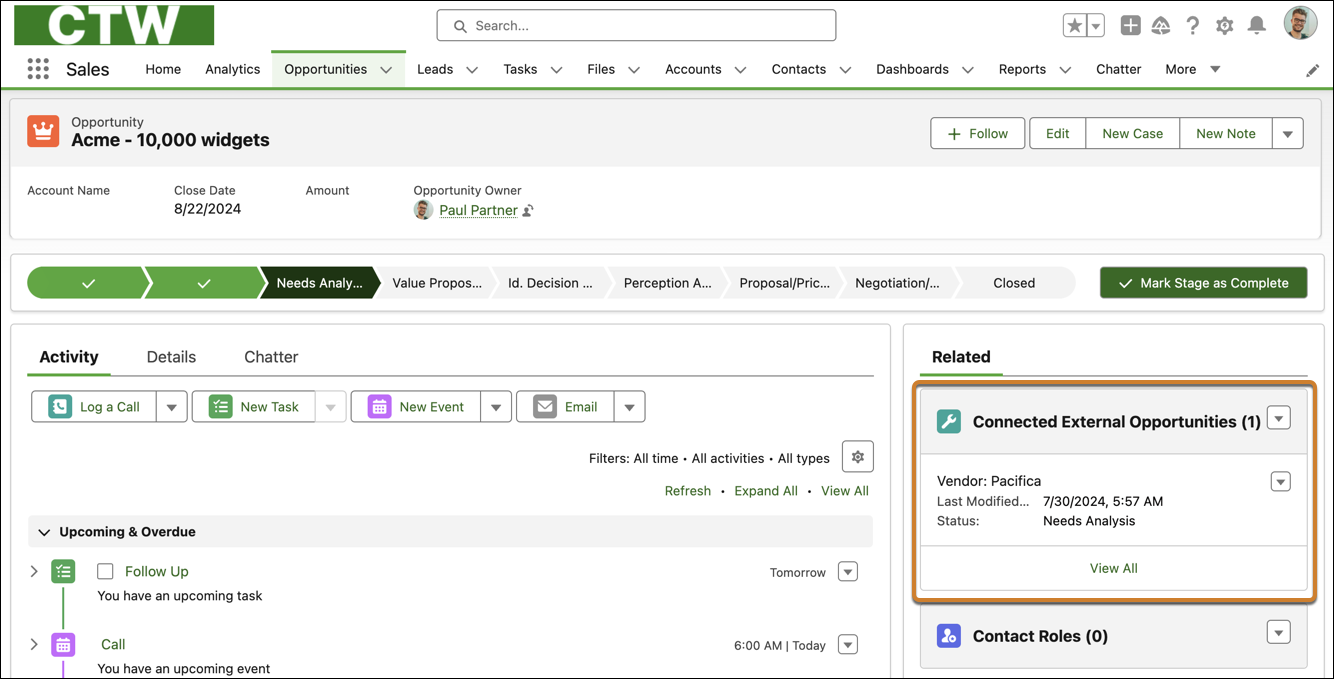
            After records are exported, we send an email to the Partner Connect admin at your company that confirms which records were imported to your Salesforce org. After a record is imported, only users in the partner org can edit it. If vendors decided to continue sending and receiving record updates, a read-only connected external lead or opportunity is also created. That record represents the vendor's version of the record.
          5. To view the vendor’s version of the record, log in to your Salesforce org and open any imported lead or opportunity. The Connected External Lead or Connected External Opportunity related list shows the read-only version of the vendor’s record.
            Connected external opportunity related list on an imported opportunity
            Sometimes vendors decide not to share updates for all fields on a record, even if the field was included during export.
           
          Loading
          Salesforce Help | Article