
You are here:
Assessing Contact, Lead, and Pipeline Activity Using Enhanced List Views for Partners
When partners have access to Contact Intelligence View, Lead Intelligence View, and Pipeline Inspection, partners can view activities, complete actions, and update records from a single page of their Experience Cloud site.
| Available for partners in Experience Cloud Aura sites, accessed through Lightning Experience in Enterprise, Performance, and Unlimited Editions with Sales or Service. A PRM add-on license is required for each partner user. |
| Available with Sales Cloud Einstein, which is available in Performance and Unlimited Editions, and for an extra cost in Enterprise Edition. |
Your site admin can add an enhanced view of your contacts, leads, or deals from your partner site. Some partner sites let you access enhanced list views from Leads, Contacts, or Deals on the main site navigation menu (1). If you can’t find the enhanced list views on your site, ask your site admin for help.
Let’s take a closer look at the enhanced list view for leads.
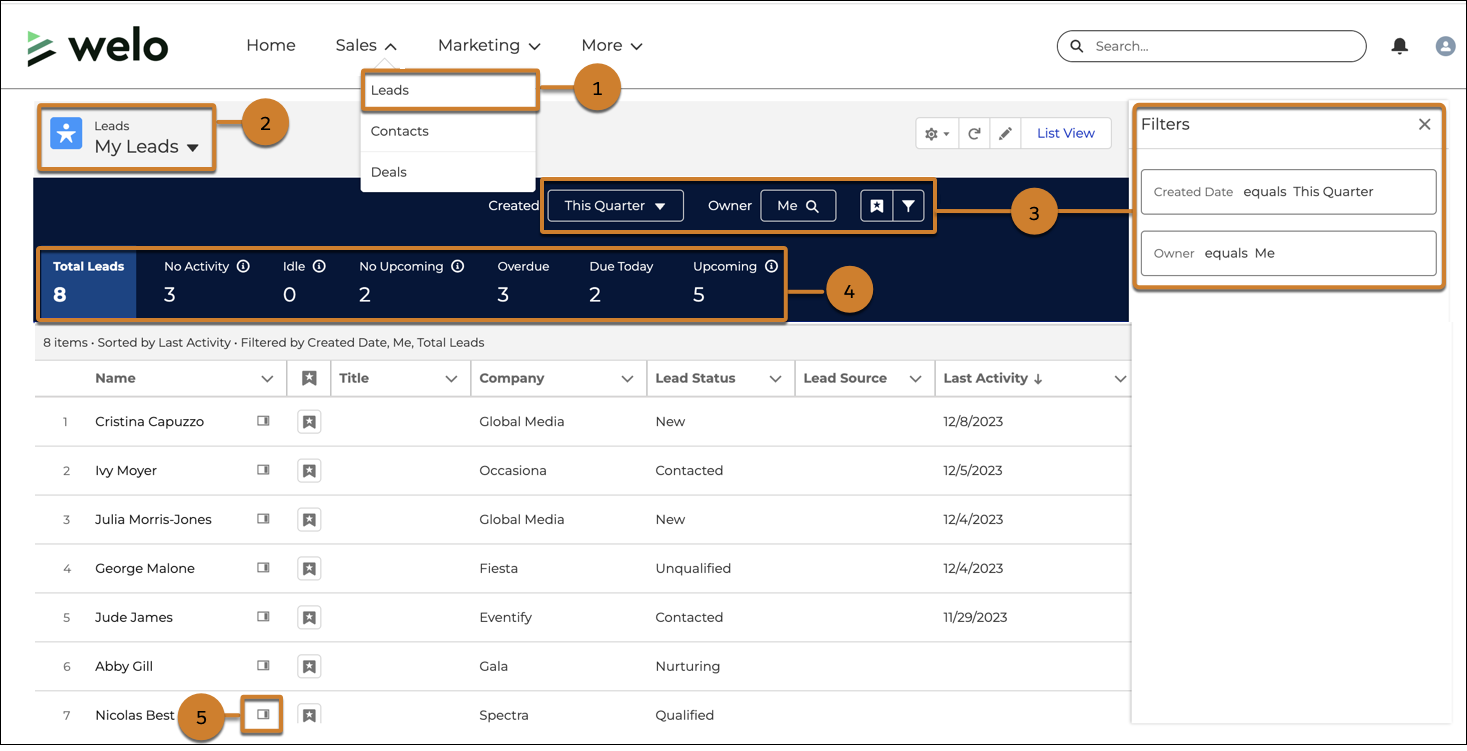
Select one of your leads list views to filter the leads you want to peruse (2). If you want, further filter records (3) and check out the aggregate activity statistics across the displayed list (4). To see activity metrics and health insights on a record, click the side panel icon (5).
From the side panel, see more activity metrics, such as which records are overdue (5) and which have activities scheduled today (6). You can also send an email to the prospect or customer (7), or create a task or log a call (8).
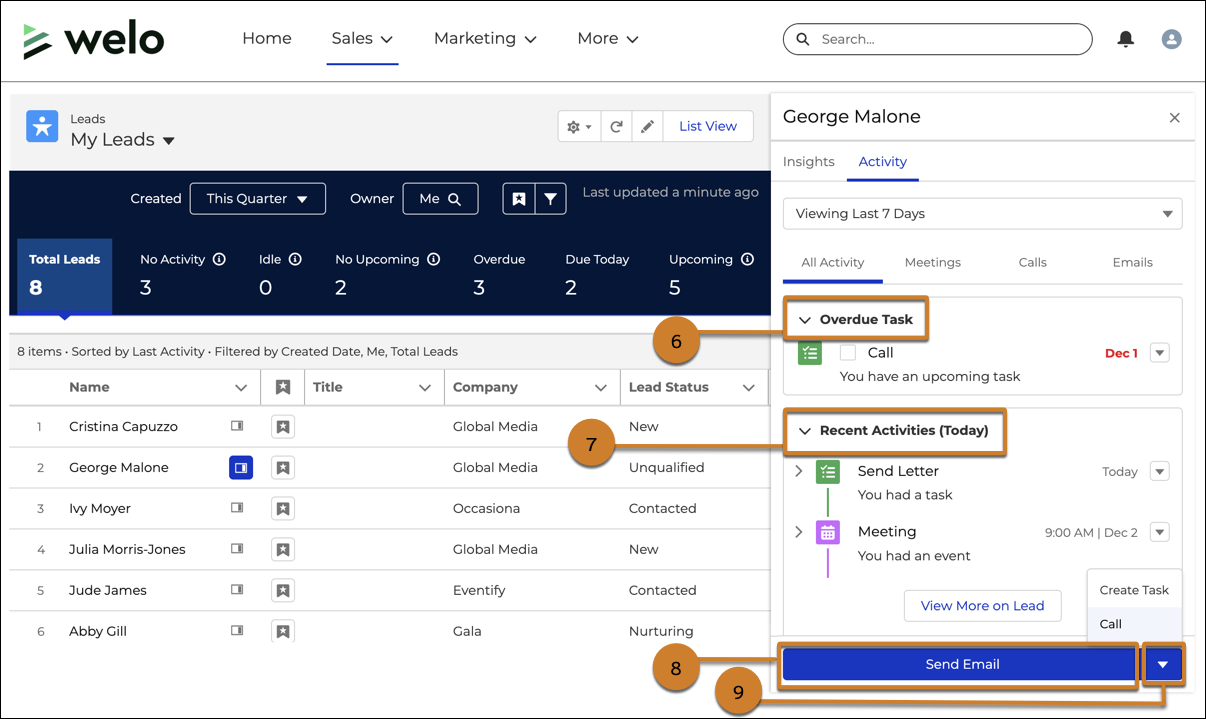
The contacts enhanced list view is similar to leads, but it also includes Case Insights from the Insights tab on the side panel.
The pipeline enhanced list view includes a different collection of metrics and insights. After selecting a list view, select quick filters for narrowing the opportunities partners are viewing by owner, projected close date, and the time frame of recent changes. See health metrics across the opportunities listed, such as the amount of pipeline that’s overdue, open, or lost (1).
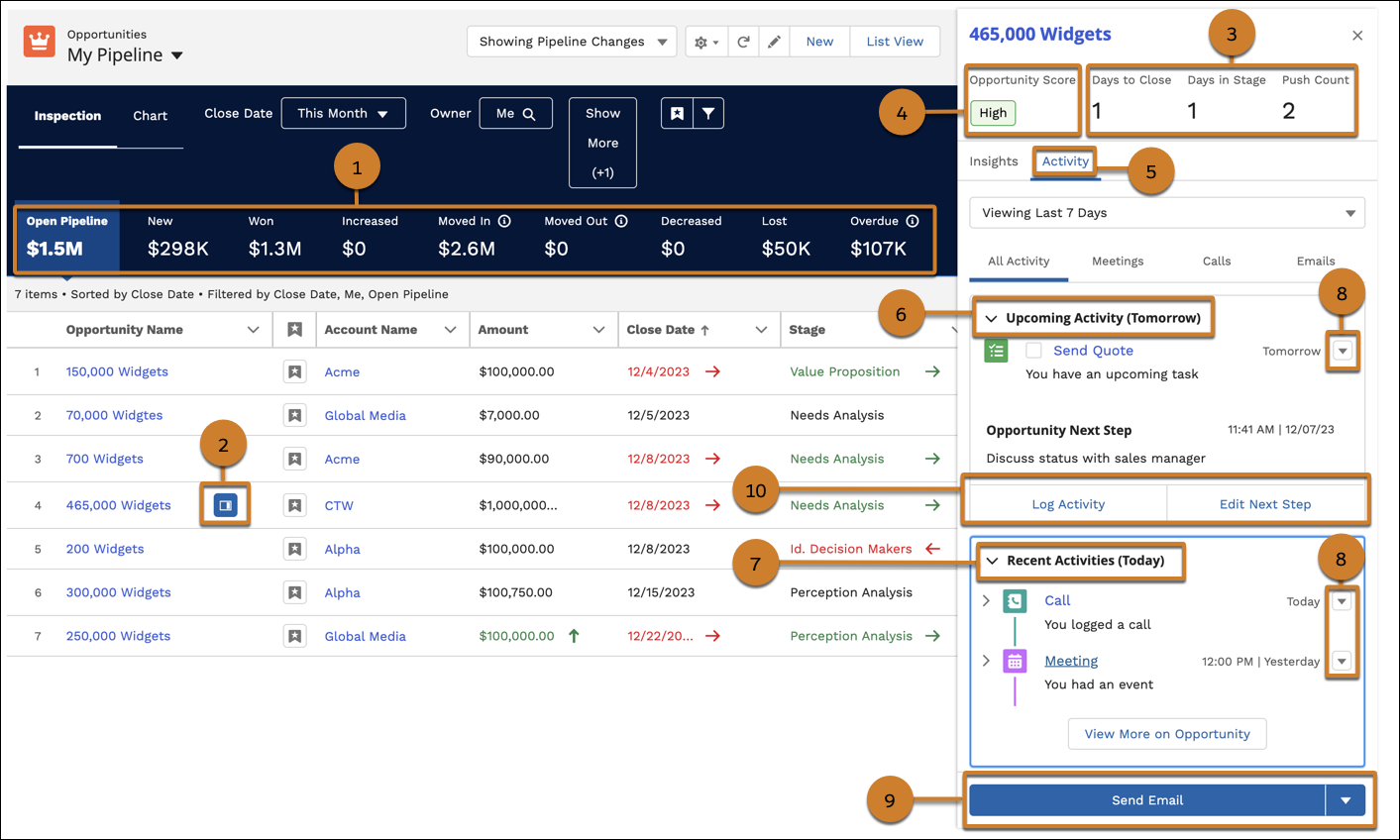
To see activity metrics and health insights on a record, click the side panel icon (2). The side panel shows opportunity metrics for Days to Close, Days in Stage, and Push Count (3). For partner users who are assigned the Sales Cloud Einstein for Partners permission set, an Opportunity Score insight is also available (4).
From the Activity tab (5), see upcoming (6) and recent (7) activities, and edit them (8). Partners can also complete actions, such as sending emails (9); logging related calls, events, and tasks; and editing the opportunity’s next step (10).
From the Insights tab, you can also see more insights on scores, activities, service cases, and the likelihood of the deal to close.
