
You are here:
Set Up the Swarm Conversations Component
To see Slack conversations linked to a swarm from a record in Lightning Experience, add the Swarm Conversations component to your record page layouts.
You can add the Swarm Conversations component only to object page layouts that support Swarming, such as Cases or Customer Service Incident Management objects. Before adding the component, complete the Salesforce and Service Cloud for Slack setup.
- From Setup, in the Quick Find box, enter Lightning App Builder.
- Select the page layout you want to add your quick action to and click Edit.
- From the Components tab, add the Swarm Conversations component to the page layout.
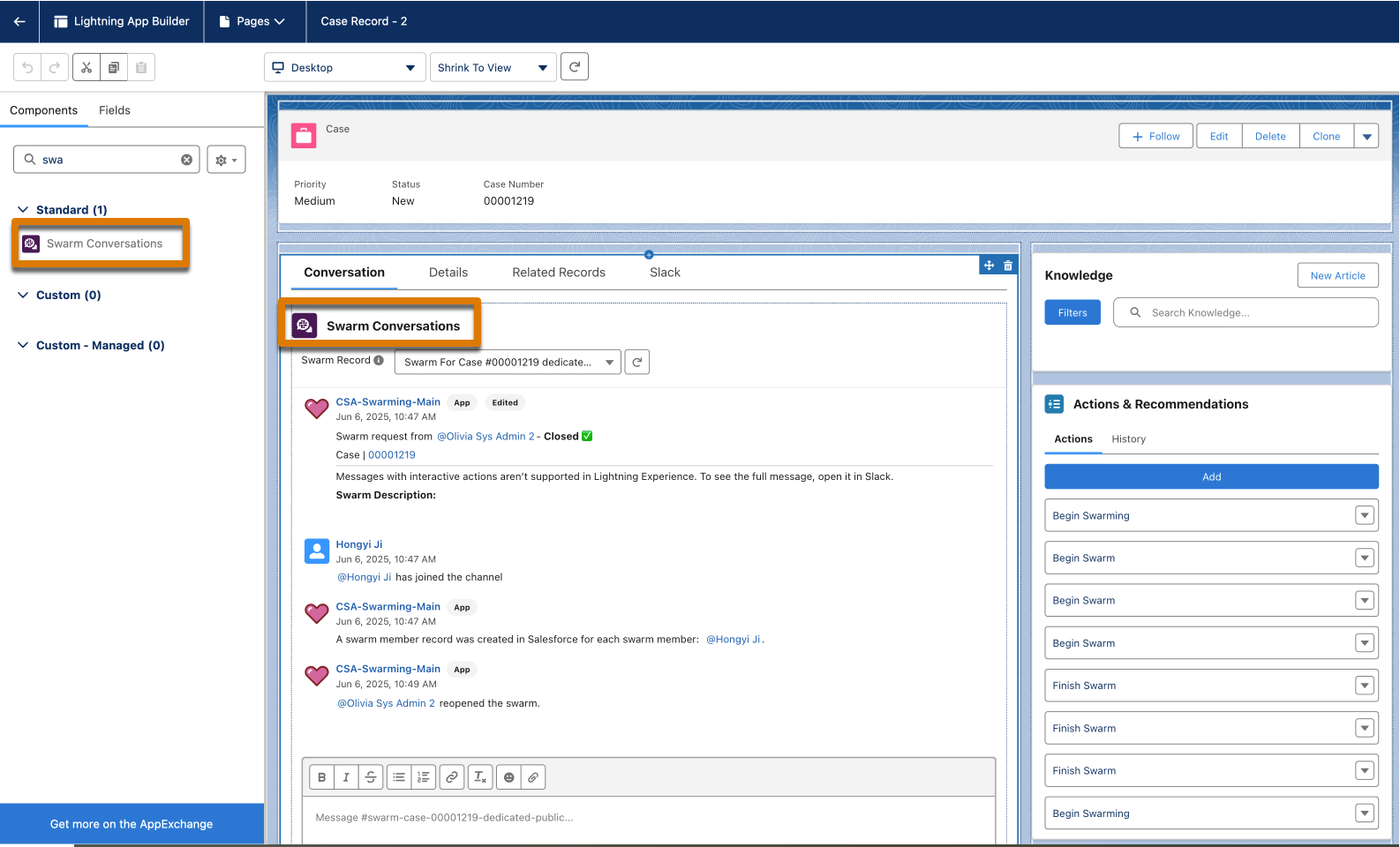
 Tip For easy viewing, create a tab and add the Swarm Conversations component to it.
 - Save your changes.
After the Swarm Conversations component is added to the page layout, users can view the channel’s conversation and send and receive new messages from Lightning Experience.
- Considerations for the Swarm Conversations Component
Before you use the Swarm Conversations component, make sure you understand its limitations.
Did this article solve your issue?
Let us know so we can improve!
