
You are here:
Enable Salesforce for Slack Integrations
Integrate Slack and Salesforce to unlock access to Slack apps, tools, and services. This page covers the admin procedures for enabling Salesforce for Slack Integrations.
| Permissions or Permission Sets Needed | |
|---|---|
| To connect Salesforce and Slack (required for most Slack apps): | Connect Salesforce with Slack (system permission on supported Salesforce licenses) |
| To use the Sales Cloud for Slack app: | Slack Sales User |
| To use the PRM for Slack app: | PRM for Slack app Salesforce User or PRM for Slack Partner app User |
| To use the Service Cloud for Slack app: | Connect Salesforce with Slack, Slack Service User, Run Flows |
| To use the CRM Analytics for Slack app: | Connect Salesforce with Slack Also recommended: Use CRM Analytics, Subscribe to CRM Analytics Assets, Add Recipients to CRM Analytics Notifications, Subscribe to Reports, Subscribe to Reports: Add Recipients, Subscribe to Dashboards, Subscribe to Dashboards: Add Recipients, View Einstein Discovery Recommendations |

To enable Salesforce for Slack Integrations, complete these steps.
- From Setup, in the Quick Find box, enter Slack Apps, and then
select Slack Apps Setup.
Optionally, click Learn More in Help to open this Help page for easy referral at any time during the process.
- In section 2, review the terms and conditions, and then click to accept.
- In section 3, click to enable the applications you want to make available to your
users.Note Some apps have an additional setup page. For those apps, complete the steps on the app's setup page under Specialized Slack Apps, and then return to the Slack Apps Setup page.
- In section 4, if you haven’t already, click to set up required and recommended
permissions for users.
 Important Unless otherwise specified, each Slack user, including the Slack workspace owner that adds apps in Slack, must be assigned a permission set on the Salesforce license that has the Connect Salesforce with Slack system permission. Some licenses don’t support Slack integration. If the user license doesn't support the permission, an error displays when you try to assign the permission set to the user.
 - In section 5, set up users with object permissions to view and edit records in Slack. For record detail security, select either Show Object Type Only or Show Record Name and Object Type. You can also select link unfurling options in this section.
- In section 6, click to install Slack apps from the Slack App Directory. Note It's a prerequisite to work with your Slack workspace owner or Slack enterprise grid admin to approve and install apps, tools, and services in your company’s Slack workspace. The owner or admin must log in to Salesforce.
- In the Slack App Directory, find the app, tool, or service to install, and click Add to Slack.
- Click Connect, and log in to your Salesforce org or sandbox using your admin credentials.
- Verify that the correct workspace is listed, and click Allow.
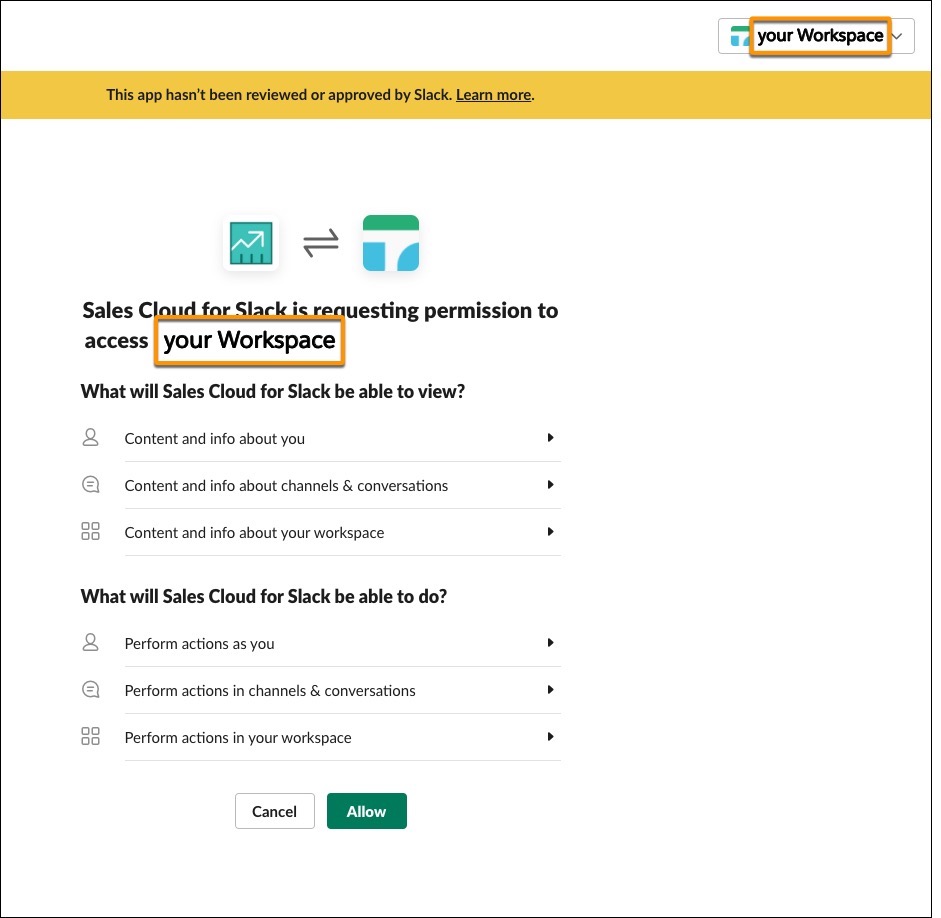
- Select the checkbox to agree to the access conditions, and then click Allow.
- In section 7, complete any additional steps to set up features for your app.
- (Optional) In section 8, customize which fields users can access in Slack. Grant access to required fields so that users can save new or updated records within Slack.
- Instruct individual users to add the app, tool, or service to their personal Slack sidebar and connect their Salesforce account. See Add Apps in Your Personal Slack Sidebar.
