
You are here:
Swarm in Slack from Lightning Experience
Collaboration with Swarming starts when an agent sends a swarm request to get help to resolve an issue. You can create a swarm in a new channel that is created for this issue, or in an existing channel.
To create a swarm in a Salesforce channel, enable the Slack Record Channels Org permission.
- Select the Begin Swarming flow action. It may be a quick action, dynamic action, or in the Actions and Recommendations panel.
- Select a workspace. The default shown in the selector is the one that’s been configured for the app.
- Choose how you’d like to swarm.
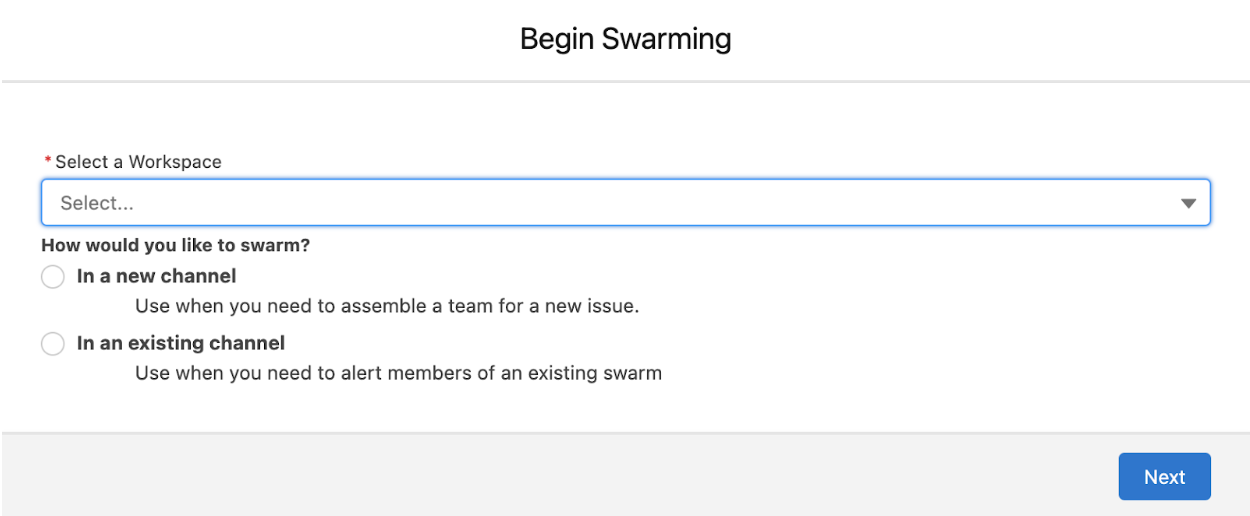

 Note If there is a Salesforce channel associated with the record you're attempting to swarm on, you won't see Salesforce channels as an option.
See Also
Swarm in a New Channel
Start a swarm in a new Slack or Salesforce channel, dedicated to this issue.
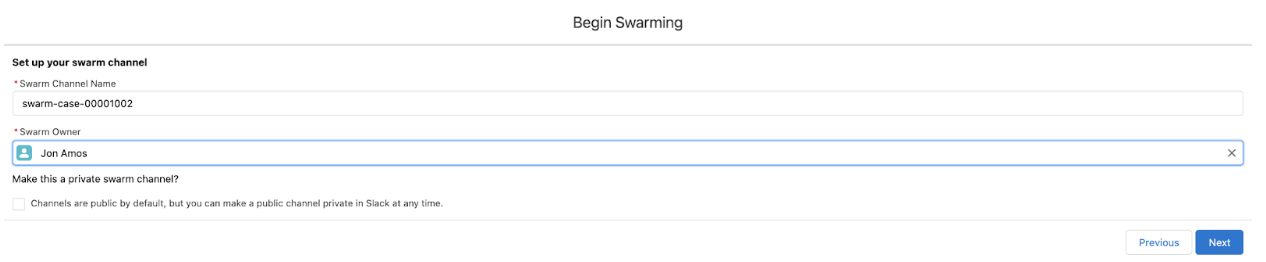
- Enter the details for the new swarm channel, and then click
Next.
 Important
Slack swarm channels default to public channels, and you can make them private to restrict view access to a limited audience.
The privacy level of Salesforce swarm channels is determined by how your Salesforce channels are configured in Slack.
For Slack channels, the name of the new channel defaults to swarm-case-[Case #] to keep a consistent pattern in Slack. You can change the channel name, but naming changes affects the consistency of swarm channel names. The swarm owner defaults to the agent running the flow, but you can change the owner.
For Salesforce channels, the name of the new channel defaults to the record name, and you cannot change the channel name.
- Enter a description of the issue, such as, I need help with a Java and Perl
issue, and then click Next.
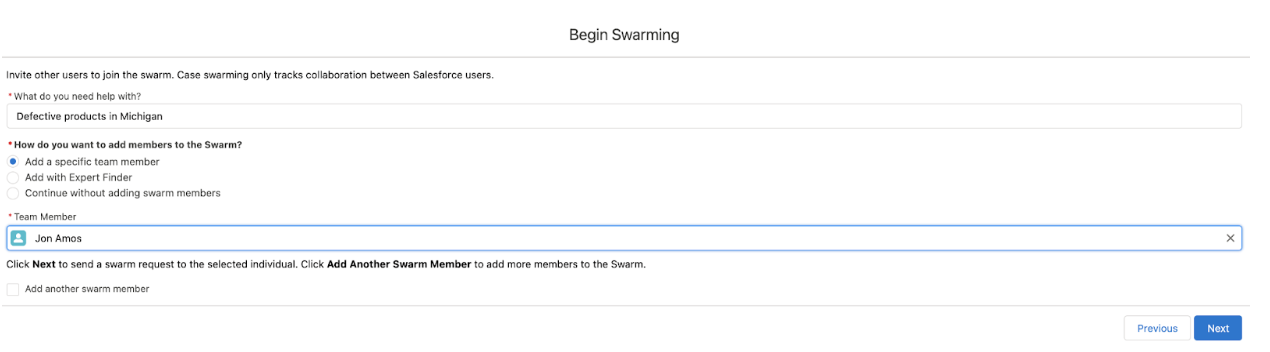
- Choose how you’d like to add members to the swarm. To add specific team members, select the
corresponding option, and then enter their name.
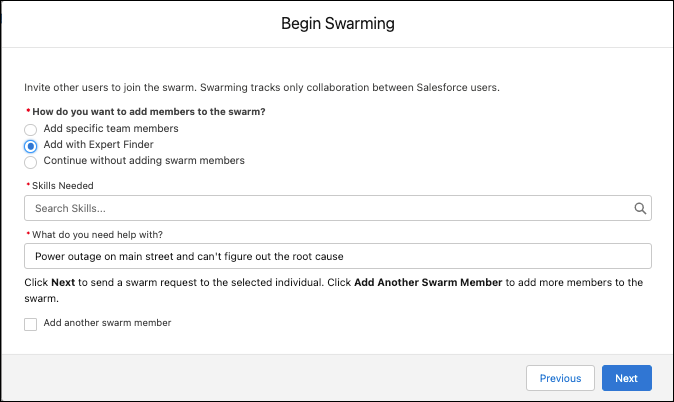 Expert Finder uses skills-based routing to find the person with the right skills and availability and capacity to get the job done.
 - Select Add another swarm member, and then enter details for each person you want to add to the swarm. Then click Next to create your swarm channel.
Swarm in an Existing Channel
Reuse an existing Slack or Salesforce channel to swarm in.
-
Use the provided fields to find the channel you want to swarm in, and then click
Next.
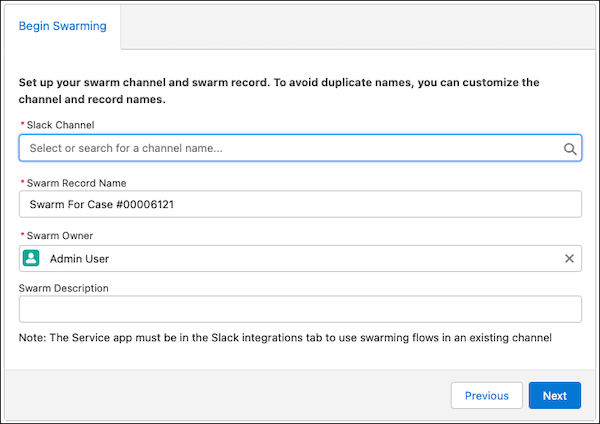 You can search for all public channels or any private channel where you’re a member. If you don’t see a channel that you want to swarm in, go to Slack and make sure you join the channel first.
 - Add more users to the existing channel. All users in the channel can see all of its posts, regardless of when the post was submitted.
- Click the collaboration link in the Swarm related list record to start collaborating with other agents in your new swarm channel.
As you search for Slack channel names, keep in mind these considerations:
- You can enter up to 80 characters in the search box.
- Click inside the box to enter your search terms. If you delete a character or term, click the search box to see the updated list of channels.
- You can see up to 1,000 channels at a time.
