
You are here:
Create Custom Fields for the Document and Template URL
If you want to use different documents or templates for your Salesforce records, create a custom field. Quip stores the URL of the embedded document or template in the custom field of the Salesforce object. If each record uses the same document, you don’t need to create the fields.
Required Editions
| Available in: Lightning Experience |
| User Permissions Needed | |
|---|---|
| To create or change custom fields: | Customize Application |
You can create a custom URL field from the Object Manager, or create one from the Quip Document component in the Lightning App Builder.
- Create a Custom URL Field from the Object Manager
Store documents created from a template in custom URL fields. Manage access to the custom URL field. - Create a Custom URL Field from the Quip Document Component
Create a custom URL field for your documents and templates without leaving the Lightning App Builder.
Create a Custom URL Field from the Object Manager
Store documents created from a template in custom URL fields. Manage access to the custom URL field.
- Navigate to the Salesforce page that you want to create a custom field for, such as a customer’s Account page.
- Click the gear icon, and select Edit Object to go to Object Manager.
- On the left, click Field & Relationships.
- Click New.
- Select URL, then click Next.
- Enter a field label and name, and optionally a description, and click Next.
-
Select the profiles that can edit the new field, and click
Next.
Users who use documents or clone templates must be able to edit the field.
-
If you have Dynamic Forms-enabled Lightning record pages for the object, ensure all are
deselected, then click Next.
If you don’t have any Dynamic Forms-enabled Lightning record pages for the object, this step doesn’t appear.
-
Deselect all page layouts, and click Save.
You deselect the Lightning pages and page layouts because you don’t want the new field to display in the Lightning page yet.
- If users can use different templates for different records, create a second custom field to store the template.
Create a Custom URL Field from the Quip Document Component
Create a custom URL field for your documents and templates without leaving the Lightning App Builder.
Before you create a custom field:
- Navigate to the Salesforce page where you want to add a Quip Document component, such as a customer’s Account page.
- Click the gear icon, and select Edit Page to go to the Lightning App Builder.
- Add the Quip Document component to your page layout.
Standard profiles have edit access to this field. Custom URL fields created from the Quip Document component aren’t added to the page layout. You can make changes later from the Object Manager. Creating a field from the Lightning App Builder isn’t supported for the same doc on every record option.
-
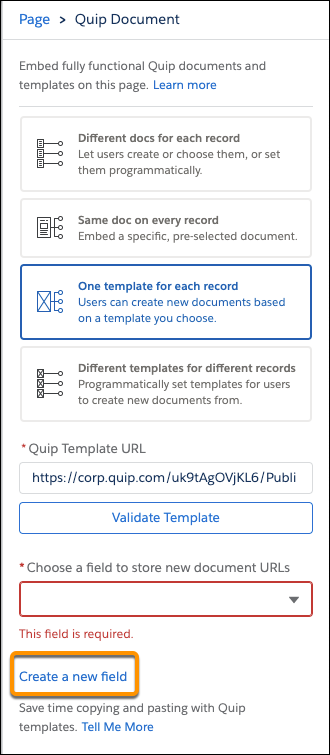
From the Quip Document component, select Create a new field.
-
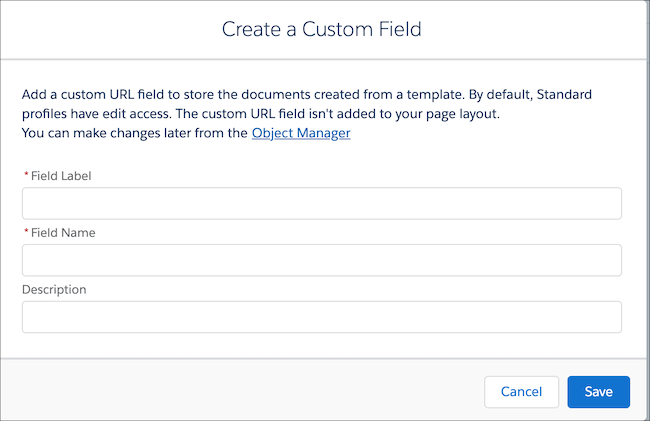
Enter a field label and field name. You can make changes later from the Object
Manager.
- Save the action.
If you selected Different templates for different records, create a second field to store your new document URLs.
