
You are here:
Mail Merge Examples
Use templates to prepopulate documents with content that’s specific to the Salesforce record they’re embedded in. For example, you want to use a document to store an Account Plan for each account. When a user creates an Account Plan, you want it to include the same boilerplate content for every account. But you also want to include specific field values from the account, such as the account name and description.
Required Editions
| Available in: Lightning Experience |
Quip supports basic mail merge syntax for auto-filling data from Salesforce records. This syntax supports standard and custom fields that are directly on the Salesforce object, and lookup fields up to one level. You can use any document as a template—nothing special is required. For the best templating experience, use the template format to create a template or mark a document as a template.

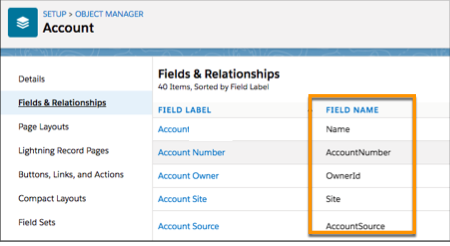
Use Object Manager to determine the names of the fields of your Salesforce object. Click the gear icon, select Edit Object, and click Field & Relationships on the left.
Standard Fields
To include the value of a standard field of an object in a Quip template, use this syntax:
[[objectname.fieldname]]This example pulls data from the standard Description field of the Account standard object.
[[Account.Description]]Standard Lookup Fields
To include standard lookup fields, use this syntax:
[[objectname.lookupfieldname.referencefieldname]]For example, the Contact standard object has an AccountId lookup field that references the Account standard object. This example pulls the Account name into a template that you’re embedding in the Contact object.
[[Contact.Account.Name]]Custom Lookup Fields
If your record doesn’t have a standard field that links it to another
record, such as [[Account.Contact.Name]], create a custom lookup
field. Make sure that you use the correct field name, which usually
has __c at the end. This
example uses a lookup field in Accounts to pull in Contacts
associated with this Account.

Contact__c is a custom Contact lookup field.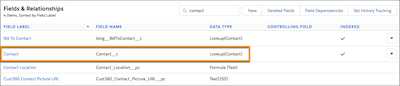
[[Account.Contact__r.Name. The __c is replaced with an __r in the mail merge syntax.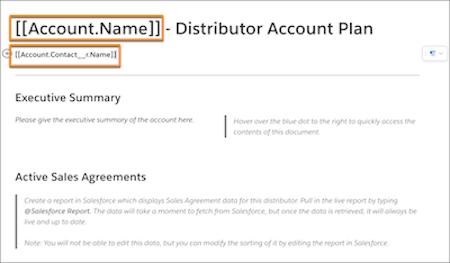
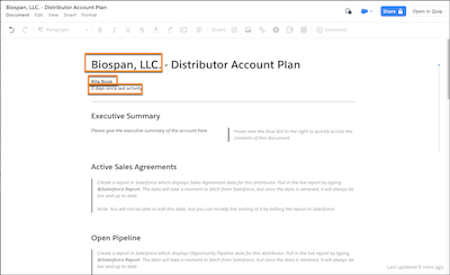
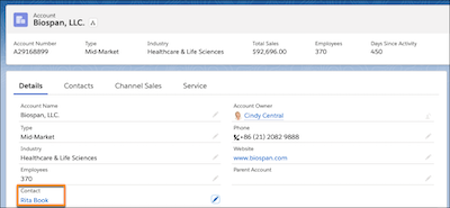
The field must be exposed in the user interface and populated with a Contact for the mail merge to work.
Custom Reference Fields
To include custom reference fields, use this syntax:
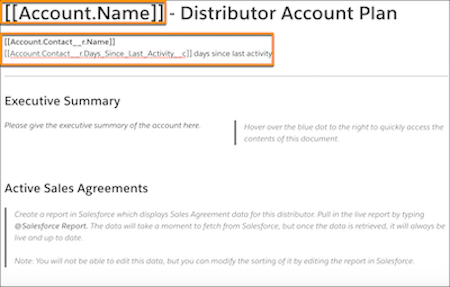
[[objectname.lookupfieldname__r.customfield__c]]To use mail merge to pull a Contact’s days since last activity as it
relates to an Account, use [[Account.Contact__r.Days_Since_Last_Activity__c]].
Images
To use mail merge syntax to add an image to a template, like a logo, use a formula field in Salesforce. You can pull in an image URL field into the formula, or add the image URL directly. Images can’t be resized.
In a template, use [[ObjectName.CustomImageField__c]] where
CustomImageField__c is a formula field of type text.
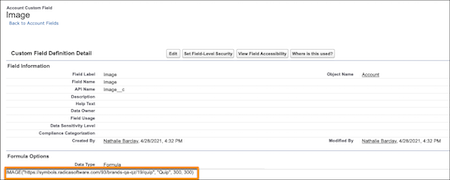
Image__c is a custom formula field
of type text on the Account object. To add a Quip logo to the
formula, use IMAGE("https://symbols.radicasoftware.com/93/brands-qa-qz/19/quip",
"Quip", 300, 300). If you have a separate Image URL
field for the logo, use IMAGE(ImageURL__c, "Quip", 300, 300).
In a template, enter the mail merge field [[Account.Image__c]].
![[[Account.Image__c]] highlighted](https://sf-zdocs-cdn-prod.zoominsoftware.com/tdta-anywhere_app-260-0-0-production-enus/200c57b2-d28a-4e29-99b3-6dc7c2cef1b7/anywhere_app/images/quip_mail_merge_image_field.png)
Default States
To add a user-friendly mail merge state to your templates if the mail merge field doesn’t match the Salesforce record field, add a default state in single or double straight or curly (smart) quotes. If the mail merge field matches a Salesforce record field, the default state doesn’t show.
To replace mail merge syntax with "Account Owner Phone Number Default" when the field doesn’t exist in Salesforce, enter [[Account.Owner.PhoneNumber, "Account Owner Phone Number Default"]].
Template Tips and Considerations
- When you reference a field in your template, use its field name.
Don’t use its field label. Object Manager displays both
values.
- The document is auto-filled based on data at the time of its creation. When data changes occur, the document doesn’t automatically update.
- You can have up to 250 fields, with no more than 20 lookup fields.
- Mail merge defaults don’t support smart, or curly, quotes. To include a mail merge default state, use straight quotes.
Sample Templates
Here are some sample templates to help you get started with your own.
