
You are here:
Rebate Management Workflow
Before you implement or use Rebate Management, understand the end-to-end workflow and the key decisions involved in each step.
Required Editions
| Available in: Enterprise, Unlimited, and Developer Editions that have Rebate Management enabled. |
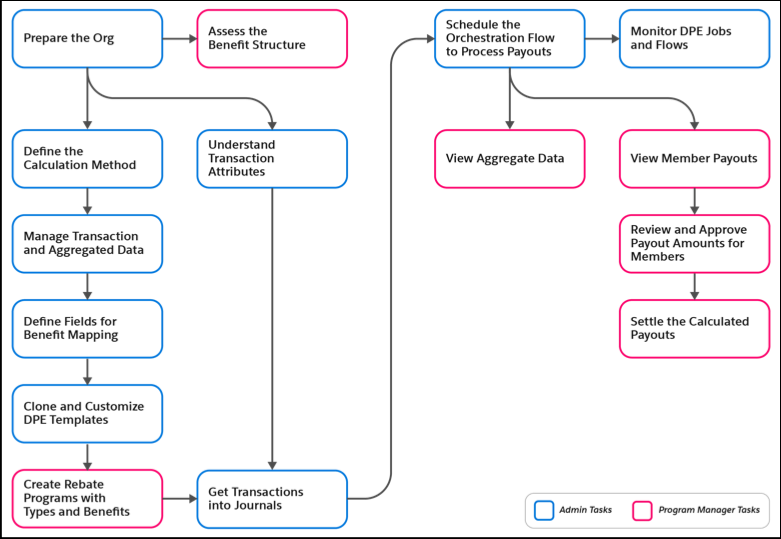
Prepare the Org
Enable the features for Rebate Management and Data Pipelines in Setup. Assign permission sets and object access to user profiles. If necessary, provide partners visibility into rebate information by setting up the Experience site to provide partners visibility into rebate information.
Understand Business Requirements
Rebate program managers plan these business requirements:
| Business Aspect | Business Question | Considerations |
|---|---|---|
| Shape of transactions | What are the fields that a typical transaction record has? | Add custom fields such as invoice date, product family, and payment status to Transaction Journals based on business requirements. |
| Rebate payout calculations | Are payout calculations based on each transaction or on aggregated transactions? | Specify the calculation type for a Rebate Type record to define if rebates are paid out by each transaction, or by aggregated transactions at the end of a payout period. If choosing aggregated transactions, specify the aggregation level, such as member and product. |
| Benefit structure | Do benefits vary by other criteria? | Use Program Rebate Type Benefit Mapping to specify the criteria by which benefits vary. For example, benefits can vary by Country (2% rebate in the USA and 2.5% in Canada). |
Manage Transaction and Aggregated Data
Admins can create custom objects to capture transaction data and aggregated data. Or, they can use the default objects: Transaction Journal and Rebate Member Product Aggregate. To add company-specific details to transactions or to aggregated payout data, admins can create custom fields, such as discounted price, product category, region, and unit price.
Define Fields for Benefit Mapping
Benefits for a rebate type vary with criteria, such as product category, member territory, and industry segment. To define a criteria, admins create the same custom fields on the Program Type Benefit and Rebate Member Product Aggregate objects. Then program managers map the custom fields by using the Program Rebate Type Benefit Mapping object.
Clone and Customize Data Processing Engine Templates
Admins clone the predefined Data Processing Engine (DPE) definitions. Admins can then customize and activate the cloned definitions.
Create Rebate Programs with Types and Benefits
Program managers design a rebate program and define the frequency—monthly, quarterly, or yearly—of payouts. They enroll partner accounts as members of the program and define the accrual details. Then they create rebate types within the program and use an activated DPE definition for calculations. The program managers also create benefit tiers to complete the rebate program. If necessary, program managers can create benefit mappings if the benefits vary by criteria such as region and product.
Get Transaction Records Into Journals
Use one of these sources to get transaction records into the Transaction Journal.
- Admins use the predefined Insert Order to Journal DPE definition to convert active Order records into Transaction Journal records. If another object is used to store claims and invoices in the org, the admin can customize the definition to change the source from Orders to the other object, such as Invoice.
- Partner users upload proof-of-sale documents, such as invoices and claims, as CSV files by using the Experience Cloud site. Admins can set up standard Salesforce business rule validations to validate these documents. Then, using the ProcessCSV API action, the admin can transfer the files into a custom object or directly into Transaction Journal.
- Admins use integration techniques, such as APIs and Data Loader, to get data into the Transaction Journal object at specified intervals.
Schedule the Orchestration Flow to Process Payouts
Admins schedule and run the Rebate Orchestration Flow at regular intervals. The flow automates calculating and processing payout amounts. The orchestration flow triggers the active DPE associated with a rebate type. The flow creates or updates the aggregated data and final payout values in different objects.
Monitor Calculation Processes and Data
Both admins and program managers can track the aggregated payout data and final payout values for a member. Admins can also track the progress of the scheduled processes.
- View the Aggregated Data: Transaction records for a member for a specific payout period are aggregated and the values are updated in the aggregate object. The aggregate object can either be the default Rebate Member Product Aggregate object or a custom object. Depending on how frequently flows are run, the total transaction amount, total transaction quantity, and other fields in the aggregate object get updated. The latest values in the aggregate object are used to update the member payout records each time the flow runs and the payout status is Calculation in Progress. On the payout calculation date, the member payout values are finalized, and the payout calculation status is set to Calculated.
- View the Member Payouts: At the end of a payout period, the final payout for a member gets updated. Check the Member Payout records generated in the Rebate Program Member Payout, Rebate Type Payout, and Payout Source objects. Each of the objects shows payouts at different levels of granularity.
- Monitor the Data Processing Engine Runs and Flows: Admins can use Monitor Workflow Services in Setup to track the progress, success, and failure of the DPE runs and Flow runs.
Review and Approve the Payout Amounts for Members
Key account managers and rebate program managers view the rebate payout amount for each member. Optionally, the partners can view the payout amounts on the Experience Cloud site. The payout amounts are either manually approved or submitted to supervisors for approval. Account managers can also adjust the payout amounts.
Settle the Calculated Payouts
Admins configure an appropriate integration mechanism to pull the approved payouts, and accruals if any, into financial systems, such as Enterprise Resource Planning (ERP) systems. After they get the payout data, the finance team can settle the payouts by using checks, credit notes, or other company-specific methods.
