
You are here:
Add Opportunity Team Members to a Close Plan
Automatically add an Opportunity’s Team Members to a Close Plan when an Opportunity is created. Also add Opportunity Team Members to existing Close Plans already linked to an Opportunity so they always have a 360-degree view.
Required Editions
| Available in: Lightning Experience |
Use a flow to automatically populate add Opportunity Team Members to an Opportunity Close Plan. Use Process Builder to create a Close Plan from a template when an Opportunity is created. After you create a document from the template, the flow adds the Opportunity Team Members to the Close Plan. Process Builder then also adds Opportunity Team Members to an Opportunity’s existing Close Plan.
Set Up the Quip Document Component
Set up the Quip Document component on the Opportunity page layout. Create a Close Plan custom URL field to store Close Plans created from your template.
- Navigate to an Opportunity record in Lightning Experience.
- Click the gear icon, and select Edit Page to go to the Lightning App Builder.
- Create a new tab called Close Plan.
-
In the left pane, select Quip Document and drag it to your new
tab.

-
Select One template for each record.
 Note One template for each record lets you add a template via Flow Builder or lets your users manually add a template. To use Flow Builder only, select Different Docs for each record.
 -
Click
 . You can either paste your Close Plan template URL or select a template from
the Template Library.
. You can either paste your Close Plan template URL or select a template from
the Template Library.
- Click Next and validate the template. The validation checks that you have access to the document, that link sharing is turned on, that the document is marked as a template, and that it isn’t a slide.
- To create a custom URL field to store the new document URLs, select Create a new field.
-
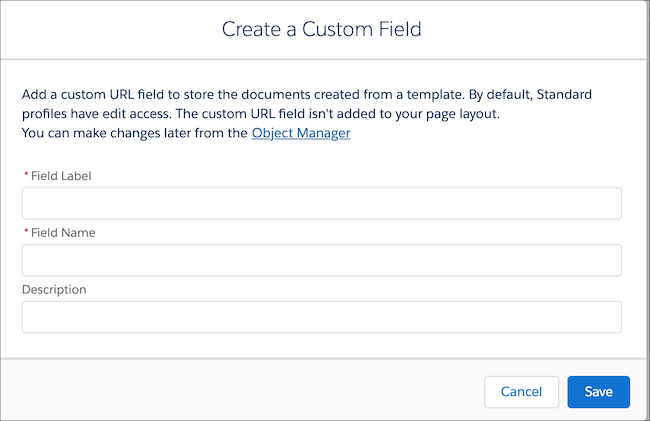
Enter Close Plan as the field label and the field name. You can make
changes later from the Object Manager.
- Save and activate the action.
To automatically add Opportunity Team Members to a Close Plan created from the embedded template, create an autolaunched flow.
Build a Flow to Add Opportunity Team Members to a Close Plan
Create an autolaunched flow in Flow Builder that automatically adds an Opportunity’s team members when a Close Plan is created from the template.
- From the Quick Find box in Setup, enter Flows.
- Click New Flow.
-
Select Autolaunched Flow and click
Next.
Flow Builder displays the flow in the Auto-Layout flow layout. You can access Interactions, Logic, and Data via the plus icon.
Process Builder later launches the flow when an Opportunity stage is changed.
- From the Manager tab, click New Resource.
-
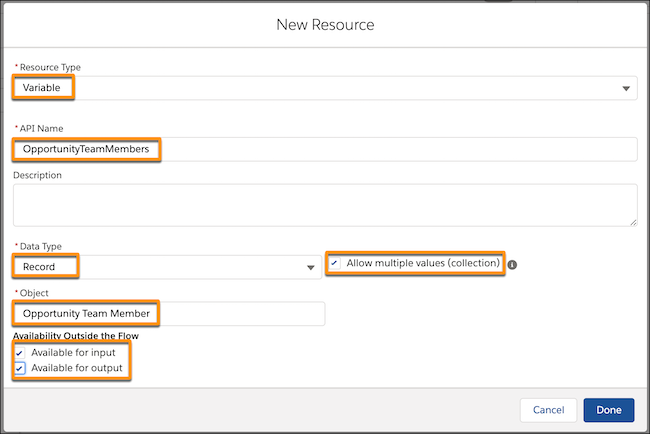
Select Variable as the Resource Type, enter the API name
OpportunityTeamMembers, select Record as the
Data Type, and select Opportunity Team Member as the Object. Select
Allow multiple values (collection), and then Available for
input and Available for output, and click Done.
- From the Manager tab, click New Resource.
- Select Variable as the Resource Type.
- Enter the API name OpportunityRecord.
- Select Record as the Data Type.
- Select Opportunity as the Object.
- Select Available for input and click Done.
- From the Elements tab, drag Get Records onto the canvas.
-
Enter a name for the action. Here, we use Get Related Opportunity Team
Members. Select Opportunity Team Member as the Object, and
set conditions. Here, we set All Conditions to be met, and OpportunityId
to equal {!OpportunityRecord.id}.

- Under How Many Records to Store, select All records. Select Choose fields and assign variables (advanced), then enter OpportunityTeamMembers collection as the Record Collection.
- Under Select Opportunity Team Member Fields to Store in Variable, select ID and UserId
- Select When no records are returned, set specified variables to null, then click Done.
- Connect the elements on the canvas. Save the flow and enter a name. Here, we use Add Opportunity Team Members to Close Plan.
- From the Elements tab, drag Loop onto the canvas.
-
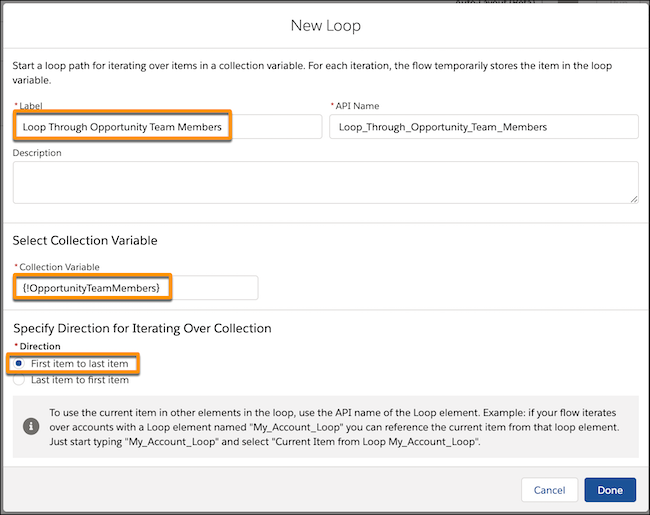
Enter a name for the loop. Here, we use Loop Through Opportunity Team
Members. Enter OpportunityTeamMembers as the Collection
Variable, and select First item to last item as the Direction. Click
Done.
- Connect the Get Records and Loop elements on the canvas and clickSave.
- From the Manager tab, click New Resource.
-
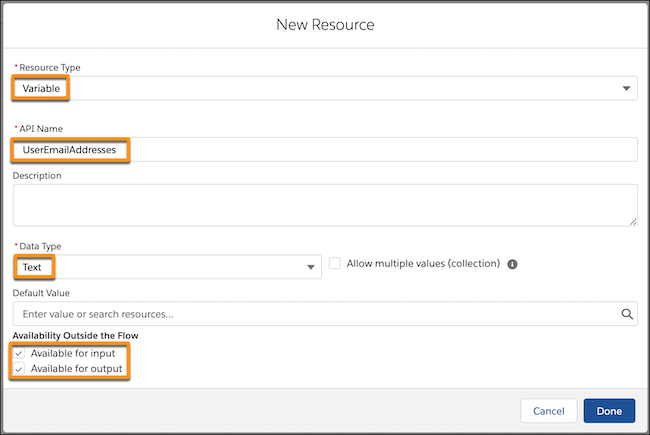
Select Variable as the Resource Type, enter the API name
UserEmailAddresses, and select Text as the Data
Type. Select Available for input and Available for
output, and click Done.
- From the Elements tab, drag Get Records onto the canvas.
-
Enter a name for the action. Here, we use Get Opportunity Team User
Record. Select User as the Object, and set conditions.
Here, we set All Conditions to be met, and Id to equal
{!Loop_Through_Oportunity_Team_Members.UserId}.

- Under How Many Records to Store, select Only the first record. Select Choose fields and assign variables (advanced), then select In separate variables.
- Under Select Variables to Store User Fields, select Email and UserEmailAddresses.
- Select When no records are returned, set specified variables to null, then click Done.
- Connect the Loop and new Get Records action on the canvas. Select For each item in the collection, and click Done.
- From the Elements tab, drag a new action onto the canvas.
- Select Quip and enter Add Members to Document.
-
Name the action Add Opportunity Members to Documents.
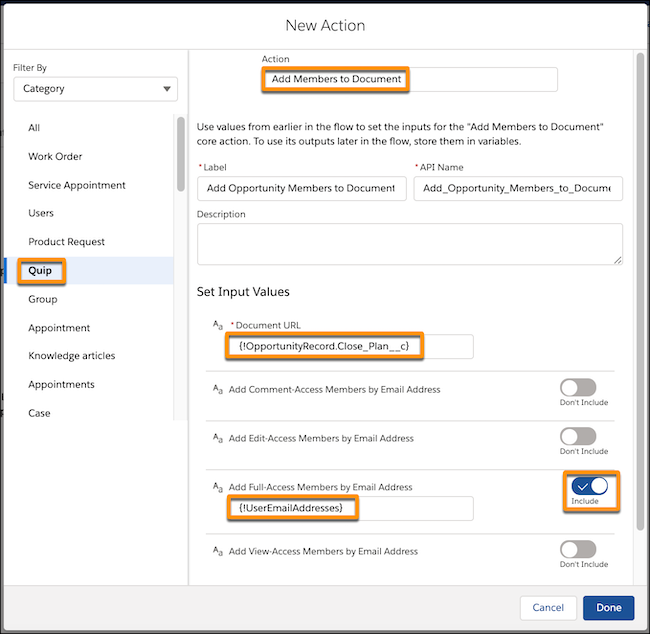
- For the Document URL, enter {!OpportunityRecord.Close_Plan__c}, where Close_Plan_cc is the API name of your custom URL field.
- To give Opportunity Team Members edit and sharing access to an Opportunity’s Close Plans, include Add Full-Access Members by Email Address, and select UserEmailAddresses. Click Done.
-
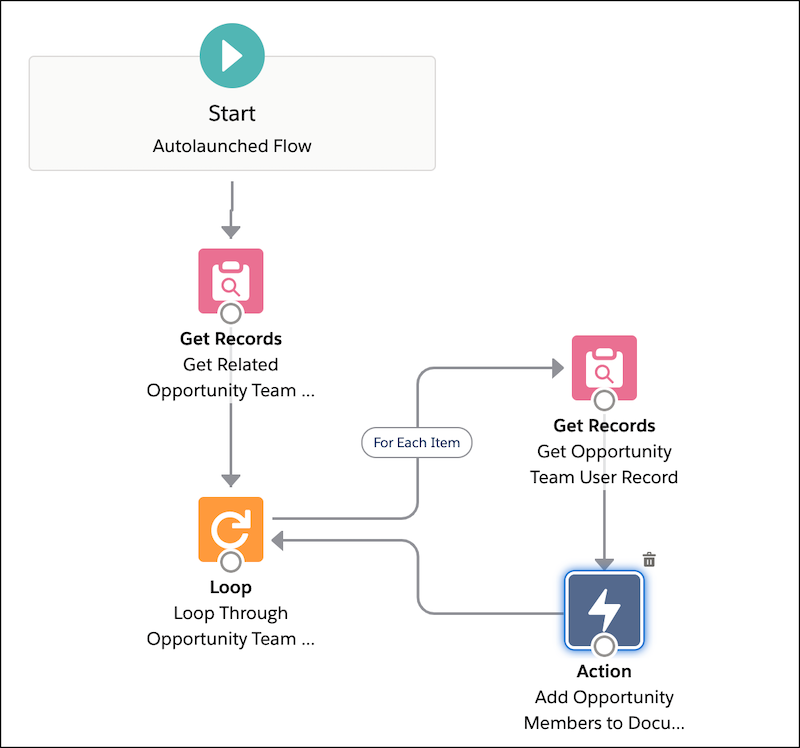
Connect the Get Opportunity Team User Record Get Records element and
your new action. To complete the flow, connect the action and the loop, then click
Save.
- Activate the flow.
Build a Process to Launch the Flow When an Opportunity Is Created
Create a process in Process Builder that automatically creates a Close Plan from a template when an Opportunity is created. Launch the previous flow to add the Opportunity’s Team Members to new and existing Close Plans.
- From the Quick Find box in Setup, enter Process. Select Process Builder.
-
Click New.
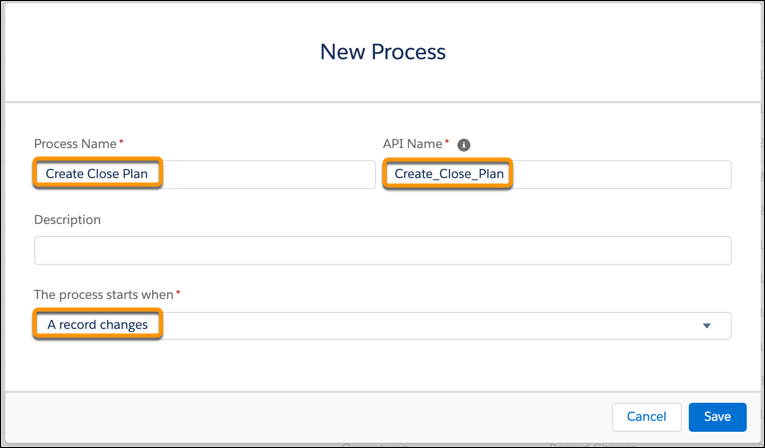
- Name the process Create Close Plan. To auto-create the API name, press Tab.
- Select A record changes as the process trigger. Click Save.
- Click + Add Object and select Opportunity as the object type. Start the process only when a record is created and click Save.
-
Click + Add Criteria.
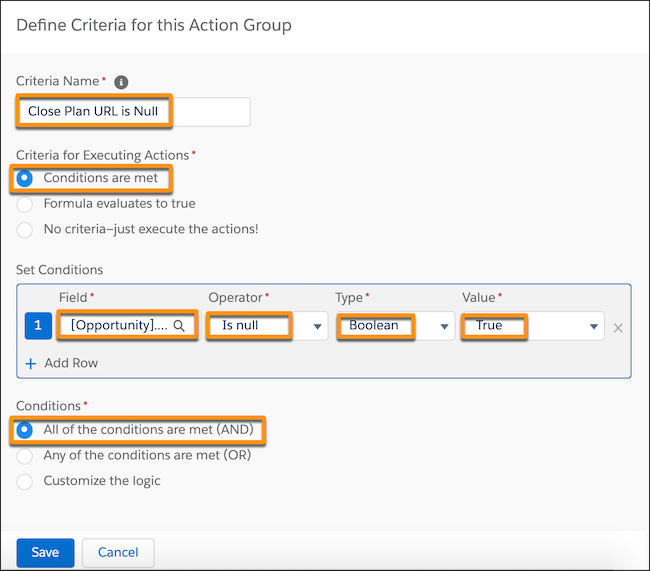
- Name the criteria Close Plan URL is Null.
- To determine when to trigger the process, select Conditions are met.
-
Set the conditions:
Field Operator Type Value [Opportunity].Close_Plan__c Is null Boolean True - Under Conditions, click All of the conditions are met (AND).
- Click Save.
- Click + Add Action.
-
Select Quip as the Action Type, and name the action
Create Close Plan from Template.
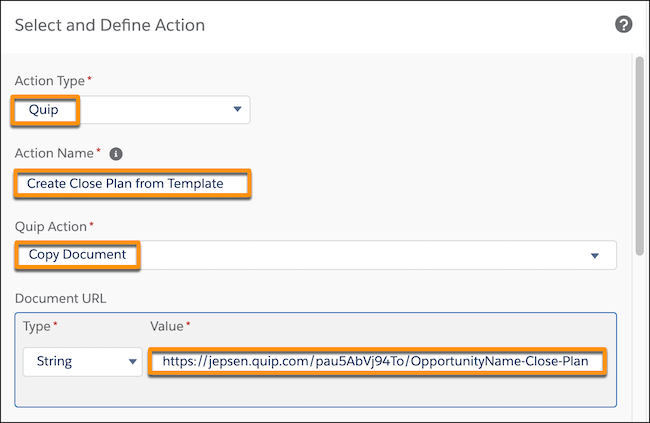
- Select Copy Document as the Quip Action, and enter the URL of the document you want to use as your Close Plan template.
-
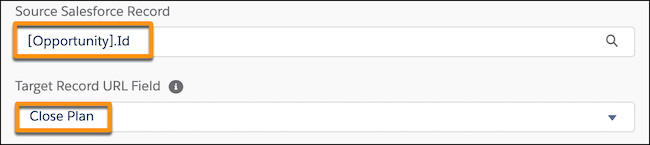
Under Advanced, enter [Opportunity].Id as the Source Salesforce
Record. To store Close Plans created from the template in your Close Plan custom field, select
Close Plan as the Target Record URL Field.
- Save the action.
-
To add Opportunity Team Members to existing documents linked to Opportunities, click
+ Add Criteria.
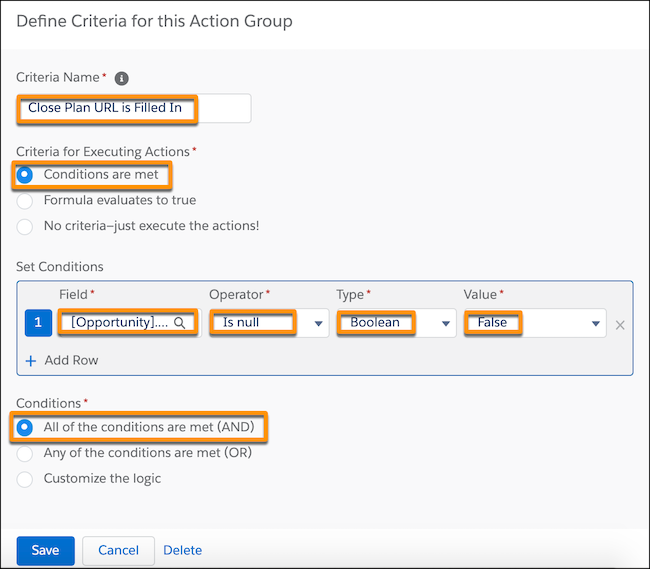
- Name the criteria Close Plan URL is Filled In.
- To determine when to trigger the process, select Conditions are met.
-
Set the conditions:
Field Operator Type Value [Opportunity].Close_Plan__c Is null Boolean False - Under Conditions, click All of the conditions are met (AND).
- Click Save.
- Click + Add Action.
- Select Flows as the Action Type.
-
Name the action Call Flow to Add Opportunity Team Members to Close
Plan.
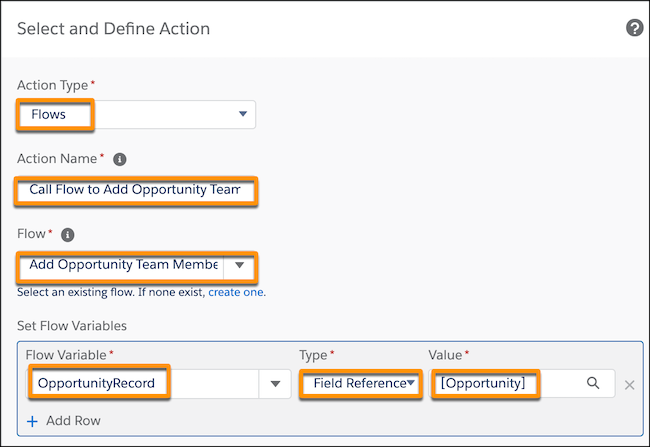
- Select the flow Add Opportunity Team Members to Close Plan.
-
Set the flow variables:
Flow Variable Type Value OpportunityRecord Field Reference [Opportunity]
Represents the Opportunity record that started the process.
-
Click Save and then Activate.
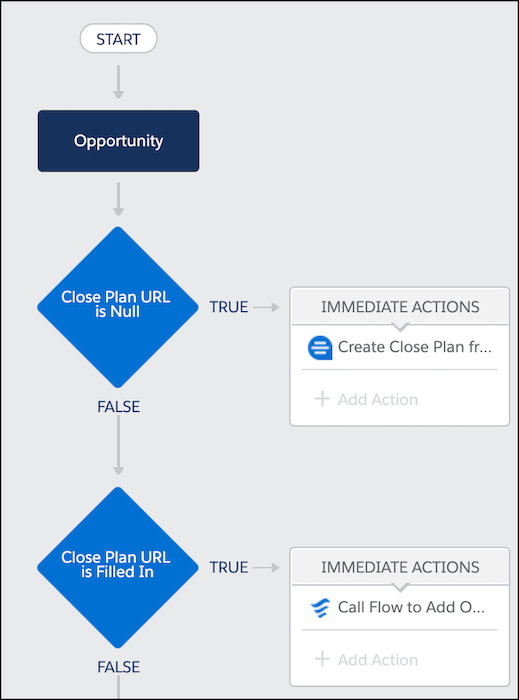
Your flow and process are ready to go! To see them in action, create an Opportunity in Salesforce.
- A Close Plan is automatically created and attached to the Opportunity record.
- The Opportunity Team Members are added to the Close Plan.Note Make sure you have Opportunity Team Members set up and that their Salesforce emails match their Quip emails.
- If you edit an existing Opportunity with a linked Close Plan, the process launches your flow and adds the Opportunity Team Members to the Close Plan.
