
Asset Interactive Hierarchy Views
Asset Interactive Hierarchy offers real-time views of current, installed, and maintained assets, including key information such as installation dates, maintenance history, and current status. The asset interactive hierarchy views help technicians manage and maintain assets efficiently during field operations.
Required Editions
| Available in: Lightning Experience |
| Available in: Automotive Cloud, Communications Cloud, Energy and Utilities Cloud, Manufacturing Cloud, Service Cloud, and Media Cloud. View edition availability. |
To configure the asset hierarchy tab, see Set up Asset Interactive Hierarchy. To see the different views of an asset, go to the Asset Hierarchy tab on the asset details page.
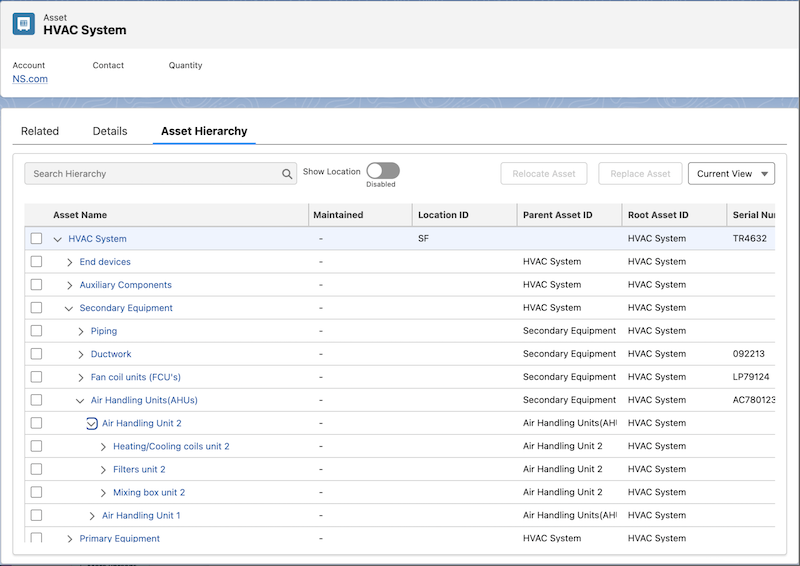
Different Views of Asset Interactive Hierarchy
An asset goes through various replacements and upgrades during its lifecycle. These views help you see the different lifecycles of the asset within the existing asset hierarchy.
- Current View
- Asset hierarchy view in the way the asset is used.
- As Maintained View
- Asset hierarchy view with all maintenance work done on the asset.
- As Installed view
- Asset hierarchy view as on the day it was installed.
See how you can use the different asset hierarchy views on the Field Service Mobile app.
| Field Service Mobile App View | What You Can See on Current View | What You Can See on AS Maintained view | What You Can See on As Installed view |
|---|---|---|---|
| Uses | Find current assets quickly for easy troubleshooting. | Access the maintenance history from your mobile device while you’re on-site. | Compare what’s on-site with the original installation layout. |
| NA | Make informed decisions about replacing or repairing components based on historical data. | See the asset’s original installation status at the time of its first installation. To see the last change made to the asset, switch to the Maintained view. As installed view helps you troubleshoot any issues quickly and effectively. |
|
| NA | NA | Assets show up if you installed them on or before the root asset. | |
| NA | NA | If you don’t provide the install date, the asset is considered orphaned in this hierarchy. You can view orphaned assets in a list view at the bottom of your screen. | |
| NA | Gray tags indicate the relationship with the asset in context. We provide three out-of-the-box relationships: Replacement, Cross-Grade, and Upgrade. You can also create custom relationship types, which appear as labels on an asset in this view. |
NA | |
| You can see 10 child assets for a particular parent. | You can see 10 child assets for a particular parent. | You can see 10 child assets for a particular parent. | |
| You can replace and relocate an asset. | You can’t replace or relocate an asset. You can view the asset’s history. | You can’t replace or relocate an asset. |
See how you can use the different asset hierarchy views on Field Service desktop version.
| Field Service Desktop View | What You Can See on Current View | What You Can See on AS Maintained view | What You Can See on As Installed view |
|---|---|---|---|
| Uses | Your assets’ current status. Get a real-time operational state view of your asset hierarchy. Service managers can dive into the components of each asset for quick, easy root-cause analysis. |
Asset’s complete maintenance history, including active and inactive components. Highlights past replacements to help service managers identify recurring issues. Provides insights into repair frequency and component lifespan. |
See a snapshot of the asset’s configuration at the time of installation. As installed view enables you to compare it with the current asset setup to identify any discrepancies. Service managers can verify part replacements and updates easily. |
| You can replace and relocate an asset. | You can’t replace or relocate an asset. You can view the asset’s history. | You can’t replace or relocate an asset. |

For the desktop view, if you're loading an asset at level 5 or higher, the Installed view can take 2 seconds or more to load. Similarly, if you're loading an asset at level 50 or higher, the Current and Maintained view can take 2 seconds or more to load.
Replace
Use the asset detail page to track tasks related to the replacement or relocation. On the console, you can individually replace each child asset. You can also replace an asset with another asset. You can access the replace action through Flows and REST api.
On the Asset details page, select the asset name you want to replace. Click Replace. Select a replacement asset. Enter the duration for the replacement. Save your changes.
Relocate
In the Relocate window, choose the asset name you want to move and the location you want to move it to. On the console, you can relocate an asset from one location to another location. In the Replace window select the replacement duration. You can access the relocate action through Flows and REST api.
On the Asset details page, select the asset name you want to relocate. Click Relocate. Enter the location name. Save your changes.
In the offline mobile mode, to replace and relocate an asset, add the records to Briefcase. Offline mode is limited to a few entities, and Asset isn’t one of them.
