
You are here:
Open Another App from the App Launcher in Salesforce Classic
Navigate between your Salesforce apps and connected apps from a single menu.
| Available in: Salesforce Classic (not available in all orgs) | |
| Available in: Enterprise, Performance, Unlimited, and Developer Editions |
| User Permissions Needed | |
|---|---|
| To see the App Launcher: | Use Identity Features |

Note These steps work in Salesforce Classic. If you see the App Launcher icon ( ) on the left side of
the navigation bar at the top of your screen, you're in Lightning Experience. If not, you're
in Salesforce Classic.
) on the left side of
the navigation bar at the top of your screen, you're in Lightning Experience. If not, you're
in Salesforce Classic.
) on the left side of
the navigation bar at the top of your screen, you're in Lightning Experience. If not, you're
in Salesforce Classic. You must have access to the Salesforce app or connected app to see and open it from the App Launcher.
-
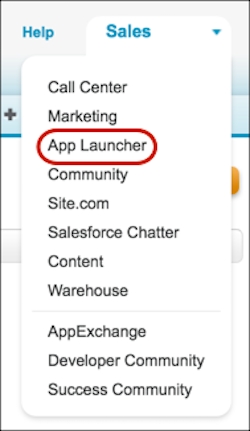
To open the App Launcher, from the drop-down app menu at the upper-right corner of any
Salesforce page, select App Launcher.
-
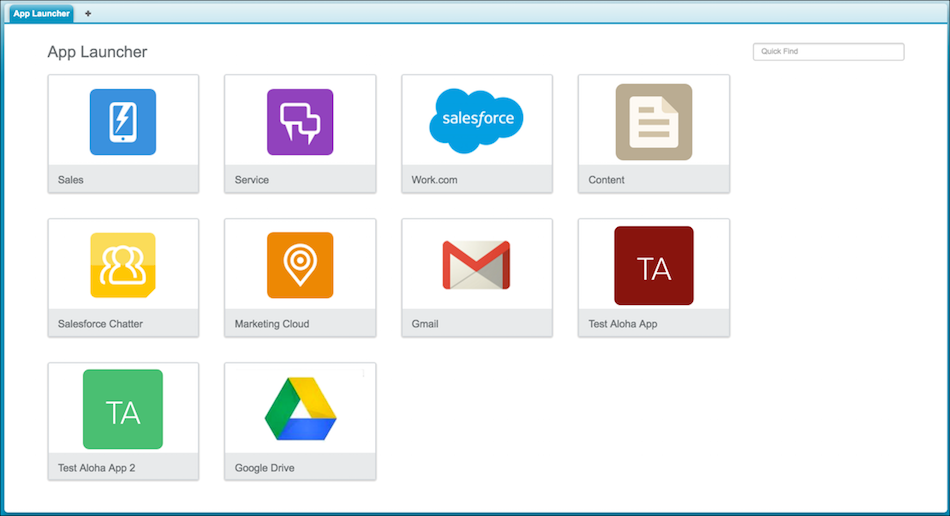
In the App Launcher, click the tile for the app that you want.
Did this article solve your issue?
Let us know so we can improve!
