
You are here:
Tips for New Users
Some tips to help you become a fast, productive Salesforce user on day one.
Required Editions
| Available in: Salesforce Classic |
| Available in: All Editions |
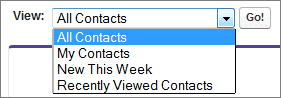
- When you click an object to find your data, you don’t see a full list of your
existing records. Salesforce keeps these records tucked out of view until you
manually recall them, in case you want to choose a subset of the full list. Choose
an option within View, and click Go!
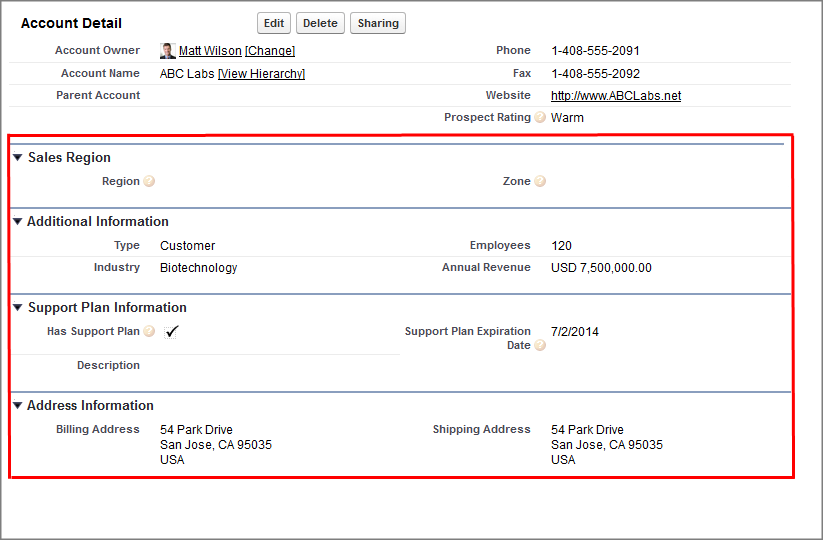
- Related lists are links featured at the bottom of object pages. Related
lists provide quick access to other related objects. This feature adds much value,
because it gives you fast access to information. It means less navigation and can
speed up your workflow. In the Accounts object, your
related lists can look something like this:
Salesforce delivers the application with some standard related lists, but administrators can also customize some related list items.
- Our help and training materials probably mention some features that your company hasn’t enabled, or that your permissions profile doesn’t allow you to access. To find out more about a feature, contact the Salesforce administrator at your company. Not sure who that is? Reach out to the person at your company who introduced you to Salesforce.
- Save your work! It’s easy to update the fields in a record and then navigate away from that screen without saving. Make a habit of seeking out the save button before clicking away through another page element.
Did this article solve your issue?
Let us know so we can improve!
