
You are here:
Search for Records in Lightning Experience
To find a record, use global search at the top of the page. Filter and sort your search results and scan the record previews and related quick links to find what you need fast. You can also complete tasks right from the results.
Required Editions
| Available in Lightning Experience |
| Available in: All editions |

-
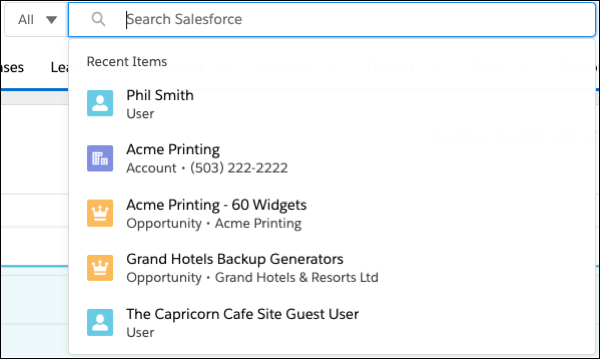
When you click in the search box, the instant results dropdown list shows shortcuts to your
recent items. Select one to go right to the record.
-
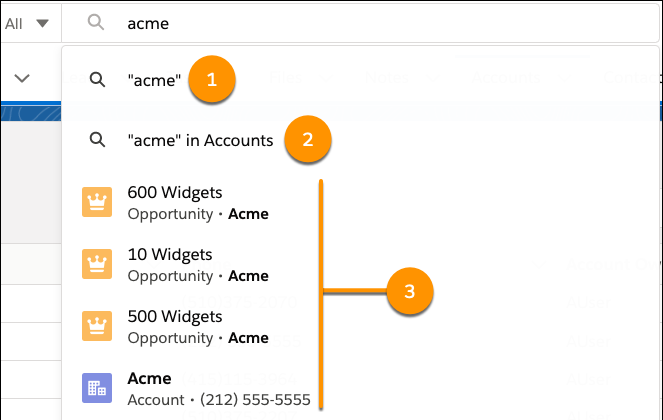
As you type, the list updates with suggested matches and search options.
In the instant results dropdown list, you can also:
- Search across all searchable objects (1). You can also press Enter for the same results.
- Search within the current object you’re on (2).
- Select a suggested record and go directly to the record (3).
-
If you don’t see the record that you want, press Enter to see the full search
results.
The Top Results page shows the best matches for the objects you use most. From this high-level overview, it’s easy to find what you need. To see results for a specific object, click the object’s name in the sidebar. If you don’t see an object listed under Search Results, select Show More. Searchable objects are listed alphabetically.
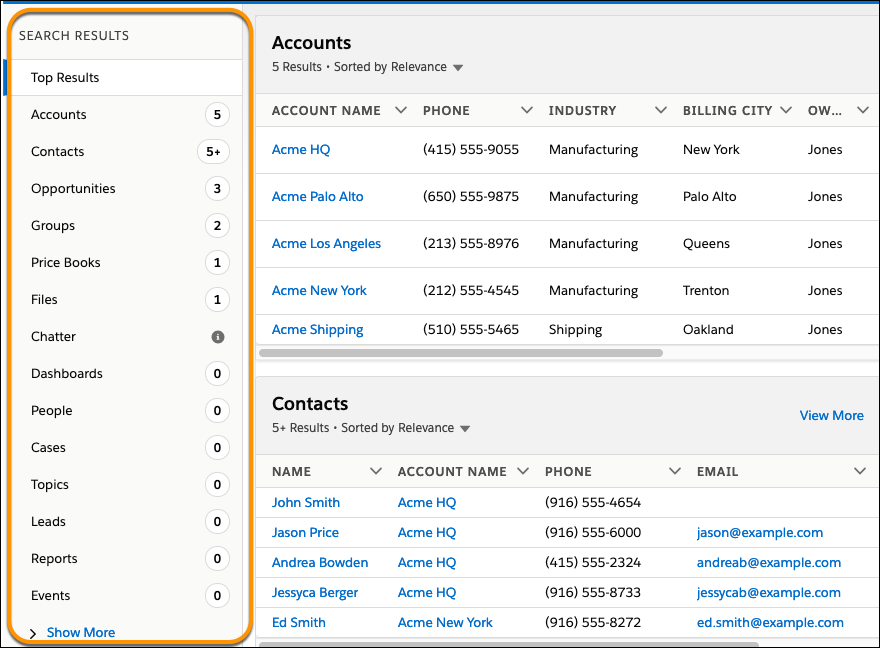
To adjust column widths on the search results page, click and drag the borders in the column header.
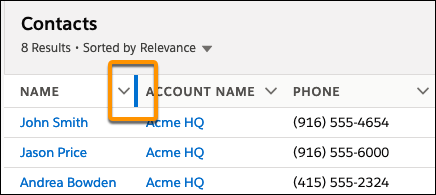
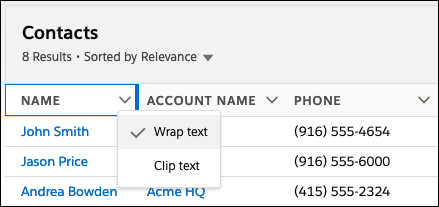
Text wrapping is on by default, but you can change this preference for a column by clicking the down arrow in the column header.

- Column width and text wrapping preferences aren’t remembered for Tasks, Events, and Dashboards search results. They go back to their defaults in future searches.
- Column resizing and text wrapping aren’t available for search results from external sources.
Still can’t find a record? Here are easy things you can do to quickly get on the right search track.
- Limit the number of results by entering more specific search terms. For example, enter the full name and company (Mike Jones Salesforce) or last name and ZIP code (Jones 94123).
- Searching for a specific contact or opportunity? Get more targeted results by adding the account name to your phrase. For example, John Smith Acme or 200 Widgets Acme. Adding the account name also works for record suggestions in Lightning Experience instant results.
- Check your spelling and make sure you enter the complete search term.
- If you recently created or updated the record, wait a few minutes for the record to be made searchable. If you can’t find your record after 15 minutes, contact your admin. Not all fields on a record are searchable.
- If you think the record isn't appearing due to permission issues, check with your admin. We show you only the records that you have access to.
With global search from your internal org, you can get uneven results when searching for an Experience Cloud site User record. Here’s why and what you can do about it. Each Experience Cloud site has a unique network ID. When you create a user through Contact record | Create External User, the new User record is assigned to a site's network ID.
Global search looks for records in the internal org, which has a different network ID than the Experience Cloud site. A global search doesn't search inside Experience Cloud sites. Since the User record is associated with a network ID, global search doesn't return results for that record.
The workaround is to create User records in the internal org, and then associate the records to an Experience Cloud site. You can associate an internal User record to a site by linking the internal record to a Contact record. After you forge the link, you can find the User record through global search. The User record's network ID is now associated with the internal org.
