
You are here:
Work with Related Lists on Records in Lightning Experience
Records in Salesforce include details and links to other related records. With some related lists, you can perform common tasks for the related object, like create records, or attach files.
Required Editions
| Available in: Lightning Experience |
| Available in: All editions |
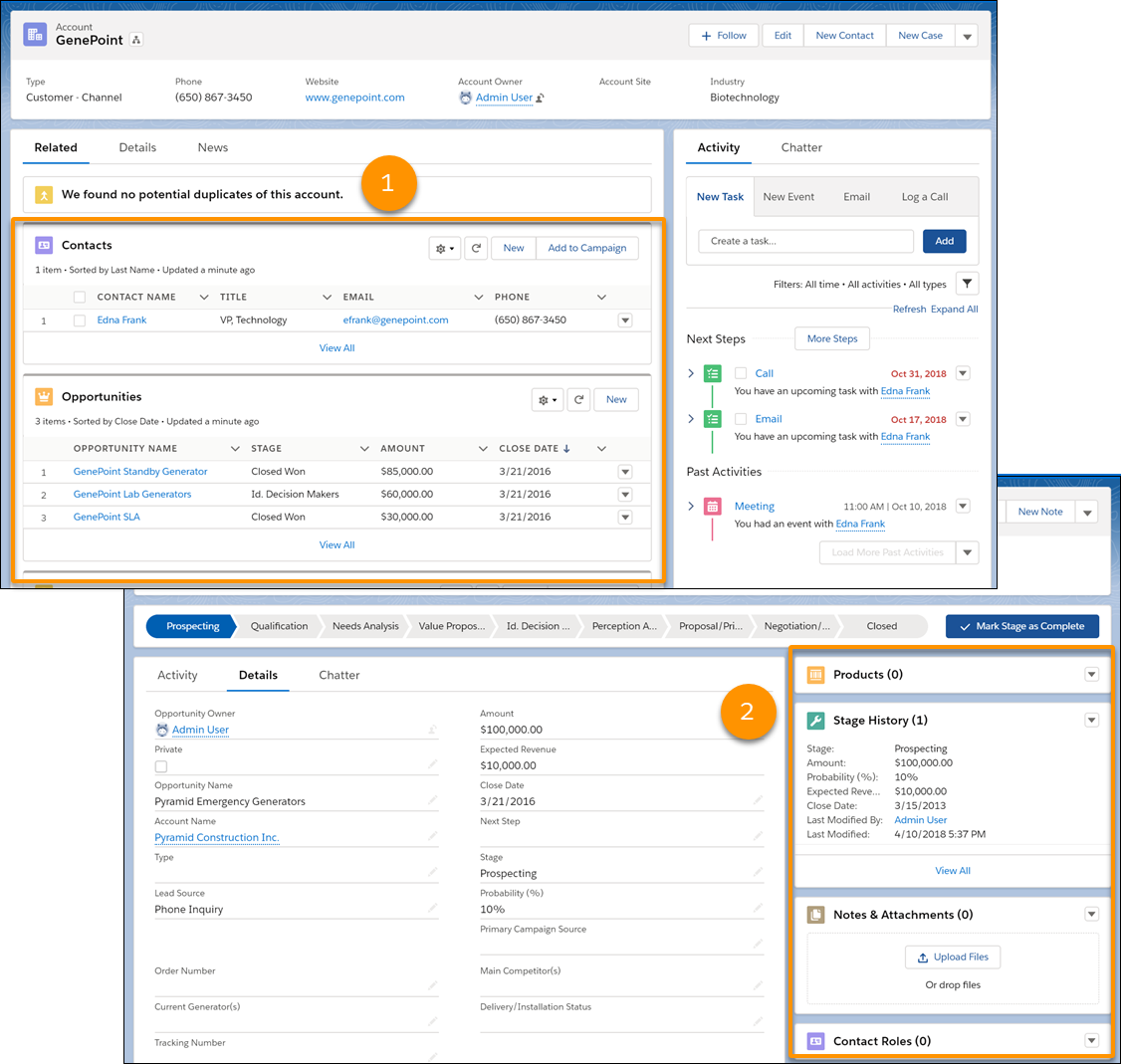
When related information is in the main region on a record, cards display on the Related tab (1). When related lists are in the narrow sidebar region on a record, cards are grouped on the sidebar (2). Where related list cards appear on the page is highly configurable by object and can be different for your org.
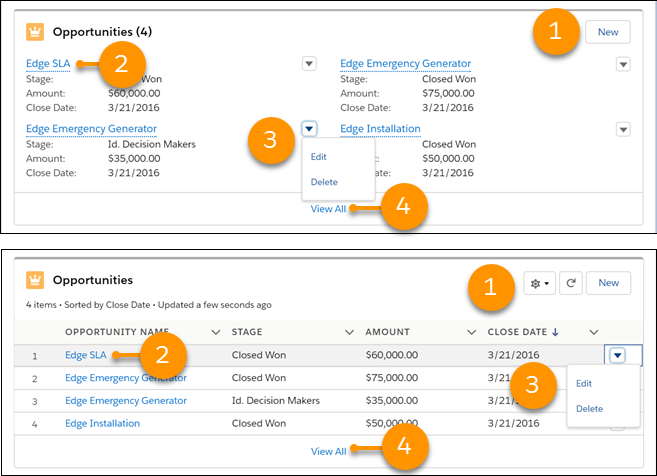
- Related list buttons (1) are in the upper-right corner of each related list card. If there are multiple buttons, use the pull-down menu to access them. In some related lists, you can select multiple records and perform mass actions.
- Each item in a related list card includes a link (2) that opens the related record.
- Record-specific actions (3) are in the pull-down menu next to each related record.
- When related list cards are in a wide region on the page, each card displays up to six records. In a narrow region, related list cards display up to three records. To see the full list of related records, select View All (4).
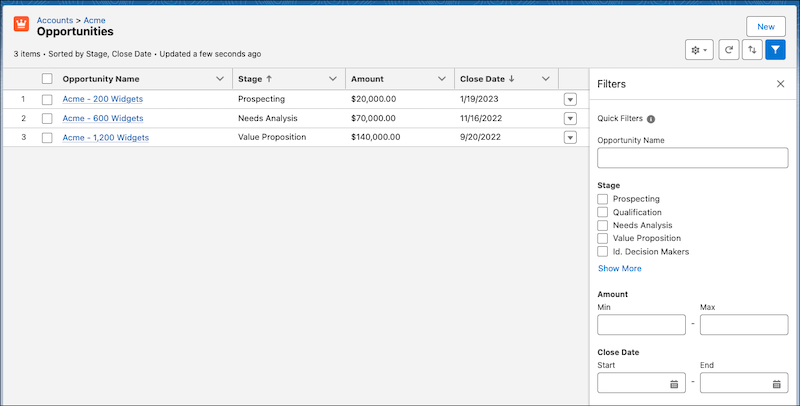
To open the full related list, click View All. From there, you can
take more actions on the related list. For example, to sort the related list by multiple
columns, click  .
.
 , then sort by multiple columns isn’t supported for that related list.
To add quick filters to the related list, click  . Related list quick filters act similarly to list view filters except they aren’t
saved, persist only throughout your current session, and can’t be shared. In some related
lists, you can also see the filters applied by your Salesforce administrator in the filter
panel. Only your administrator can remove or change these filters.
. Related list quick filters act similarly to list view filters except they aren’t
saved, persist only throughout your current session, and can’t be shared. In some related
lists, you can also see the filters applied by your Salesforce administrator in the filter
panel. Only your administrator can remove or change these filters.
The related lists you can view and use, and how the lists appear, depend on:
- Your user permissions
- User interface and page layout customizations made by your Salesforce administrator
- Personal customizations you can make
A manual page refresh is sometimes required in order for your related lists to show the latest changes. A manual page refresh is needed if:
- You create, update, or delete a related record with an Apex controller.
- You create, update, or delete a related record with a flow.
- Another user creates, updates, or deletes a related record.
- Emails are sent but not showing up in the related list.
