
Urge or Require Users to Update to the Latest Mobile Publisher App Version
For publicly distributed Mobile Publisher for Experience Cloud apps, you can use the App Version Update settings in Experience Builder to configure a message that encourages or requires your app users to install updates. By updating their app, users can avoid any service disruptions.
Required Editions
| Setup for Mobile Publisher available in: Lightning Experience |
| Setup for Mobile Publisher available in: production only (not sandbox) |
| Available in Lightning Experience in: Enterprise, Performance, and Unlimited Editions |
| User Permissions Needed | |
|---|---|
| To create and modify a Mobile Publisher project: | Manage mySalesforce Apps |
| To create and modify a site: | Create and Set Up Experiences |
Only publicly distributed apps support the App Version Update settings in Experience Builder.
- If you downloaded and installed the Mobile Publisher App Update Lightning component, remove that component from your site and republish it so that your app users don’t get duplicate update prompts.
- Make sure that you push at least iOS App Version 10.0 to the App Store, or Android App Version 10.1 to Google Play.
-
In Experience Builder, navigate to Settings | Mobile Publisher | App Settings.
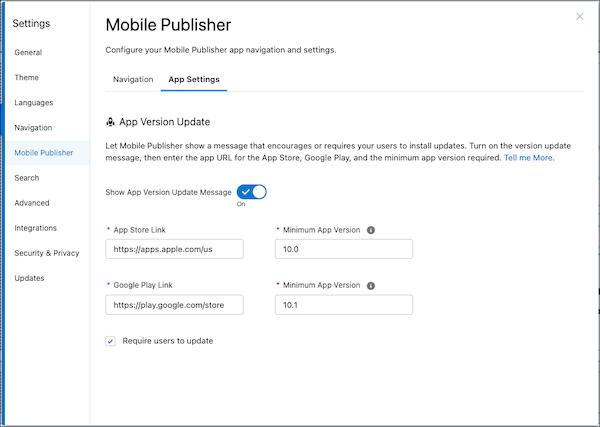
- Select Show App Version Update Message.
-
Enter the links to your app in the App Store Link and Google Play Link fields. These
fields are required when you enable Show App Version Update Message.
 Note If you use the ExperienceBundle metadata type to deploy your Experience Cloud site, the properties in the mobilePublisherAppUpdateConfig container correspond to the settings for how your app handles version updates. If the enableAppUpdate property is set to
true, you’re required to enter values for the App Store Link and Google Play Link fields in Experience Builder. To turn off this validation, set the enableAppUpdate property in the ExperienceBundle metadata type tofalse. Important
The Mobile Publisher app uses two different methods to notify users of available updates, depending on the user's installed app version.
- Native App Update (App Versions 11.0 and newer): Modern app versions use the native update functionality from the Apple App Store and Google Play Store. The app checks the store directly for a new version. The Show App Version Update Message setting enables this check.
- Web View App Update (App Versions older than 11.0): Older app versions use a WebView pop-up message to prompt users to update. This legacy method is controlled by the Minimum App Version fields.
-
(Legacy) Enter your app’s iOS and Android Minimum App Versions.
These settings force an update prompt for users on app versions older than 11.0. If a user's app version is lower than the value you specify here, they see a message prompting them to update. For any user on app version 11.0 or newer, these fields are ignored.
-
To urge or require users to update, configure these settings:
- Confirm that Select App Version Update Message is enabled, to prompt the update check.
For modern apps (11.0+), this setting triggers the native update prompt if a newer version is available in the App Store or Play Store.
For legacy apps (<11.0), this setting displays the WebView update message if the user's version is below the specified Minimum App Version.
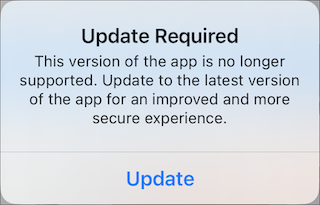
Select Require users to update to make the update prompt mandatory. Users can't dismiss the message and must update the app to continue.
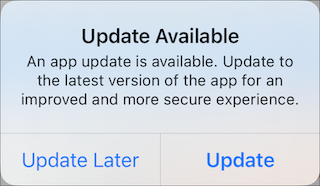
If you only want to encourage users to update, leave the Require users to update option deselected. Your app users see a dismissable message that encourages them to update, but allows them to update at a later time.
- Confirm that Select App Version Update Message is enabled, to prompt the update check.
- Publish your site.
App users who run a version of your app that’s earlier than 10.0 on iOS and 10.1 on Android get an update prompt the next time they launch the app. If the app user taps Update Later, the update prompt is shown each time the user navigates to another page in the site.
After you change the Minimum App Version in your app’s settings, users have a 15-day grace period to update their apps. If you deselect the Require users to update option in your Mobile Publisher settings in Experience Builder, your app users have Update Later or Update buttons available in their app update prompt for 15 days. After 15 days, the update prompt shows only the Update button. If you keep the Require users to update option selected, the update prompt shows only the Update button.
