
Configure App Navigation
Users can navigate your branded mobile Experience Cloud app through various methods, depending on how you configure app navigation.
Required Editions
| Setup for Mobile Publisher available in: Lightning Experience |
| Setup for Mobile Publisher available in: production only (not sandbox) |
| Available in Lightning Experience in: Enterprise, Performance, and Unlimited Editions |
| User Permissions Needed | |
|---|---|
| To create and modify a Mobile Publisher project: | Manage mySalesforce Apps |
| To create and modify a site: | Create and Set Up Experiences |
To navigate your mobile Experience Cloud app, your users can use:

Note In Experience Builder, the features in the Additional Navigation Options section (Settings | Mobile Publisher | Navigation) are available only for Aura sites on the Customer Account Portal, Partner
Central, Customer Service, and Help Center templates. The additional navigation options are
visible in the settings for LWR sites, but aren’t yet supported in apps created with Mobile
Publisher for the LWR platform.
- Navigation tab bar
 . Shows navigation tabs across the bottom of the screen.
 - Hamburger menu
 . The default navigation method.
 - The menu items of the hamburger menu are inherited from the Navigation Menu component.
- If you implement the navigation tab bar, you can hide the hamburger menu so that the navigation tab bar is the main method of navigation.
- Back button
 .
The back button is an iOS-specific feature. Android apps have their own standard back button,
provided by the Android operating system.
.
The back button is an iOS-specific feature. Android apps have their own standard back button,
provided by the Android operating system.- The iOS back button is available only for standard Experience Builder themes. Custom themes don't display the back button.
- By default, the iOS back button replaces the hamburger menu on all pages except the home page. But you can configure your iOS app to show both the hamburger menu and the back button on all pages.
To configure the navigation in your mobile Experience Cloud app:
- In Experience Builder, go to Settings > Mobile Publisher.
- Click Navigation.
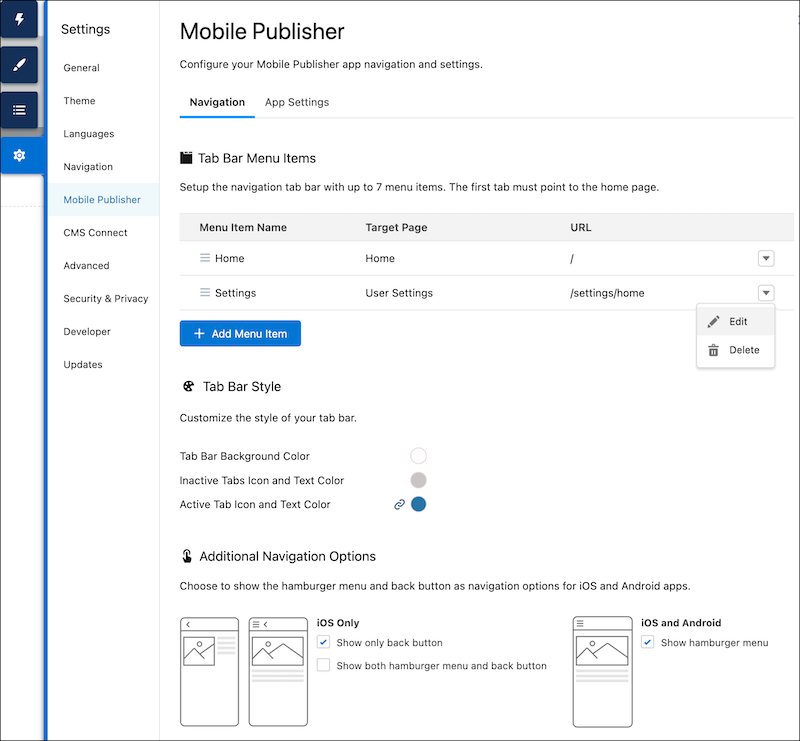
- To include the navigation tab bar, set up and style the navigation tabs.
- If you want to hide the hamburger menu when using the navigation tab, for iOS and Android, unselect Show hamburger menu.
- For iOS only, select
- Show only back button to show only the back button in your app.
- Show both hamburger menu and back button to show both the hamburger menu and the back button on all pages.
- Publish your site.
Did this article solve your issue?
Let us know so we can improve!
