Manage How URLs Open from Your App
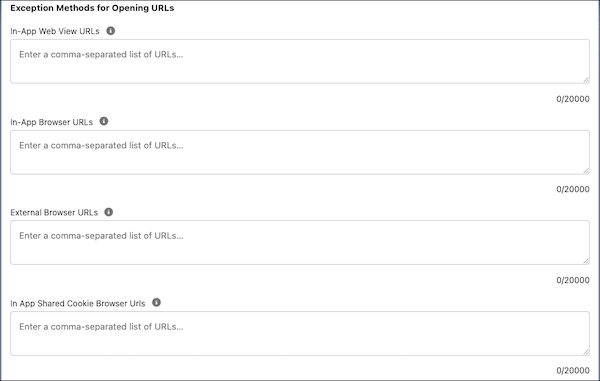
In your app’s Setup for Mobile Publisher project, use the URL Management section to configure how URLs open from your Mobile Publisher for Experience Cloud app.
Required Editions
| Setup for Mobile Publisher available in: Lightning Experience |
| Setup for Mobile Publisher available in: production only (not sandbox) |
| Available in Lightning Experience in: Enterprise, Performance, and Unlimited Editions |
| User Permissions Needed | |
|---|---|
| To create and modify a Mobile Publisher project: | Manage mySalesforce Apps |
| To create and modify a site: | Create and Set Up Experiences |

In the URL Management section, you can set links to open from your app in these ways.
In-App Web View: Opens inside the Experience Cloud app as a web view.
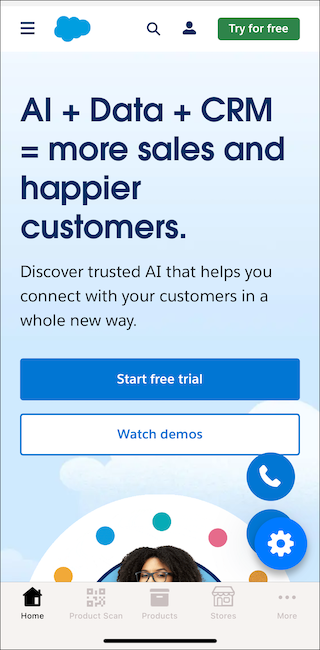
In-App Browser URLs: Opens inside the Experience Cloud app using an in-app browser.
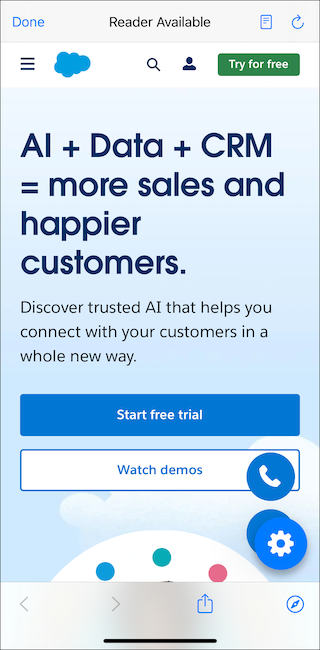
External Browser URLs: Opens outside the Experience Cloud app using the device’s default external browser.
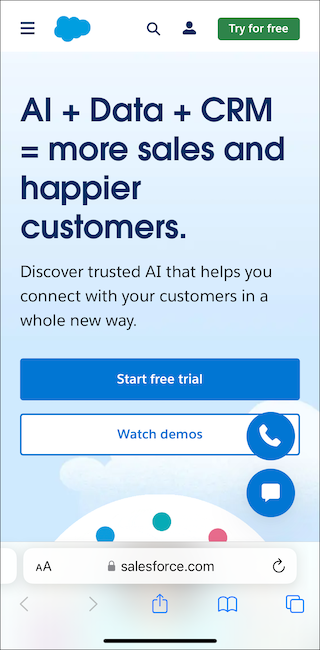
In-App Shared Cookie Browser URLs: Opens inside the Experience Cloud app’s in-app browser and shares cookies with the main web view.

- From Setup, in the Quick Find box, enter Mobile Publisher, and then select Mobile Publisher.
- Find the project for your Experience Cloud app, and then click Continue.
- In the URL Management section, select the Default Method for Opening
URLs.

- For any exceptions, enter those URLs in the corresponding field for the exception method. In each exception method field, enter a comma-separated list of up to 30 URLs.
 Important Don’t enter your Experience Cloud site URL, including the base domain or login URL, in URL-management fields. Your site URL isn’t supported in URL-management configurations and can cause issues with login and authentication.
Experience Cloud site URLs with a specific destination are supported. For example, https://example.my.site.com/privacy-policy is supported, but https://example.my.site.com/ isn’t supported.