Set Up a New External Client App (ECA) in Mobile Publisher
Start setting up an external client app (ECA) for your mobile app after completing the
Set Up the Mobile App step in Mobile Publisher. Don’t create your external client app in the
External Client App manager (accessed through Setup). Create your ECA in Mobile Publisher instead.
Required Editions
Setup for Mobile Publisher available in: Lightning Experience
Setup for Mobile Publisher available in: production only (not sandbox)
Available in Lightning Experience in: Enterprise, Performance, and
Unlimited Editions
User Permissions
Needed
To create and modify a Mobile Publisher project:
Manage mySalesforce Apps
To create and modify a site:
Create and Set Up Experiences
Important Important: If you are creating an ECA to test it in
a sandbox, don’t create the ECA directly in the sandbox. Create the ECA in the production
environment first, and then deploy it to your sandbox.
Click Start to set up the External Client App, and fill in the
fields.
Name
Description
Contact Email
Contact Phone
Icon (PNG file no larger than 100 KB. The image must be 128x128 pixels, and have a 1:1
aspect ratio.)
Push Notifications. If enabled, add the following fields for iOS:
Push Notifications. If enabled, for Android upload the Firebase Admin SDK private key
from the Google Firebase project associated with your app.
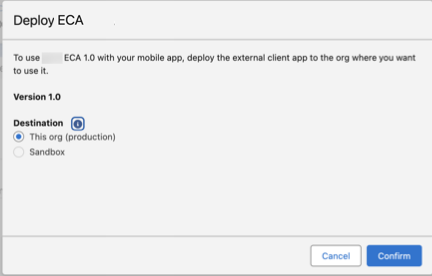
Click Save and Deploy. Select a target for
the ECA deployment: production or sandbox. The first deployment must be to the production
org. After the ECA is deployed in production, you can then deploy to a sandbox org for
testing purposes.
After you select a target, the Deployed To field shows where the ECA version is
available. A Live status means that the app is live in production. The Deployed status, when
coupled with a sandbox entry in the Deployed To column, indicates that the app is deployed in
a sandbox environment.
Note
If you create a new sandbox, or your existing sandbox is refreshed after the ECA is
deployed to the production org, the sandboxes get the same version of the ECA as the
production org. You don’t need to explicitly deploy the ECA in the sandbox.
If you need to change the name or icon of your ECA, you must create a new version and
redeploy it.
We use three kinds of cookies on our websites: required, functional, and advertising. You can choose whether functional and advertising cookies apply. Click on the different cookie categories to find out more about each category and to change the default settings.
Privacy Statement
Required Cookies
Always Active
Required cookies are necessary for basic website functionality. Some examples include: session cookies needed to transmit the website, authentication cookies, and security cookies.
Functional Cookies
Functional cookies enhance functions, performance, and services on the website. Some examples include: cookies used to analyze site traffic, cookies used for market research, and cookies used to display advertising that is not directed to a particular individual.
Advertising Cookies
Advertising cookies track activity across websites in order to understand a viewer’s interests, and direct them specific marketing. Some examples include: cookies used for remarketing, or interest-based advertising.