Enable Mandatory Biometric ID App Unlock for iOS and Android
When using Mobile Publisher, you can apply biometric ID credentials to make your
environment more secure. To use biometric ID credentials, your device must have a device passcode
or PIN enabled and FaceID (for iOS) or Android Security and Privacy | Biometrics.
Required Editions
Setup for Mobile Publisher available in: Lightning Experience
Setup for Mobile Publisher available in: production only (not sandbox)
Available in Lightning Experience in: Enterprise, Performance, and
Unlimited Editions
User Permissions Needed
To create and modify a Mobile Publisher project:
Manage mySalesforce Apps
Important Almost all Mobile Publisher apps were moved to the
External Client App framework in the Summer '25 release. If your app is one of a few still
using Connected Apps, refer to the help documentation for any
customizations you need to make.
Mobile Publisher apps support biometric ID app unlock using face or fingerprint credentials
when the biometric authentication method is available on the Android or iOS device.
Depending on the mobile device, Mobile Publisher also supports Swipe and PIN unlock.
When you enable biometric ID app unlock, users are prompted for their biometric credentials
when they open the app with a cold start. A cold start is when the user opens the app for
the first time or opens the app after closing the app entirely (swiping up to quit the app).
If the user has no security settings enabled, they’re forced to log out of the app.
If you enable the Biometric ID App Unlock feature alone without the
User Opt-In
Biometric Login feature, users can’t log in to your app without configuring
biometric login.
Important Remember to wrap attribute values in quotation marks.
From Setup, in the Quick Find box, enter External Client App
Manager, and then select External Client App
Manager.
Select the external client app that you want to enable biometric ID unlock for.
In the Custom Attributes section, click the add button.
For the attribute key, enter ENABLE_BIOMETRICS_UNLOCK. For the
attribute value, enter “TRUE”.
Save your changes.
After you enable biometric ID app unlock, your app users must configure their devices to enable
unlocking apps with biometric ID credentials in order to use this login method.
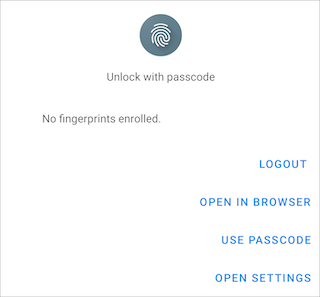
If Android app users don’t configure their biometric ID credentials, they’re prompted to
proceed with one of these options: log out, log in on a browser, log in with a passcode, or to
open their device’s settings.
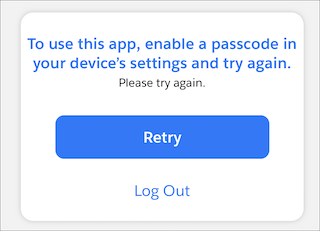
If iOS app users don’t configure their biometric ID credentials, they’re prompted to log in
with a passcode. If the iOS app user doesn't have biometric ID app unlock or passcode unlock
configured on their device, the user is prompted to enable a passcode.
Did this article solve your issue?
Let us know so we can improve!
Loading
Salesforce Help | Article
Cookie Consent Manager
General Information
Required Cookies
Functional Cookies
Advertising Cookies
General Information
We use three kinds of cookies on our websites: required, functional, and advertising. You can choose whether functional and advertising cookies apply. Click on the different cookie categories to find out more about each category and to change the default settings.
Privacy Statement
Required Cookies
Always Active
Required cookies are necessary for basic website functionality. Some examples include: session cookies needed to transmit the website, authentication cookies, and security cookies.
Functional Cookies
Functional cookies enhance functions, performance, and services on the website. Some examples include: cookies used to analyze site traffic, cookies used for market research, and cookies used to display advertising that is not directed to a particular individual.
Advertising Cookies
Advertising cookies track activity across websites in order to understand a viewer’s interests, and direct them specific marketing. Some examples include: cookies used for remarketing, or interest-based advertising.