
User Opt-In Biometric Login
With User Opt-In Biometric Login, your Mobile Publisher for Experience Cloud app users can easily and securely log in to your app using face or fingerprint recognition.
Required Editions
| Available in: Lightning Experience |
| Available in: Enterprise, Performance, and Unlimited Editions |

First-Time Login
To log in to your app for the first time, the user enters their username and password for your site. After the user taps your site’s login button, they’re shown a prompt that asks whether they want to use biometric credentials to log in to the app. Depending on the device, the user is prompted to allow face recognition or fingerprint recognition to log in.
| Android | iOS |
|---|---|
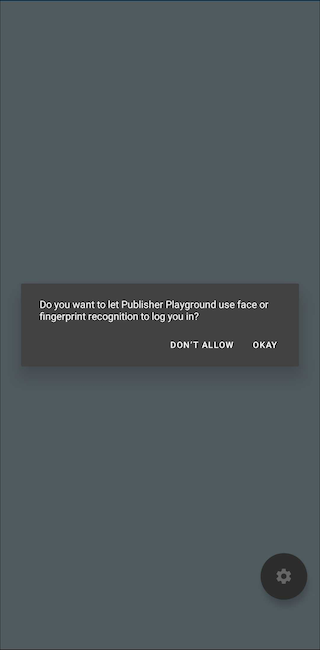
|
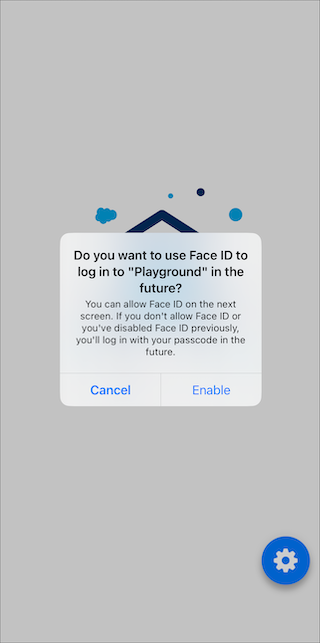
|
Subsequent Logins
If the user allows biometric login when they first log in with their username and password, they can log in with biometrics for future app logins. The user isn’t asked to enter their username and password to log in to your app again, unless they manually log out of your app or their refresh token times out.

If the user doesn’t allow biometric login when they first log in with their username and password, the user continues to enter their username and password for future logins. On Android, the user is shown the prompt to allow biometric login for the next two logins. If the user declines biometric login for the next two logins, the user isn’t asked to allow biometric login again until they install an app update. On iOS, the user is only prompted to allow biometric login during the first login after the initial app installation or after an update.
Retriggering Biometric Login
If a user wants to enable biometric login sometime after their first login, they can tap the biometric login button that you configure. A user can also tap your biometric login button if their initial attempt to log in with face or fingerprint recognition fails.
You can create a biometric login in these ways:
- In Experience Builder, drag the Biometric Login Button component to your Experience Cloud site's app login screen. Customize the button's settings and style using Experience Sites theming.
- Create a custom Lightning web component for the biometric login screen. For a sample biometric login button, see mobile-publisher-biometric-login-button in the Salesforce Experience Cloud GitHub repository.
Fallback Behavior
If a user’s attempts to log in with face or fingerprint recognition fails more than one time, the user can fall back to a secondary authentication method to log in. On Android, the user can choose to use a secondary authentication method such as a pin or pattern after three failed biometric login attempts. On iOS, the user can choose to enter their passcode after two failed biometric login attempts.
The user can also choose to cancel the biometric login prompts and instead enter their username and password.
On iOS, if you enable the fallback behavior on your app, and the user doesn’t allow biometric login, the user logs in with their passcode in the future. If you disable the fallback behavior on your app, and the user doesn’t allow biometric login, the user logs in with their username and password in the future.
Time-Out Behavior
When you set up User Opt-In Biometric Login, you must configure a timeout value that determines when your app requests biometric login again after your app has been in the background of a device. For example, with a timeout value of 15 minutes, your app requests face or fingerprint login again when a user opens the app after 15 minutes in the device’s background.
If an app user opts into biometric login, they’re prompted to log in with biometrics again after the timeout value that you set. If an app user denies biometric login, they’re routed to your app’s login screen after the timeout value.
User Opt-In Biometric Login Setup
To set up User Opt-In Biometric Login, enter and configure three custom attributes on the corresponding external client app. The first custom attribute enables the feature, the second attribute enables the fallback behavior, and the third attribute defines the timeout value for biometric login. Enter these custom attributes on the Android external client app and the iOS external client app. To test on the Playground app, also enter the custom attributes on the Playground Android and iOS external client apps. See Enable User Opt-In Biometric Login.
After you enter the required external client app custom attributes, the User Opt-In Biometric Login feature is implemented at runtime. You don’t need to submit changes to your app’s Setup for Mobile Publisher project or wait for a new app build from Mobile Publisher.
Considerations for User Opt-In Biometric Login
- User Opt-In Biometric Login isn’t supported on sites that use the native browser for authentication. To check if your site uses the native browser for authentication, from Setup, in the Quick Find box, enter My Domain, and then select My Domain. Then review the Authentication Configuration settings.
- If your site stores cookies, the cookies are cleared every time a user logs in with biometric login.
- The biometric login button that you configure is supported only on the Experience Cloud site’s login page. If your app uses multi-factor authentication or a single sign-on (SSO) page instead of the Experience Cloud site’s login page, the biometric login button isn’t available.
- If your app uses an SSO page instead of the Experience Cloud site’s login page, the user is redirected to the specified login page for the Experience Cloud site after biometric login times out.
- If your app is configured with SSO, users can log back in to the app after the timeout value by using biometric login. They don't have to reauthenticate through SSO. The User Opt-In Biometric Login feature implements a soft logout, which means the user’s refresh token isn’t revoked after the timeout value. To require a user to go through SSO, configure the app to revoke the refresh token.
- On iOS, you can customize the permission text that asks users to enable Face ID for logging in to your app. In your app's Setup for Mobile Publisher project, enable the Face ID app permission, and then enter your text as the permission description. To implement the custom permission text, submit changes to your app's Setup for Mobile Publisher project to request a new app build. On Android, the permission text for biometric credentials isn't customizable.
- For iOS apps, if your site is configured with guest user access, we recommend that you set the corresponding external client app’s refresh token value to never expire. When Opt-In Biometric Login is enabled and the refresh token expires, users are redirected to the login page, even if the site has the guest experience enabled. To return to the guest experience when the refresh token expires, users can either authenticate or quit and reopen the app. If you set the refresh token to never expire, guest users can continue using the app without being redirected to the login screen.
