Enable Marketing Cloud Engagement Push Notifications for Mobile Publisher Apps
After you set up MobilePush in Marketing Cloud Engagement, you can enable push
notifications for your Mobile Publisher apps. You can specify different configurations for
production and sandbox orgs.
Required Editions
Available in: Lightning Experience
Available in Enterprise, Performance, and Unlimited
Editions
User Permissions Needed
To create and modify a Mobile Publisher project to enable Marketing Cloud
Engagement push notifications:
Manage mySalesforce Apps
To create and modify a site:
Create and Set Up Experiences
Note A Marketing Cloud Engagement license is required to access this feature. Contact your
account executive to enable Engagement.
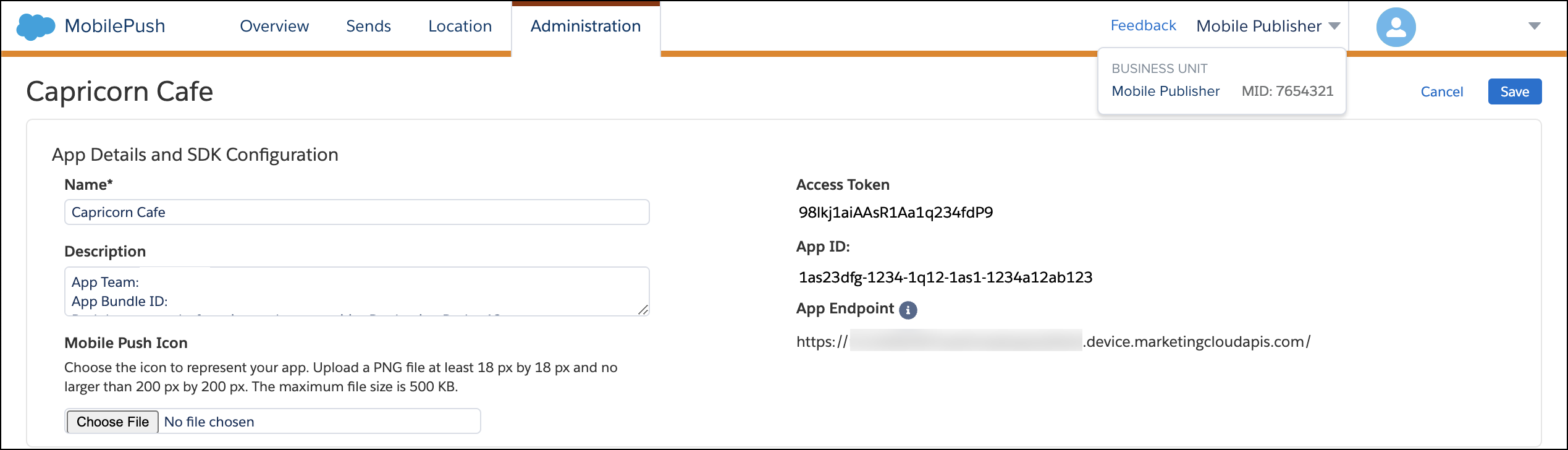
Before you set up push notifications for your Mobile Publisher app, create a MobilePush account.
In your MobilePush account from Engagement, select the
Administration tab.
Locate your app, and in the Actions column, from the dropdown
list, select Settings.
Record the values in these fields.
App ID
Access Token
App Endpoint
Account
ID (Also known as MID)
From Setup, in the Quick Find box, enter Mobile Publisher, and
then select Mobile Publisher.
Open your app’s Setup for Mobile Publisher project. Select Enable Marketing
Production Site or Sandbox Site.
Complete the required fields. Enter the information that you collected from your
MobilePush account.
We use three kinds of cookies on our websites: required, functional, and advertising. You can choose whether functional and advertising cookies apply. Click on the different cookie categories to find out more about each category and to change the default settings.
Privacy Statement
Required Cookies
Always Active
Required cookies are necessary for basic website functionality. Some examples include: session cookies needed to transmit the website, authentication cookies, and security cookies.
Functional Cookies
Functional cookies enhance functions, performance, and services on the website. Some examples include: cookies used to analyze site traffic, cookies used for market research, and cookies used to display advertising that is not directed to a particular individual.
Advertising Cookies
Advertising cookies track activity across websites in order to understand a viewer’s interests, and direct them specific marketing. Some examples include: cookies used for remarketing, or interest-based advertising.