
You are here:
Override iOS Universal Links to Your Mobile Publisher App
Mobile Publisher for Experience Cloud apps support universal links on iOS. By default, when a user taps a universal link to your Mobile Publisher app, the link opens to the page inside your app. To override the default behavior and set certain links to open outside of your app, use an Apex class and a Visualforce page. For example, if you want the link to your app’s registration page to open in a web browser.
Complete these steps to override the default behavior of universal links to your iOS app.
- Create an Apex class named
ReDirectToCustomUniversalAndAppLinks.
 Note You must use the same Apex class for both the Android and iOS versions of your app. If you already created the ReDirectToCustomUniversalAndAppLinks Apex class for the Android version of your app, continue to step 2.
- From Setup, in the Quick Find box, enter Apex Classes, and then select Apex Classes.
- Click Developer Console.
- In the Developer Console, click File, select New, and then select Apex Class.
- Name the class ReDirectToCustomUniversalAndAppLinks.
- Add this code to the Apex class.
global class ReDirectToCustomUniversalAndAppLinks implements Site.UrlRewriter {
  global PageReference mapRequestUrl(PageReference srcUrl) {
    String url = srcUrl.getUrl();
    // Code for Android
    if (url!=null && url.endsWith('assetlinks.json')) {
      url = '/CustomAssetLink';
      return new PageReference(url);
    }
    // Code for iOS
    if (url!=null && url.endsWith('apple-app-site-association')) {
      url = '/CustomAASA';
      return new PageReference(url);
    }
  return null;
}
global PageReference[] generateUrlFor(PageReference[] srcUrls) {
  return null;
}
}
- Create a Visualforce page named CustomAASA.
- Edit this sample markup to define the pages in your Experience Cloud site to open outside of your app.
- In the appIDs field’s placeholder value of YOUR_TEAM_ID.YOUR_STORE_IDENTIFIER, replace YOUR_TEAM_ID with your Team ID on Apple and replace YOUR_STORE_IDENTIFIER with your app’s Mobile Publisher store identifier. For example: 12A34BCD5E.com.mysalesforce.mycommunity.C00AB0000000CDefGHI.A0BCD00000001ABcDEF
- In the paths field, list the pages that you want to open outside of the app. For each app page that you want to open outside of the app, enter the prefix NOT and then the relative path of the page. For example: "NOT /experienceCloudSitePathPrefix/*login*"
- As the last entry in the paths field, enter the relative path
to your app’s Experience Cloud site. For example:
"/experienceCloudSitePathPrefix/*"Note In the sample markup, make sure to replace all instances of experienceCloudSitePathPrefix with your app’s Experience Cloud site path prefix.
CustomAASA.vfp
<apex:page standardStylesheets="false" sidebar="false" showHeader="false" applyHtmlTag="false" applyBodyTag="false" contentType="text/json"> { "applinks":{ "apps":[ ], "details":[ { "appIDs":[ "YOUR_TEAM_ID.YOUR_STORE_IDENTIFIER" ], "paths":[ "NOT /experienceCloudSitePathPrefix/*login*", "NOT /experienceCloudSitePathPrefix/*Login*", "NOT /experienceCloudSitePathPrefix/s/*login*/*", "NOT /experienceCloudSitePathPrefix/setup/secur/*", "NOT /experienceCloudSitePathPrefix/secur*/*", "NOT /experienceCloudSitePathPrefix/servlet/*", "NOT /experienceCloudSitePathPrefix/services/*", "NOT /experienceCloudSitePathPrefix/apex/*", "NOT /experienceCloudSitePathPrefix/one/one.app", "NOT /experienceCloudSitePathPrefix/sfc/*", "NOT /experienceCloudSitePathPrefix/profilephoto/*", "NOT /experienceCloudSitePathPrefix/img/*", "NOT /experienceCloudSitePathPrefix/file-asset/*", "NOT /experienceCloudSitePathPrefix/saml/*", "/experienceCloudSitePathPrefix/*" ] } ] } </apex:page> - Enter the edited markup into the Visualforce Markup field of the CustomAASA Visualforce page, and save.
- Make the CustomAASA Visualforce page available to your Experience Cloud site and mobile app.
- From Setup, in the Quick Find box, enter Visualforce Pages, and then select Visualforce Pages.
- Click the CustomAASA label for the Visualforce page that you created.
- In the Page Detail settings, select Available for Lightning Experience, Experience Builder sites, and the mobile app.
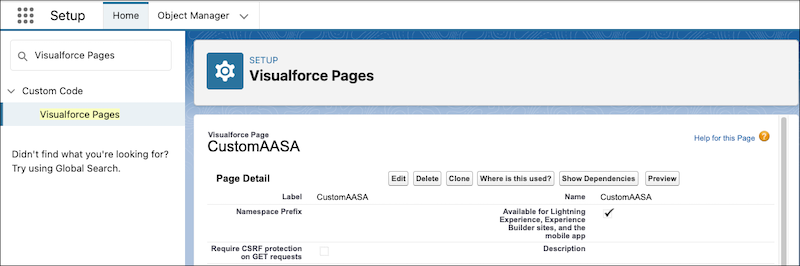
- Enable the CustomAASA Visualforce page for your Experience Cloud site.
- From Setup, in the Quick Find box, enter Sites, and then select Sites.
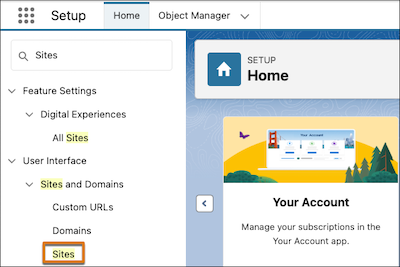
- Click the site label for your Mobile Publisher app’s Experience Cloud site.
- Click Public Access Settings.
- Click Enabled Visualforce Page Access.
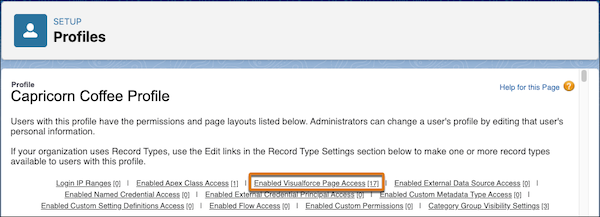
- Click Edit, and then add the CustomAASA page to the list of enabled Visualforce pages.
- Save your changes.
- From Setup, in the Quick Find box, enter Sites, and then select Sites.
- Set the ReDirectToCustomUniversalAndAppLinks Apex class as the URL rewriter for your Experience Cloud site.
- In the Site Detail section of your Experience Cloud site, click Edit.
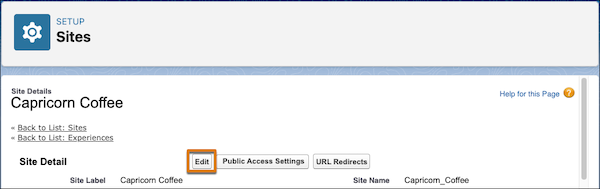
- In the URL Rewriter Class field, search for and select the ReDirectToCustomUniversalAndAppLinks Apex class.
- Save your changes.
- In the Site Detail section of your Experience Cloud site, click Edit.
Did this article solve your issue?
Let us know so we can improve!
