
You are here:
Playground App for Android
There are some additional steps to get the app installed and set up for testing on Android.
- Download and install the app from Google Play (https://play.google.com/apps/testing/com.mysalesforce.mycommunity.playgroundcommunity) onto each test device.
- Open the Playground app.
- Tap Accept on the End-User License Agreement page.
- After the Experience Cloud Site Information page loads, tap Specify Experience Cloud Site Details.
- Enter the URL of the Experience Cloud site into the first field. Optionally, if you want to
use a different login URL you can enter it here.
 Note Make sure that you provide a complete Experience Cloud site URL that begins with ‘https://’ and ends with ‘/s/’.
 - Tap Continue.
If you want to change the Experience Cloud site URL, you can long press the app icon on your device’s home screen to change the Experience Cloud site URL.
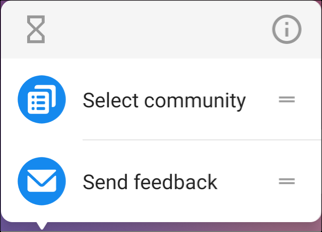
That’s it. Now your Playground app is configured for your Experience Cloud site and testing can begin on Android.
Did this article solve your issue?
Let us know so we can improve!
