You are here:
Prepare Your App’s Information for Android
Apply your company’s branding to assets for a Mobile Publisher for Experience Cloud Android app.
Here’s what you need for your Mobile Publisher project, to brand your Mobile Publisher for Experience Cloud app for Android.


| Field | Description |
|---|---|
| Product Details | |
| Google Play Default Language | Choose the app listing language on Google Play. |
| Google Play Title | Must include the App Name. Choose a specific title that isn’t too similar to existing app names. Max 30 characters. Refer to Play Console Help. |
| Google Play Long Description | Description for your app’s listing on Google Play. The best descriptions are concise, informative, and highlight the main features of your app. Max 4,000 characters. |
| App Name | App icon name on the device. This name is different from the Google Play name. Max 30 characters. |
| Google Play Short Description | Short summary of your app that displays under your app name throughout the Google Play in OS 11 and later. Max 80 characters. |
| Privacy Policy URL | Valid URL with the privacy policy for your app. This URL shows up in the Google Play listing. The URL must begin with https://. |
| Contact Email Address | Valid email address for support information for your app. This email address shows up on the Google Play listing. |
| Experience Builder Site Info | |
| Production Site URL | URL of an active Lightning Experience Cloud site from which you want to create a Mobile Publisher app. You can create up to five Android Mobile Publisher apps per org. Mobile Publisher for Experience Cloud doesn’t support redirecting a site’s custom domain to another custom domain. In the site’s settings, make sure that Redirect to custom domain is not selected. |
| Sandbox Site URL | Optional. URL of the sandbox site. Use the sandbox site if you want a test environment, either for your own testing or for Google reviewers. For information about how to switch between the sandbox and production environments, see Switch Between Testing Modes in the Experience Cloud App. |
| Beta Tester Information | |
| Email Addresses | Email addresses of beta testers, comma-separated. Your beta testers receive an email when the beta version of your app is ready to test. Beta testers need a Gmail or Google Workspace account. |
| Allowlist Custom URL Schemes | |
| Add Custom URL Scheme | Click to add a custom URL scheme that allows deep linking from this app to the target app. You can add up to 5 deep links. Deep linking is available only for Aura sites. |
| URL Management | |
| WebView URLs | Optional. Comma-separated list of URLs to open in the webview (in-app). Max 20 URLs. |
| In-App Browser URLs | Optional. Comma-separated list of URLs to open in the in-app browser. Max 20 URLs. |
| External Browser URLs | Optional. Comma-separated list of URLs to open in an external browser. Max 20 URLs. |
| In App Shared Cookie Browser URLs | Optional. Comma-separated list of URLs to open internally in a web browser that shares cookies with the main webview. Max 20 URLs. |
| App Status Bar Color | |
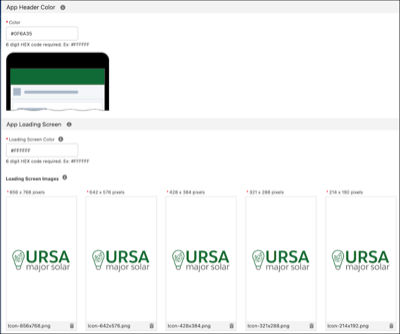
| Color | Background color of the status bar of the app. The color format is 6 HEX digits. Must start with #. See the Examples section for images. |
| App Loading Screen | |
| Loading Screen Color | Background color of the loading screen that displays when the app launches. The color format is 6 HEX digits. Must start with #. See the Examples section for images. |
Loading Screen Images:
|
Images for the loading screen that displays when the app launches. 32-bit transparent PNG. See the Examples section for images. |
| Icons | |
Google Play Store Icon:
|
Shows in your app’s listing in Google Play. It has the same design as your mobile device icons. Refer to Play Console Help. |
Mobile Device Icons:
|
Shows on the mobile device. These icons have the same design as your Google Play Store Icon. Refer to Play Console Help. In some cases, such as with a cold launch, the mobile device icon displays before the loading screen image loads. Refer to Splash screens in Android developer documentation. |
| Mobile Device Icons - Round | Optional. Enable to display a second set of mobile device icons on devices running Android version 7.1 and above. If you don’t provide these icons, these devices display the icons you used as the Mobile Device Icons. Refer to Play Console Help. |
Push Notification Icons:
|
Push Notification Icons display in several areas on an Android mobile device. Notifications provide short, timely, and relevant information about your app when it’s not in use, and the icon you upload here is visible next to those notifications. Refer to Play Console Help. |
| Salesforce External Client App | |
| Name | Displays when your users log in to your app for the first time, in the Allow Access page. Ideally, the name is the same as your Google Play Title. Max 40 characters. English only. Refer to Salesforce Help: External Client Apps. |
Icon:
|
Shows when your users log in to your app for the first time, in the Allow Access screen. Ideally, it has the same design as your Mobile Device Icons. The order of screenshots in the Allow Access page reflects the order of the screenshots in the Mobile Publisher Android Setup page. PNG format and max 100 KB. |
| Google Play Screenshots | |
| Screenshots | One size screenshot for all versions of Android/Requirements:
Refer to Play Console Help. If you don’t have access to your branded app to take screenshots, use the Publisher Playground app. |
Tablet 7 inch (17.78 cm) Screenshots:
|
One size screenshot for a 7 inch (17.78 cm) Android tablet. Max 8 screenshots. Refer to Play Console Help. If you don’t have access to your branded app to take screenshots, use the Publisher Playground app. |
Tablet 10 inch (25.4 cm) Screenshots:
|
One size screenshot for a 10 inch (25.4 cm) Android tablet. Max 8 screenshots. Refer to Play Console Help. If you don’t have access to your branded app to take screenshots, use the Publisher Playground app. |
| Google Play Feature Graphic | |
Feature Graphic:
|
Used when your app is featured anywhere within Google Play. Shows at the top of your app listing in Google Play. Requirements:
|
| Promo Video URL | Lets users know about current features of your app. Best Practices:
Refer to Play Console Help. |
| Country Availability | |
| Available in all countries | Choose the countries where you want your app to be available. Default is all countries. |
Examples