You are here:
Prepare Your App’s Information for iOS
Apply your company’s branding to assets for a Mobile Publisher for Experience Cloud iOS app.
To brand your Experience Cloud app for iOS, provide these elements for your Mobile Publisher project.
- Image assets in PNG format.
- Screenshots captured by the Publisher Playground App. Don’t use a mobile browser for screenshots because it can lead to your app being rejected by Apple. See Playground App for iOS
- Images and screenshots can’t include Alpha channels or transparencies. To remove the Alpha channel on a Mac device, use the Preview app to duplicate the image, deselect the Alpha option, and save the image.

| Field | Description |
|---|---|
| Product Details | |
| App Store Default Language | Choose the app listing language on App Store. |
| App Store Name | Must include the App Name. Choose a name that isn’t too similar to existing app names. Max 30 characters. Refer to App Store Help. |
| App Store Description | Description for your app’s listing on the App Store. The best descriptions are concise, informative, and highlight the main features of your app. Max 4,000 characters. If your app uses the Fully Managed distribution method, emojis aren’t supported in the App Store description. |
| App Name | App icon name on the device. This name is different from the App Store name. Max 30 characters. Refer to App Store Review Guidelines. |
| App Store Subtitle | Optional. One line summary of your app that displays under your app name throughout the App Store in iOS 11 and later. Max 30 characters. |
| App Store Promotional Text | Optional. Informs users know about current features. The text appears at the top of the app description in the App Store. Max 170 characters. If your app uses the Fully Managed distribution method, emojis aren’t supported in the App Store promotional text. |
| Privacy Policy URL | Valid URL with the privacy policy for your app. This URL appears in the App Store listing. URL must begin with https://. |
| App Store Support URL | Valid URL with support information for your app. This URL appears on the App Store listing. If you leave this field blank, it defaults to the standard Salesforce Support URL. |
| App Store Marketing URL | Valid URL with marketing information for your app. This URL appears on the App Store listing. If you leave this field blank, it defaults to the standard Salesforce Marketing URL. |
| Experience Builder Site Info | |
| Production Site URL | URL of an active Lightning Experience Cloud site that you want to create a Mobile Publisher app from. You can create up to five iOS Mobile Publisher apps per org. Mobile Publisher for Experience Cloud doesn’t support redirecting a site’s custom domain to another custom domain. In the site’s settings, make sure that Redirect to custom domain is not selected. |
| Sandbox Site URL | Optional. URL of the sandbox. Use the sandbox for your testing or for Apple reviewers. For information about how to switch between the sandbox and production environments, see Switch Between Testing Modes in the Experience Cloud App. |
| Beta Tester Information | |
| Email Addresses | Email addresses of beta testers, comma-separated. Your beta testers receive an email when the beta version of your app is ready to test. Max 50 email addresses. |
| Allowlist Custom URL Schemes | |
| Add Custom URL Scheme | Click to add a custom URL scheme that allows deep linking from this app to the target app. You can add up to five deep links. Important
If your app uses custom URI schemes to open external native apps (such as
kotak://, ibl://, or
myapp://), add each scheme here. Links that
aren’t added fail with |
| URL Management | |
 Note iOS and Android follow the same URL handling precedence model for login
interception, in-app interception, and component events. For details, see Manage How URLs Open from Your App. |
|
| WebView URLs | Optional. Comma-separated list of URLs to open in the webview (in-app). Max 30 URLs. |
| In-App Browser URLs | Optional. Comma-separated list of URLs to open in the in-app browser. Max 30 URLs. |
| External Browser URLs | Optional. Comma-separated list of URLs to open in an external browser. Max 30 URLs. |
| In App Shared Cookie Browser URLs | Optional. Comma-separated list of URLs to open internally in a web browser that shares cookies with the main webview. Max 30 URLs. |
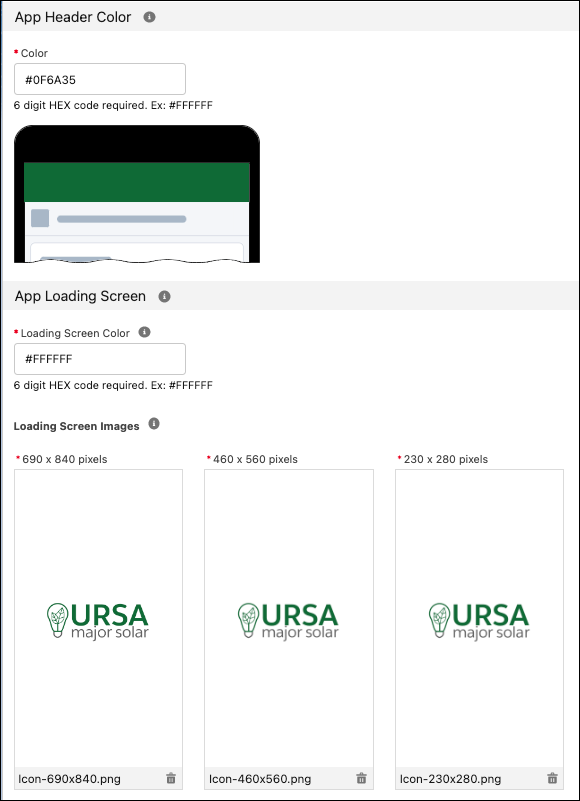
| App Header Color | |
| Color | Background color for the header of the app. Color format is six HEX digits. Must start with #. See the Examples section for images. |
| App Loading Screen | |
| Loading Screen Color | Background color for the loading screen that appears when the app launches. Color format is six HEX digits. Must start with #. See the Examples section for images. |
Loading Screen Images:
|
Images for the loading screen that appears when the app launches. 32-bit transparent PNG. Use images with the same design at different sizes. See the Examples section for images. |
| Icons | |
App Store Icon:
|
Shows in your app’s listing in the App Store. It has the same design as your mobile device icons. Requirements:
|
Mobile Device Icons:
|
Shows on the mobile device. These icons have the same design as your App Store Icon. Requirements:
|
| Salesforce External Client App | |
| Name | Appears when your users log in to your app for the first time, in the Allow Access screen. Ideally, the name is the same as your App Store Name. Max 40 characters. English only. Refer to Salesforce Help: External Client Apps. |
Icon:
|
Appears when your users log in to your app for the first time, in the Allow Access screen. Ideally, it has the same design as your Mobile Device Icons. The corners of the icon aren’t rounded automatically. Apply rounded corners to the icon manually. PNG format and max 100 KB. |
| App Store Screenshots | |
iPhone 6.7” Screenshots:
|
Requirements:
Refer to Submit your iOS apps to the App Store. |
iPhone 6.5” Screenshots:
|
Requirements:
Refer to Submit your iOS apps to the App Store. |
iPhone 5.5” Screenshots:
|
Requirements:
|
iPad Screenshots:
|
Requirements:
|
| iPad | |
| iPad Opt In | Your app can run on iPad by default. Opting in ensures that your app properly scales to iPad screen sizes. |
| Country Availability | |
| Available in all countries | Select the countries where you want your app to be available. Default is all countries. If the countries that you select include China, you must obtain an Internet Content Provider (ICP) Filing Number for your app. For more information, see the “Availability in China mainland” section of App information in App Store Connect Help. |
Examples