
You are here:
Enable App Permissions for Device Capabilities
Configure the permissions that your app needs in your Mobile Publisher project in Setup.
Depending on the feature, enabling an app permission doesn’t work unless you developed and added a feature to your Experience Cloud site that uses the device capability. For example, if you enable the Contacts app permission without implementing the ContactsService Lightning web component into your mobile app, your user doesn’t receive your customized permissions prompt in the app and your app can’t access their contacts.
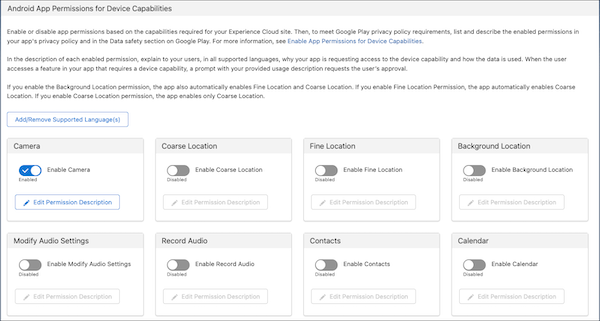
When you enable an app permission, a prompt asks for the user’s permission to allow or deny access to a certain device capability. Android and iOS support different types of app permissions.
Android
iOS
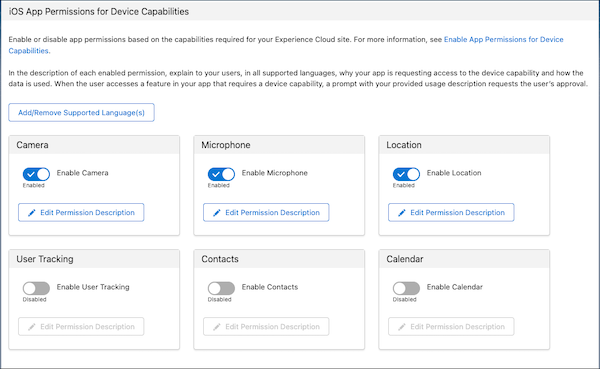
- Toggle the button for the app permission that you want to enable.
- Click Edit Permission Description.
- Write a permission description that explains to your users why your app needs
access to the device capability and how your app uses their data. Your
description can be up to 1,000 characters in length. For Android apps, make sure that your permission description follows all of Google Play’s prominent disclosure and consent requirements in their User Data policy. Review Google Play’s example format for prominent disclosure. For example, “Capricorn Cafe collects your device’s location data to enable notifications when you’re near one of our cafes.”
- Optionally, you can add the permission description in multiple languages by
selecting Add/Remove Supported Language(s).If you don’t provide the description for a language used by your app, Mobile Publisher uses the English description for that language.
- Save your changes.

See Also
- Salesforce Help: Develop and Implement Mobile Device Features Into Your Mobile Apps
- Salesforce Help: Scan Barcodes with a Mobile Device Camera
- Salesforce Help: Implement and Use Location-Based Features
- Salesforce Help: Implement a Contact Import Feature
- Salesforce Help: Access the Mobile Device Calendar
