
You are here:
Create a Briefcase
Create a briefcase by using Briefcase Builder in Setup.
Required Editions
| Available in: Lightning Experience |
| Available in: Enterprise, Performance, Unlimited, and Developer Editions |
| User Permissions Needed | |
|---|---|
| To create a briefcase in Setup: | Customize Application |
- From Setup, in the Quick Find box, enter Briefcase Builder, and then select Briefcase Builder.
- Click New Briefcase.
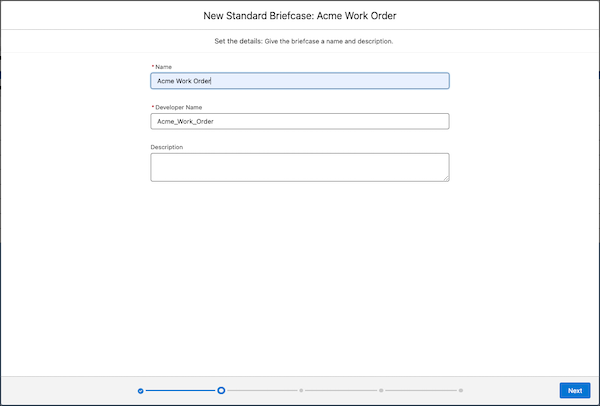
- Enter a name and an optional description for your briefcase.
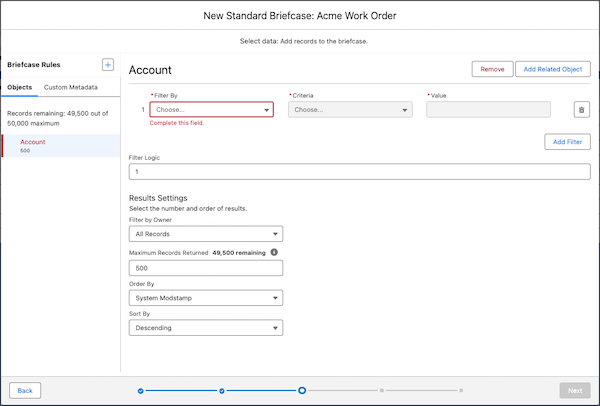
- Select the data to add to the briefcase. Use object rules to configure which objects are included in your briefcase and how the objects’ records are related to each other.
To add a top-level object rule, click the + button next to Briefcase Rules, and then click the object that you want to add. To add a related object rule, select its top-level object rule in the left pane, and then click Add Related Object.
In each object rule, use filters to specify which records from the object to include in the briefcase.
For more information on your options for object rules and filters, see Data Selection.
-
For the Offline App (Salesforce Mobile App Plus), you can optionally enable offline
priming for file attachments.
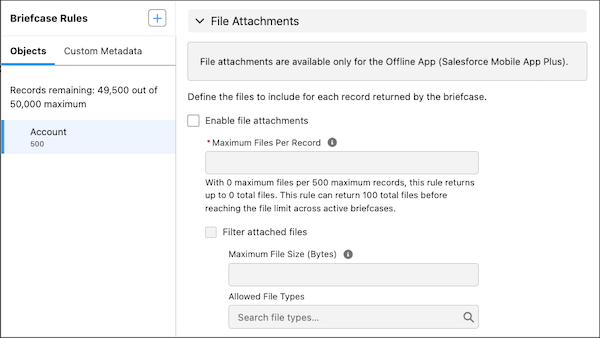
In the settings for an object rule, select Enable file attachments, and then enter the maximum number of files to return for each record. You can optionally filter file attachments by file size or file type.
The total number of files returned by an object rule is calculated by the maximum files per record multiplied by the maximum records returned. The total number of files returned by a briefcase is the sum of files returned by all object rules in the briefcase. For example, an Account object rule with 10 maximum records and 2 maximum files per record returns up to 20 files. A Contact object rule with 20 maximum records and 3 maximum files per record returns up to 60 files. A briefcase with the Account and Contact rules returns up to 80 files.
You can configure up to 100 file attachments across all active briefcases.
- If you have custom metadata types available, you can optionally add
custom metadata rules to your briefcase. For example, add a custom metadata rule to your
briefcase to support a custom flow in the Salesforce Field Service mobile app.
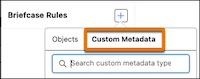
To add a custom metadata rule, click the + button next to Briefcase Rules, click Custom Metadata, and then select the custom metadata type that you want to add.
For more information on custom metadata rules, see Data Selection.
- Assign
the briefcase to users, user groups, or profiles. These assignments
determine who can access the records in the briefcase.
Only user groups are supported. Chatter groups, or collaboration groups, aren’t supported.
Users who perform various tasks can be assigned to multiple briefcases. When assigning multiple briefcases to one user, they get access to all the offline data combined from all the assigned briefcases. If a user doesn’t have access to the field used to define a dataset, then that user can’t access any records for that dataset.
- Select the connected apps that you want to associate with this briefcase. For more information on considerations for the apps that you associate with the briefcase, see App Selection.
- To save and activate the briefcase, click Activate. To save the briefcase’s settings without activating it for use, click Save.
