
You are here:
Configure the Salesforce CDN for Salesforce CMS
Use the Salesforce content delivery network (CDN) to serve Salesforce CMS content on your sites, send enhanced emails, and serve custom applications. Set a cache duration for CMS content served in Salesforce CDN channels and configure a domain that links content from your public channel to the CDN.
Required Editions
| Available in: Lightning Experience |
| Available in: Enterprise, Performance, Unlimited, and Developer Editions |
| User Permissions Needed | |
|---|---|
| To create a channel in the Digital Experiences app: | Modify All Data OR Create CMS Workspaces and Channels |
| To manage channel settings: | A CMS workspace contributor role of content admin |
First, follow these steps to Serve Your Experience Cloud Site with the Salesforce Content Delivery Network (CDN). Then create a public CMS channel.
To configure Salesforce CDN and link your domain to a public CMS channel so the Salesforce CDN can serve the content, take these steps.
- To link your domain to a public CMS channel so the Salesforce CDN can serve the content, in Lightning Experience, from the App Launcher, open the Digital Experiences app (previously named Salesforce CMS).
- To open the CMS Channels tab, click
 (1), then click CMS Channels (2).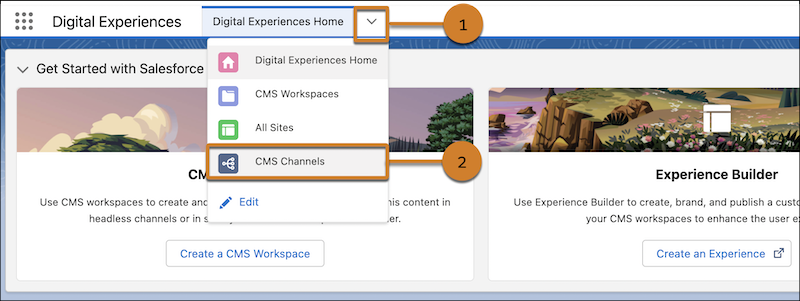
- To serve content from a Salesforce CMS workspace, edit a public channel associated with
that CMS workspace. Click
 , and select
Edit.
, and select
Edit. - To set a cache duration for CMS content served in Salesforce CDN channels, click the
General tab. Set the duration for as little as 1 hour and as many as 8,760 hours, which is
1 year.
- In a public channel or a site channel, use a long cache duration for images and documents that change infrequently, like your company logo. The default is 720 hours, which is 30 days.
- In a public channel, for other content types that change frequently and that you want to render soon after you publish, use a short duration. The default is 1 hour.
- In a site channel, the default cache duration for other content types is 1 hour, and you can’t change it.
- To configure a domain to link content associated with the public channel to the
Salesforce CDN, click the Domain tab. Select a domain from the menu and enable or disable
it.
- The default domain for public channels requires My Domain. If you don’t have a deployed My Domain, set one up and deploy it to your users.
- If you have a deployed My Domain, you can start sharing your Salesforce CMS
content to a public channel with the default domain. Select the default My Domain URL.
The default domain URL format is
https://MyDomainName.cdn.salesforce-experiences.com.
- To serve Salesforce CMS content in enhanced emails, use the Salesforce CDN as your channel domain. Create an interactive email design experience with enhanced emails in Account Engagement. Make sure that you use Connected Campaigns and Handlebars Merge Language and enable Account Engagement through a verified Salesforce Connector. Then, select a public channel associated with a CMS workspace to source your images.
Did this article solve your issue?
Let us know so we can improve!
