
You are here:
CMS Channels
CMS channels deliver published content from your CMS workspaces to an audience. Create a CMS channel, and then associate that channel with a CMS workspace. Channels can correspond to publishing endpoints such as a website or email message. Or create custom endpoint integration with third-party sites by using Salesforce headless APIs.
Required Editions
| Available in: Lightning Experience |
| Available in: Enterprise, Performance, Unlimited, and Developer Editions |
In the Digital Experiences app, you create channels and add those channels to CMS workspaces.
Salesforce supports unlimited Experience Cloud site channels and up to 300 other channels. To
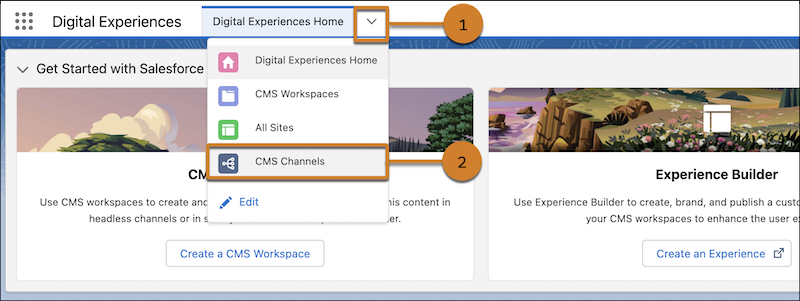
view all CMS Channels on the CMS Channels tab, click the down arrow on the tab menu  (1), and select CMS Channels (2).
Decide on a Connection Type
All CMS channels have a connection type. The connection type determines which audience can access the CMS content delivered in the channel. When you create a CMS channel in the Digital Experiences app choose from public, restricted, or the B2C Commerce Page Designer connection types. When you create a CMS channel outside of the app, the connection types can be Experience Cloud sites, Account Engagement emails (which are public connections), or external channels.
To publish content intended for a public audience or to connect content to custom applications, create a public connection type. Public connections are ideal for marketing emails, websites, and custom apps. Only public channels can have an assigned domain.
Public channel content can be served with high-performance delivery when you use a content delivery network (CDN), which you can configure in Salesforce Setup. You can assign a CDN to a public channel from within the Digital Experiences app. An easy way to get started is to use Salesforce’s CDN for Digital Experiences and a default domain hosted by our CDN partner (requires a custom domain). Or use a CDN of your choice to deliver Salesforce CMS content to your Experience Cloud site. Then, edit the channel to configure the domain.
To publish content intended for specific users such as an employee intranet, partner portal, Lightning app, or connected Salesforce app, create a restricted channel. Define a permission set and apply it to the restricted channel for the users that you want to access the content through APIs. You can’t serve restricted channel content from a CDN.

Create a Public Channel for Orgs Hosted on Hyperforce
To deliver content with high performance and low latency, orgs hosted on Hyperforce can use the Dedicated Content Delivery setting. This setting is on by default for all new public channels in an enhanced CMS workspace.
To enable Dedicated Content Delivery for existing public channels on Hyperforce, edit the channel settings. When you enable this setting, newly published content is served through Hyperforce. Existing published content is served through Hyperforce when it’s next published.
Create a Commerce Cloud Channel
To develop rich, content-driven shopping experiences for your customers by using your Salesforce CMS content and the B2C commerce page designer, create a Commerce Cloud channel.
To establish a trust relationship between Salesforce CMS and your B2C Commerce instance, contact Salesforce Customer Support or your success manager. To use your CMS content in the B2C Commerce Page Designer, your Business Manager admin must configure the connected Commerce Cloud instance in the Business Manager.
Create an Experience Cloud Site Channel
You can create a site connection by adding the site channel to your CMS workspace. First create an Experience Cloud site, then add the Experience Cloud site channel to a CMS workspace. When you publish content from a CMS workspace to an Aura or LWR Experience Cloud site channel, the content is automatically available to use in Experience Builder. To curate, organize, and publish content from a CMS workspace to Aura and LWR sites use the Digital Experiences app. When you create an Experience Builder site, ensure that it’s based on the most up-to-date Lightning template.
You can use Salesforce CMS content in sites created with all Experience Builder templates. To publish content to enhanced LWR sites with the Microsite or Build Your Own (LWR) templates, use an enhanced CMS workspace. Control user access to published content with the site settings.
Publish content to Aura site channels from CMS workspaces or from enhanced CMS workspaces with the Use non-enhanced APIs setting. This setting is enabled by default for Aura site channels and all public or restricted channels that were non-enhanced before Spring ’25. Then continue using non-enhanced CMS Managed Content Resources to get these content types from enhanced CMS workspaces. When you enable this setting, Salesforce does the work of connecting these resources for you. If you’re already using Enhanced CMS Workspaces Resources, it’s not necessary nor recommended to enable this channel setting. When you enable this setting for enhanced channels that use enhanced APIs, there’s a small performance impact.
To share and organize Salesforce CMS content with the B2B Commerce managed package or in other Salesforce Tabs + Visualforce sites, use the API. See the Connect REST API Developer Guide and Apex Reference Guide.
Create an Account Engagement Email Channel
To share Salesforce CMS content with your Account Engagement email design materials, create a public connection type and use Salesforce’s CDN for Digital Experiences as the domain for that CMS channel. See the Configure Salesforce CMS for Account Engagement Email help.
Create an External Channel
Deliver your Salesforce CMS content across all the places your customers consume it. Use our headless APIs to connect to external third-party sites. See the Connect REST API Developer Guide and the Apex Reference Guide.
- Create and Manage CMS Channels
To deliver content from Salesforce CMS workspaces to your audience, create a CMS channel in the Digital Experience app. Select a channel type, and configure the channel’s settings, depending on your use case. Edit channel settings at any time, and when you no longer need the channel, you can delete it from your org. - Configure the Salesforce CDN for Salesforce CMS
Use the Salesforce content delivery network (CDN) to serve Salesforce CMS content on your sites, send enhanced emails, and serve custom applications. Set a cache duration for CMS content served in Salesforce CDN channels and configure a domain that links content from your public channel to the CDN. - Preview Salesforce CMS Content on Your Site
See how your CMS content looks on your Aura, LWR, or enhanced LWR site on a desktop or mobile device. You can preview image, document, news, or custom content types in any status on site channels connected to the CMS workspace. - Collections in Enhanced CMS Workspaces
A collection is a set of CMS content items. Collections keep content items grouped and ready to use in your channels. You can create collections right from your enhanced CMS workspace. - Enable Search for Content in CMS Channels
Make finding CMS content easier for your users. Configure search within all your channels, including Experience Cloud sites, Commerce Cloud, Marketing Cloud Engagement, Heroku, LEX apps, and more.
